When a client rings, texts or asks you in person, you can put them in your diary yourself, at the time you've agreed. It can be a time your booking page wouldn't offer, such as an evening outside your hours. They get the usual confirmation email unless you untick it, and you choose how they're paying: nothing, their package, money they've already given you, money they'll bring on the day, or a link to pay by card.
If they're coming at the same time every week, it's probably easier to set up regular sessions for them.
Book an appointment for a client
- Go to BookingsAppointments and choose Create appointment.
- Under Find a person, type their name or email and choose them from the list. If they're new, choose Add someone new and fill in their Name, Email and, if you like, Phone (optional).
- Choose the Service, who it's with and the Date. If the service has more than one price, pick one under Price.
- Under Time, pick one of the free times, or choose Another time… to type your own (see Book a time outside your usual hours).
- Under Payment, say how they're paying. If the service is free, you aren't asked.
- Leave Send confirmation email ticked if you'd like them to get an email, then choose Create appointment.
You'll see Appointment created, and they're added to BookingsPeople if they're new.
 (opens the full-size picture in a new tab)
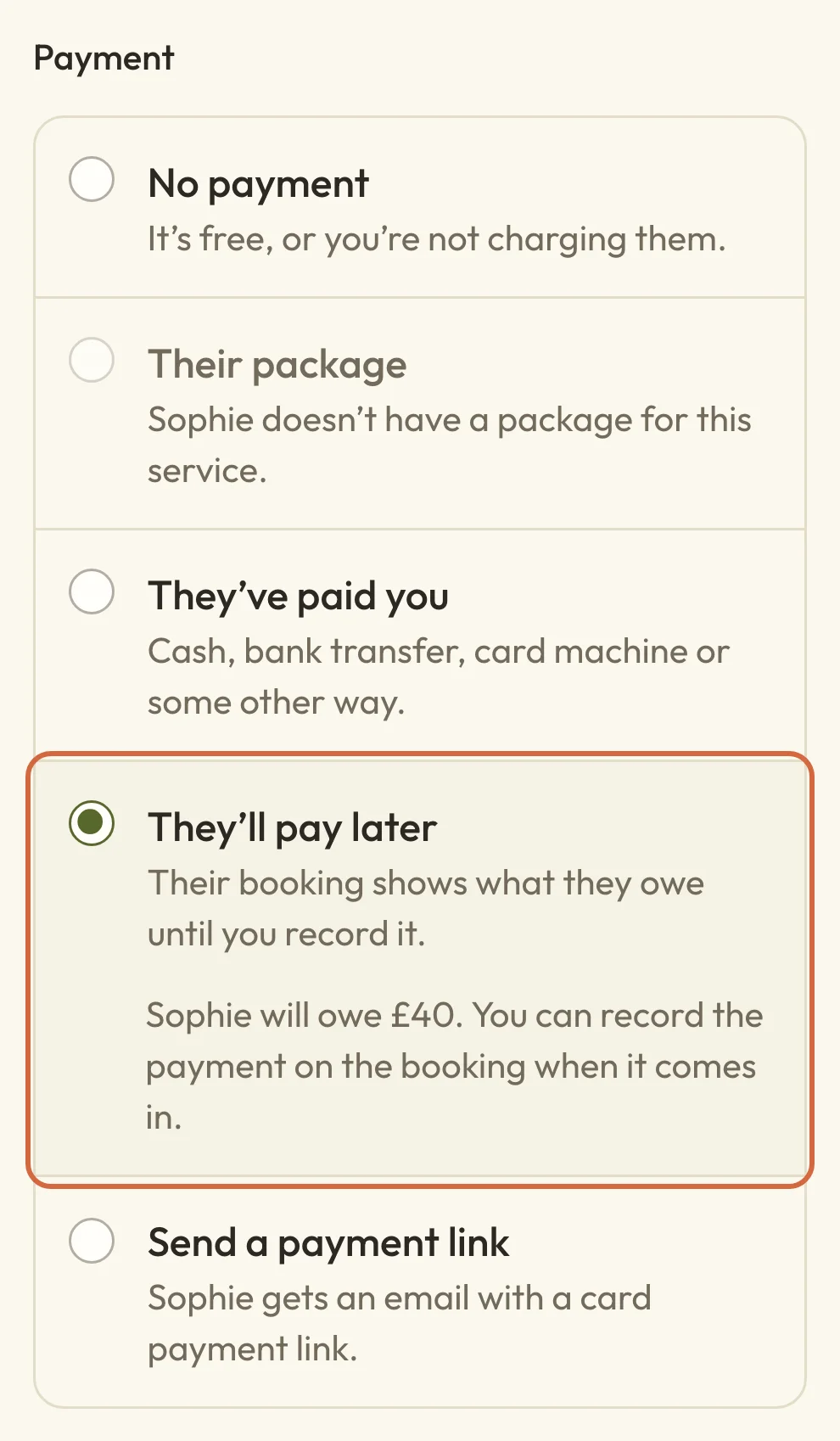
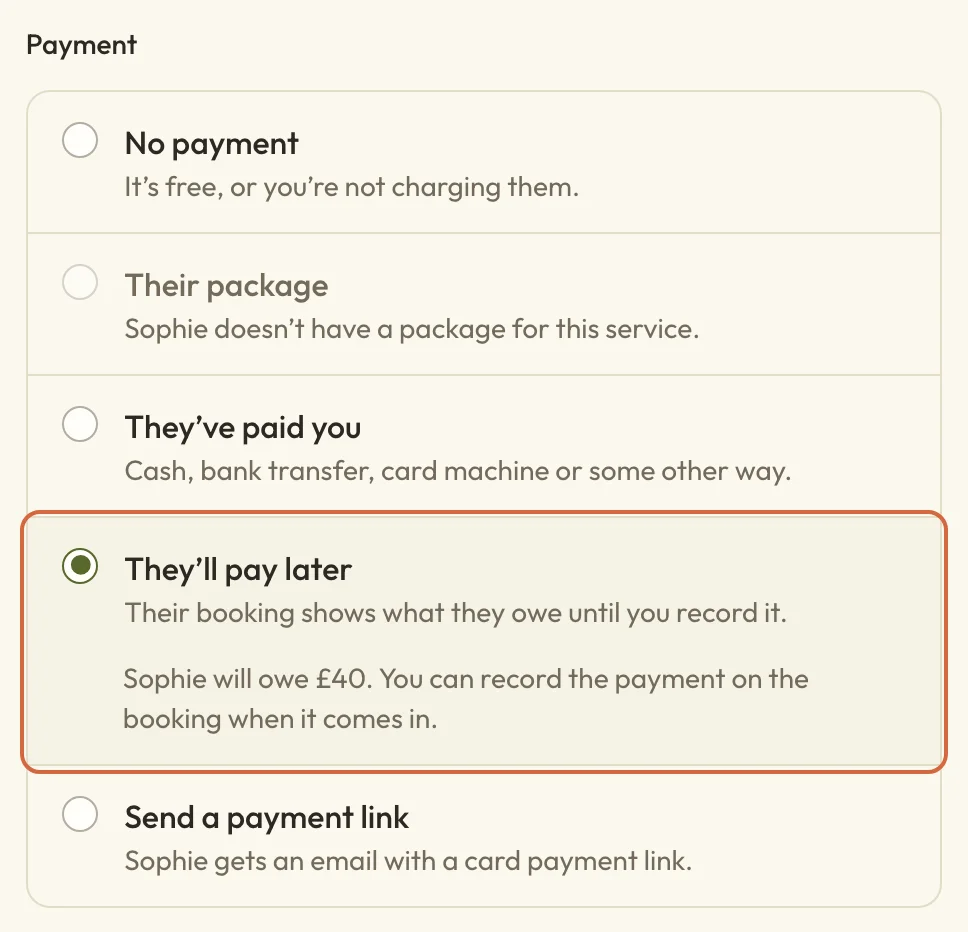 (opens the full-size picture in a new tab)Choose how they're paying before you create the appointment.
Check it's in your diary
The calendar moves to the day you booked, so the new appointment is there to see. If you were on List, it's in your upcoming appointments by date. Tapping the appointment opens it, with the time, the client and what they still owe.
Under Appointment created there's also Make this a regular session, if you've just realised they'll want the same time every week. If you miss it, it's on the appointment's own page too.
Book a time outside your usual hours
The times listed under Time are the free times within your usual hours and booking rules. To book something else, such as an evening, a weekend or a time that's sooner than your usual notice allows:
- Under Time, choose Another time….
- Type the time they're starting under Start time.
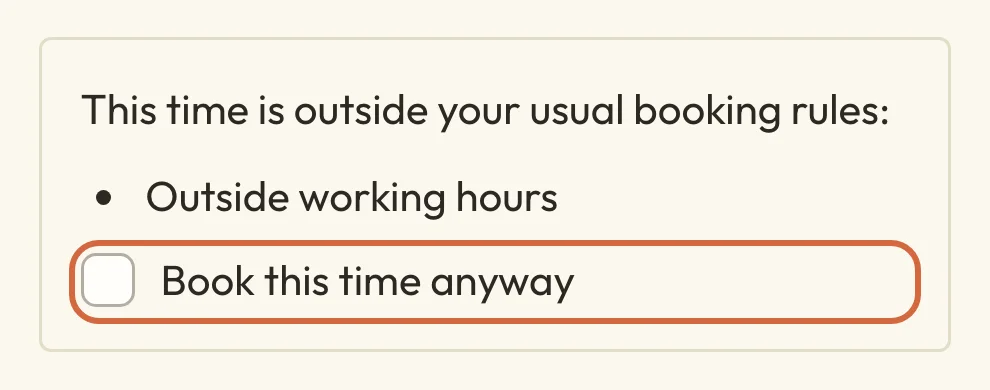
- If it's outside your usual booking rules, you'll see which ones, such as Outside working hours. Tick Book this time anyway.
Booking an extra time like this doesn't change your hours, so your booking page carries on offering the same times as before. To change those, see Set your appointment hours.
 (opens the full-size picture in a new tab)
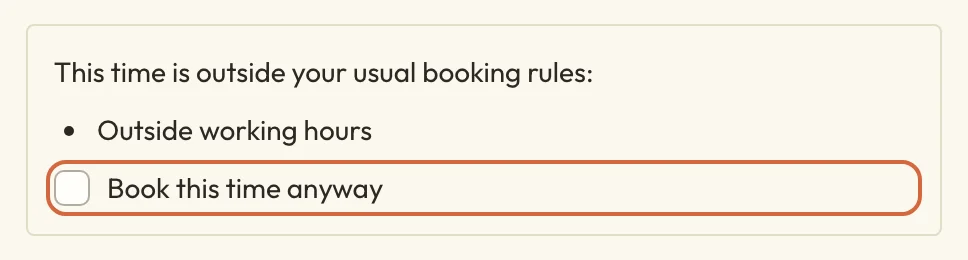 (opens the full-size picture in a new tab)Tick Book this time anyway to book outside your hours.
If there are no times
If nothing's free that day, you'll see "There are no bookable times on this date. Choose Another time to book outside your usual hours." You can try another day, choose someone else if you work with a team, or use Another time… as described above. If you expected free times, check your hours and time off in Set your appointment hours.
Does your client get an email when you book them in?
When you book a client in, they get an email if Send confirmation email is ticked, which it is to start with. They'll get a "You're booked" email with the date, time, who it's with and a link to change or cancel. If they're paying you later, it tells them how much they'll pay you directly. You'll get your usual email about a new booking too.
Untick Send confirmation email if they'd rather not hear from you, or you've already told them everything. A payment link still goes out if you chose Send a payment link, and your own booking notifications still go out.
If they've only given you a phone number
To book a client who's only given you their phone number, you'll need an email address for them too. The form says why: "We keep their bookings under their email, so we need one even if you don't send them anything." So ask for it when you agree the time. If they don't want emails from you, untick Send confirmation email.
Their phone number is saved to their record in BookingsPeople. If you want to send them a payment link by text or WhatsApp, use Copy payment link on the appointment afterwards (see Send a payment link).
Say how they're paying
Under Payment, choose one:
- No payment if it's free or you've decided not to charge them. Nothing shows as owed.
- Their package takes one session from a package that covers this service. If it's greyed out, they haven't got one that does. See Use a pass or membership for a booking.
- They've paid you if they've already paid in cash, by bank transfer, on a card machine or some other way. The Amount starts at the service price, so change it if they paid something different.
- They'll pay later books them in now, and the appointment shows what they owe until you record it. Use this when they're paying cash on the day.
- Send a payment link emails them a link to pay by card.
Macadamia doesn't take any money for They've paid you or They'll pay later. It keeps a note of what's been paid and what's still owed.
If they're paying cash on the day
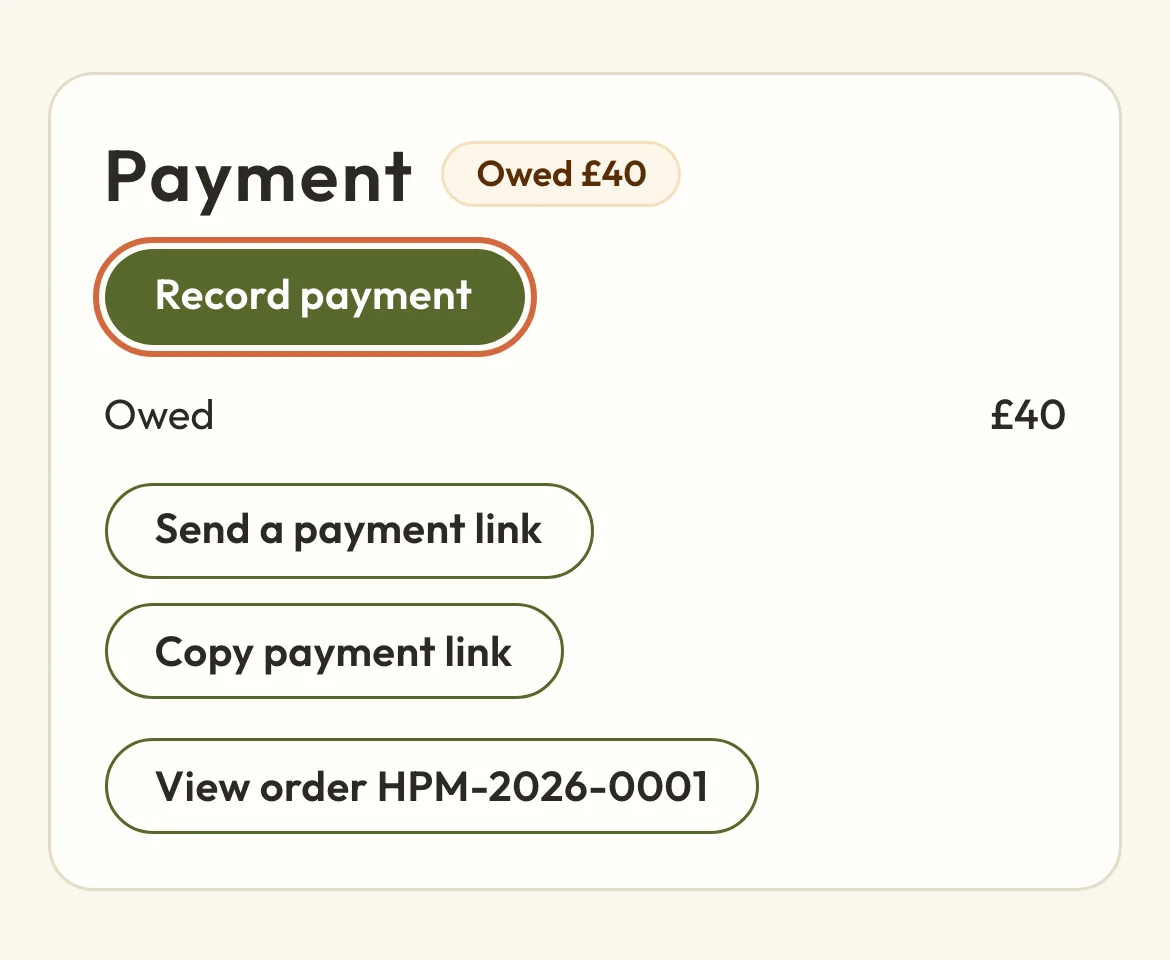
To book a client who'll pay you in cash or on your card machine when they come, choose They'll pay later under Payment. The appointment shows Owed with the amount until you record the payment.
When they've paid, open the appointment and, under Payment, choose Record payment. The amount starts at what they owe, and you choose how they paid and the date. If you decide not to charge them after all, choose They don't need to pay. There's more in Record a payment or clear what's owed.
 (opens the full-size picture in a new tab)
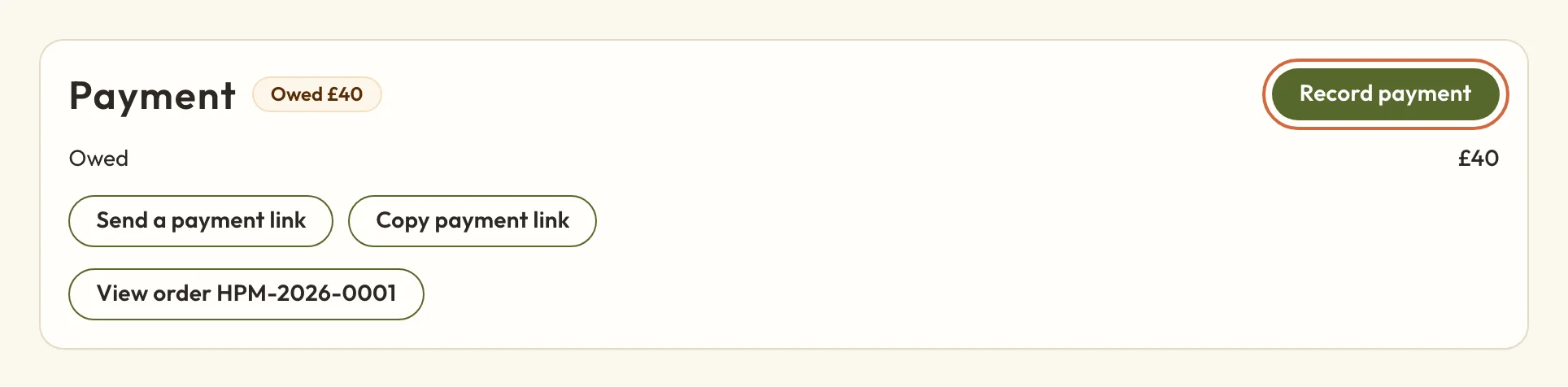 (opens the full-size picture in a new tab)What they owe, and the ways to settle it, on the appointment.
Send a payment link
Choose Send a payment link under Payment to email your client a link to pay by card. The link goes out as soon as you create the appointment, as its own email. It's sent even if you untick Send confirmation email. Until they pay, the appointment shows what they owe. You'll need Stripe connected for this, and until then it's greyed out with "Connect Stripe to send payment links." See Set up online payments.
You can also send a link afterwards. Open the appointment and, under Payment, choose Send a payment link to email it, or Copy payment link to paste it into a text or WhatsApp message yourself. To chase a link they haven't used, see Follow up money you're owed.
If they pay you another way instead, record it with Record payment, and the link stops asking for that money, so they can't pay twice.
If the email belongs to someone you already have
If you add someone new with an email that's already in BookingsPeople, the form switches to that person, which keeps their bookings together. The name and phone you typed won't change their record. If that's not who you meant, choose Change person and fix the email.
If you can't choose the person
If the person you've picked has no valid email address, you'll see a note saying they need one before you can book them. Their name opens their page in a new tab, so you can add their email there. When you come back, the form picks up the change and you don't need to start again.
If you're a team member booking for yourself
Team members who can manage appointments can book their own clients, for the services they offer. The box is called Find a client, and a name only finds people you've added yourself, had an appointment with or sold a package to. To find someone else at the business, type their full email address. If they're there, you'll see their name and email and nothing more. If no one has that email, you can add them as a new client from the same list.
What you can't do yet
Memberships can't pay for appointments you book this way yet.
To move an appointment later, see Move an appointment to a new time. To cancel one, see Cancel an appointment.