When a client can't come, you can cancel their booking and decide what happens to their money in the same dialog. Nothing is cancelled or refunded until you choose the last button, and that button says what's about to happen, such as Cancel and refund £12.00. Your client gets one email about it, and for an appointment you can choose not to send it. You don't have to refund anyone: your cancellation policy picks a choice to start with, and you can change it.
If they'd rather come another week, moving them might suit you both better than a refund. Move to another date is on the same menu, and Move a booking to another date or class explains it.
Cancel someone's place on a class or workshop
When a client can't come to a class or workshop, you can cancel their place on that date and sort out their money in the same step:
- Open the date from Bookings. The timetable is the quickest way in: choose the class, then Open.
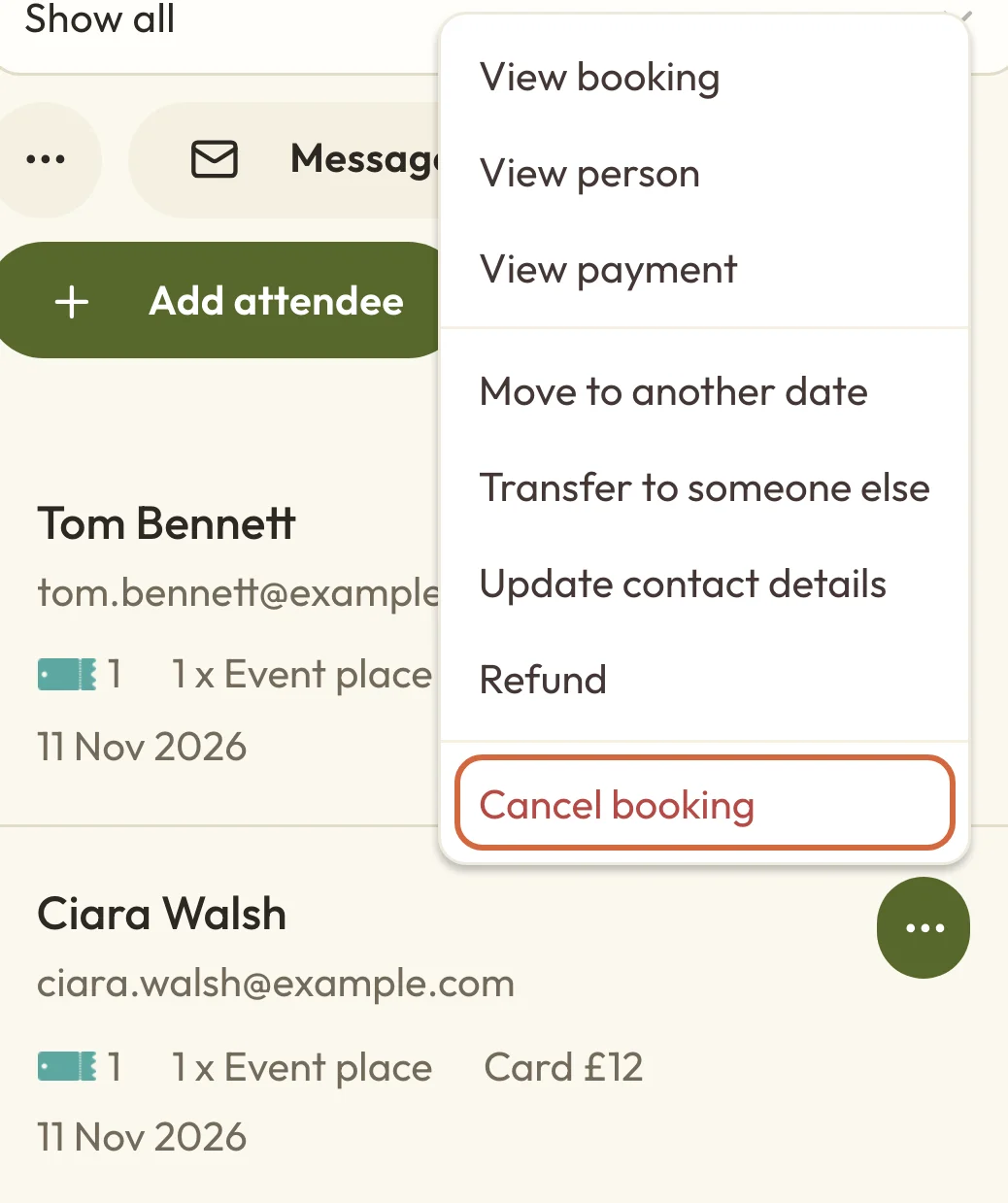
- Find the person in the list and choose Actions next to them, then Cancel booking.
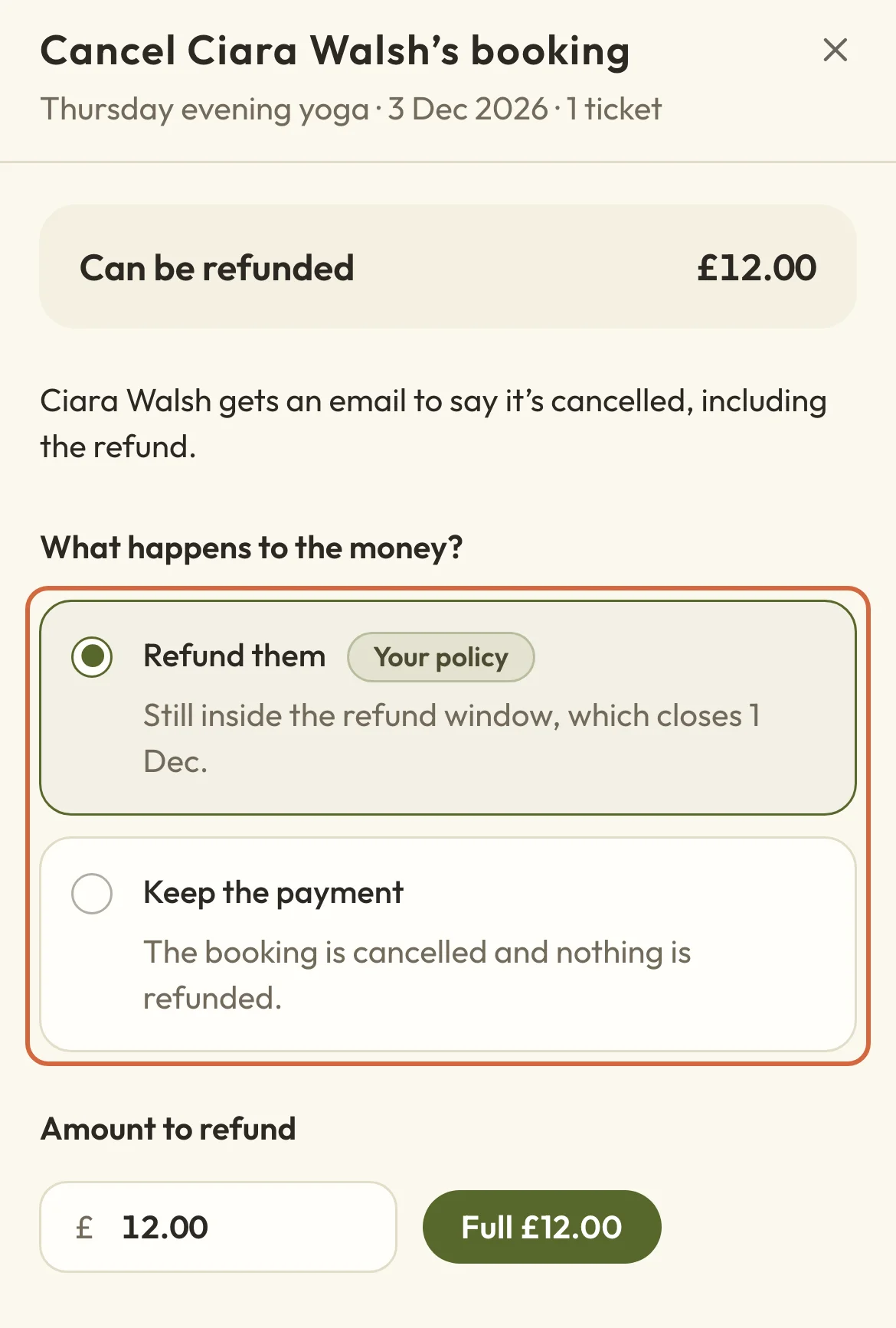
- Under What happens to the money?, check the choice. It's set to whatever your policy says.
- If you want to, change the Amount to refund or add a Reason.
- Choose the button at the bottom. It reads Cancel and refund £12.00, Cancel and restore credit or Cancel booking, depending on what you picked.
 (opens the full-size picture in a new tab)
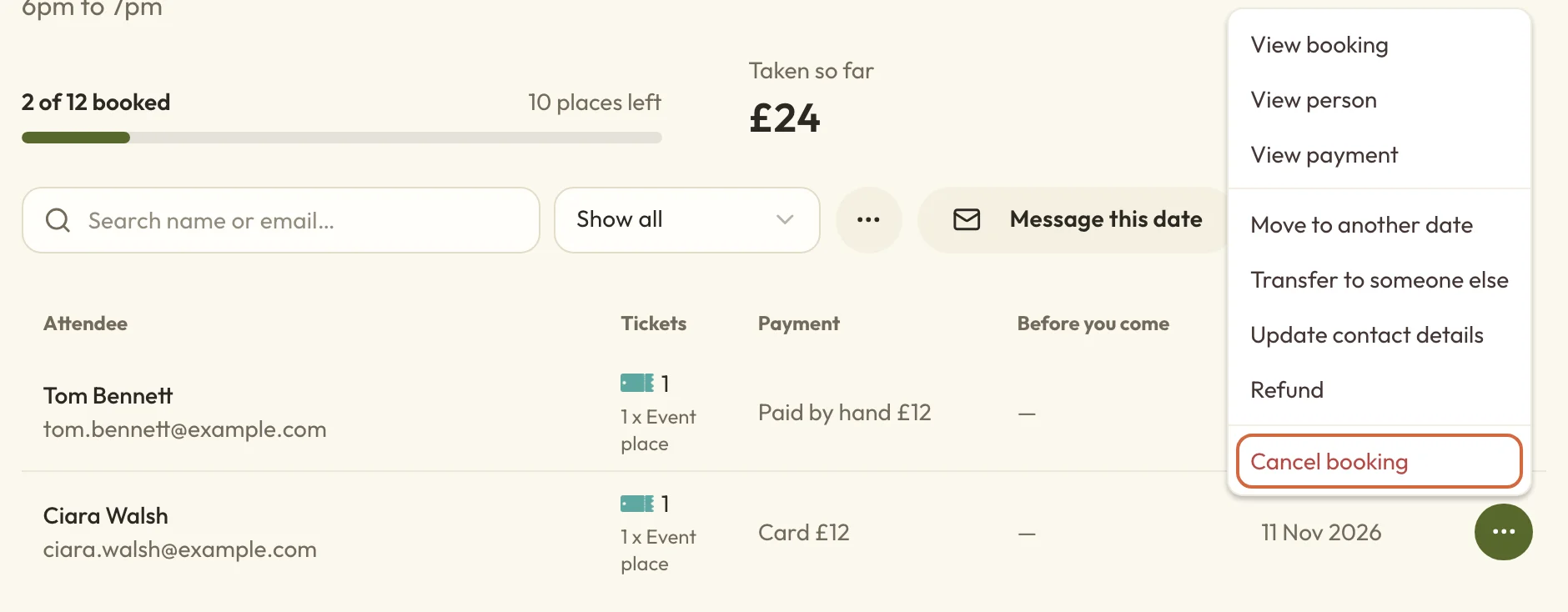 (opens the full-size picture in a new tab)Cancel booking is on the Actions menu for each person on the date.
Their place is freed straight away and the booking shows as Cancelled on the list. You can also cancel from inside the booking: open it with View booking and use the ⋯ menu next to their name.
Choose whether to refund or keep the payment
When you cancel someone's class booking or appointment, you don't have to refund them. If they paid, the dialog asks What happens to the money? and offers Refund them or Keep the payment. The one that matches your cancellation policy is marked Your policy and picked for you, but you can choose the other.
If they're still inside your refund window, the dialog picks Refund them and tells you when the window closes. If the window has closed, it picks Keep the payment, and the other choice reads Refund them anyway. Keep the payment cancels the booking and gives nothing back.
When you keep the payment because your policy says so, your client's email tells them what they paid and gives your policy as the reason, for example "You paid £12. Stillwater Meditation's cancellation policy doesn't give refunds this close to the start." If you keep it when your policy would have refunded them, the email doesn't mention the money, so you can explain it to them in your own words.
 (opens the full-size picture in a new tab)
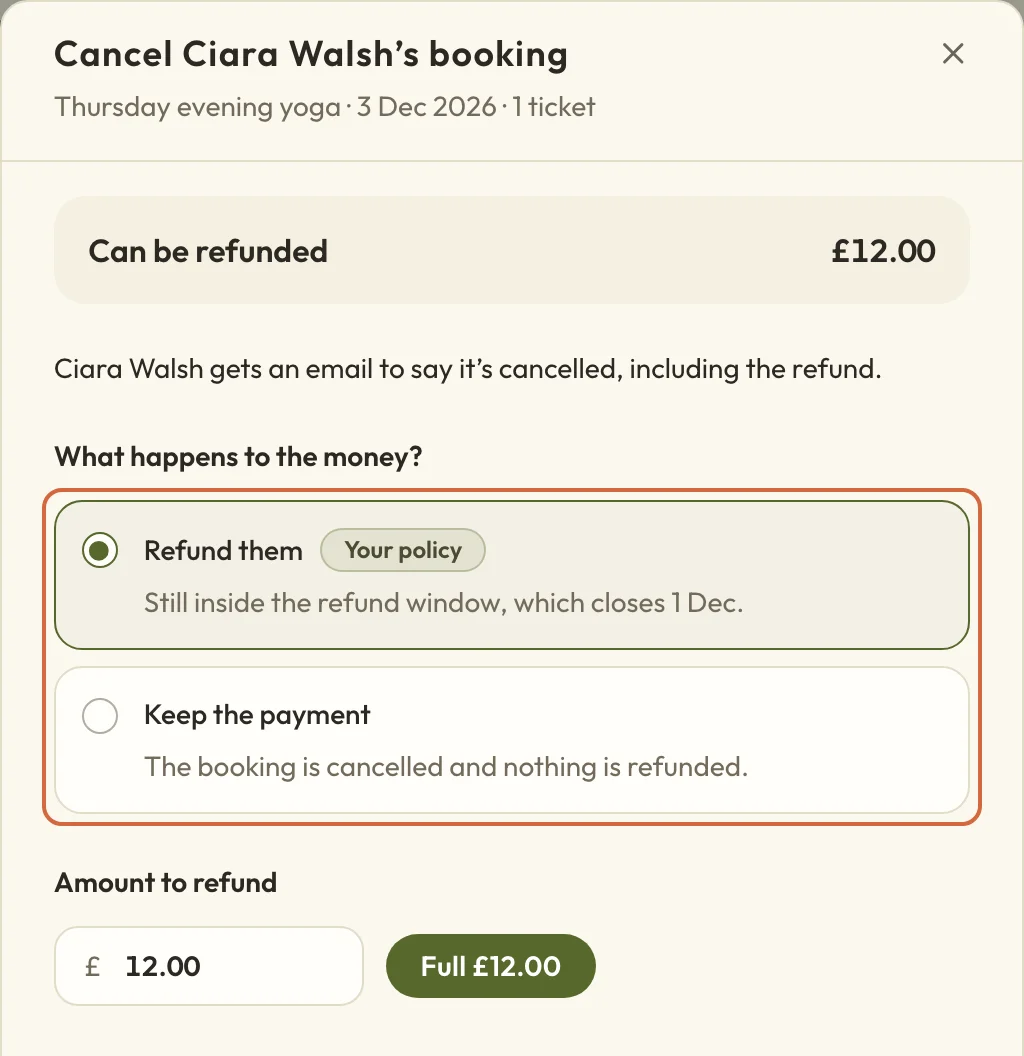 (opens the full-size picture in a new tab)The choice marked Your policy is picked to start with.
For classes, workshops and courses, the policy that counts is the one you had when they booked. Changing your settings now won't change what the dialog suggests for bookings you've already got. You set the refund window for classes in Set event defaults and categories, and for appointments in Set appointment policies.
A free booking, or one covered by a membership, has no money to give back, so the dialog skips the money question.
Refund part of what they paid
When you choose to refund, the Amount to refund starts at the full amount. Change it to give back part of the payment, or choose the full-amount button, such as Full £12.00, to go back to refunding all of it.
You can add a Reason too. It's included in the email your client gets, so write it with them in mind.
Give back a pass credit when you cancel
If someone booked with a pass, the dialog asks What happens to the money? and offers Return 1 pass credit (or however many they used) or Don’t restore the credit. Your policy's choice is picked for you, and you can change it.
Returning a credit puts it back on the pass they used, so they can book something else with it while the pass is still valid. It doesn't extend the pass's expiry date. If the pass has already expired, the dialog tells you, and you can extend it from the client's pass with Adjust pass details. A returned credit isn't a money refund, and nothing is paid out.
If you don't restore it, the booking is cancelled and the credit stays used. The button reads Cancel and restore credit or Cancel booking.
If they paid you in cash or by bank transfer
For money you took yourself, such as cash, a bank transfer or your card machine, Macadamia can't send anything back. Give them the money back first, then cancel as usual. Under Refund to you'll see Record a refund, which notes the refund on the booking and in your figures, so they match what you've given back.
Before the button will work, tick I’ve given this money back to them. Your client's email then says the money has been given back to them directly. If you're keeping the money, choose Keep the payment instead and there's nothing to tick.
Cancel a booking that hasn't been paid for yet
If a client hasn't paid yet and wants to cancel, go ahead as usual. Cancelling the booking clears what they owe. There's no money question in the dialog, just a Reason if you'd like to give one, and they drop off MoneyOwed to you.
Choose where the refund goes
The dialog shows where the money will go before you confirm.
- A card payment goes back to the card they paid with. If they paid partly with site credit, that part goes back to their account as site credit.
- Money you took yourself shows Record a refund, as above.
- To refund someone as site credit instead of money, turn on Allow site-credit refunds first (see Choose how customers pay). Then Refund to lets you pick Original payment or Site credit. Site credit goes on their account for next time they book.
How long a card refund takes, and what it costs you
A card refund leaves straight away, but their bank usually takes around 5 to 10 working days to show it. If the client asks, open the payment in MoneyPayments to see the refund and its reference (Find a payment or refund has the details).
The refund comes out of your next Stripe payout. Stripe doesn't usually give back the fee it took on the original payment, so after a full refund you're likely to be out by that fee.
Cancel an appointment
To cancel an appointment, go to BookingsAppointments, switch to List, and open the ⋯ menu on the appointment, then choose Cancel. Or open the appointment and choose Cancel appointment at the top.
The dialog has the same money choices as a class, and the button changes to match, such as Cancel appointment or Cancel and refund £40.00. Your client gets an email to say it's cancelled, unless you untick the box that offers to email them about the cancellation. The line under it says whether we'll email them.
Cancel someone's place on a whole course
A course place is one booking that covers every session, so cancelling it takes the person off all of them. Open the course, go to BookingsAll eventsAttendees, choose Actions next to them, then Cancel booking. The dialog offers the money choices for the whole course price.
You can start from the list on one session date too. Cancel booking there opens the same dialog for the whole course place, and it names the course at the top so you can check. If they're only missing one week, leave the booking as it is.
Refund without cancelling
Sometimes you want to give some money back but keep the booking, for example if a class was cut short. They keep their place, and nothing else about the booking changes.
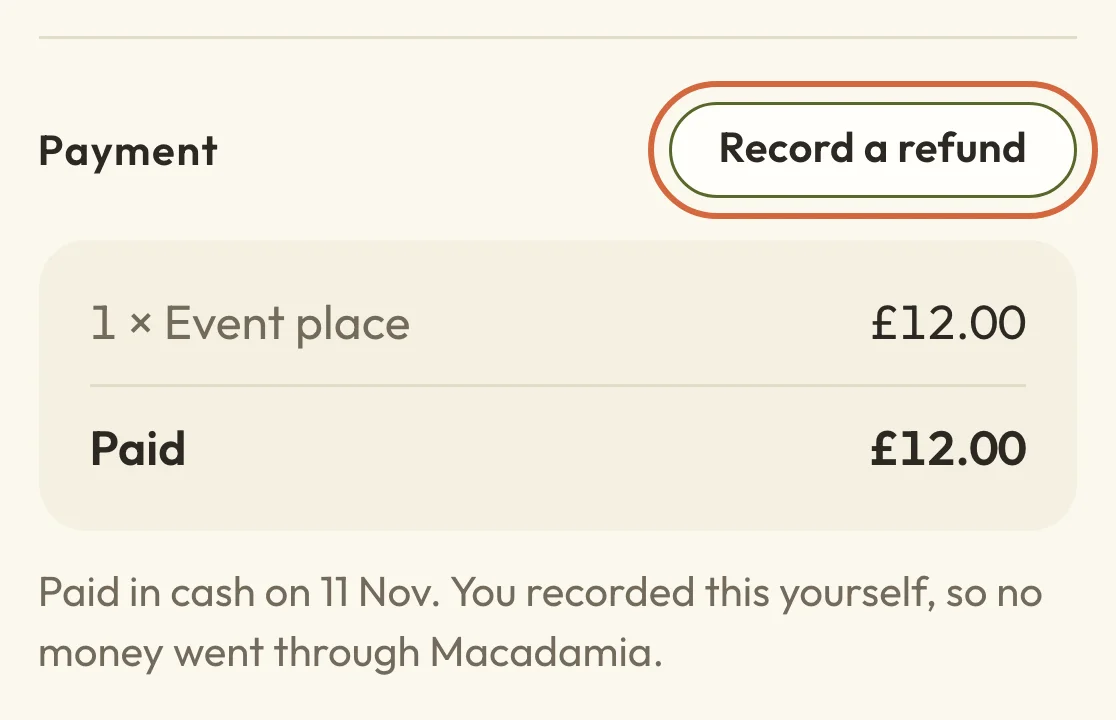
- For a card payment, choose Actions next to them on the date's list, then Refund. For money you took yourself, there's no refund on that menu: choose View booking and use Record a refund under Payment.
- The dialog shows what they paid, any earlier refunds and what Can be refunded. Change the Amount to refund for part of it, or leave it for all of it.
- Add a Reason if you like, then choose the button, such as Refund £12.00.
If you're refunding all of it and they're not coming after all, the dialog points you to Cancel their place instead. That closes the refund and opens the usual cancel dialog for the booking, where you can choose to refund them as you cancel. It only shows while the booking can still be cancelled. A part refund never cancels anything.
 (opens the full-size picture in a new tab)
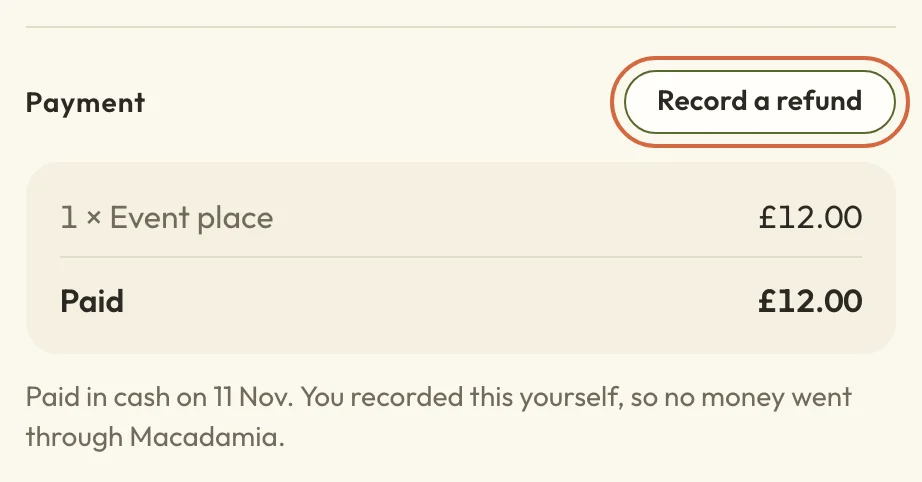 (opens the full-size picture in a new tab)For cash and other payments you recorded, the refund is inside the booking, under Payment.
For an appointment, open it and choose Refund on its Payment card. The appointment stays booked at the same time. You can also refund any payment from MoneyPayments, where each one has Refund and Cancel booking.
Give back a non-refundable deposit
A deposit you've marked as non-refundable is kept back when you cancel or refund a booking. The cancel dialog and the refund dialog both have an unticked box to include it, labelled with the deposit amount, such as Also refund the £12.00 deposit. Tick it to give the deposit back as well, or leave it and the deposit stays with you.
The box is only for one booking at a time. If you cancel a whole date or course run, the review starts on a full refund, which gives the deposit back unless you change the amount.
When a booking can't be cancelled
Sometimes the dialog says This booking can’t be cancelled now. That happens if it's already cancelled, if a payment is still going through, or in some cases once the session has started.
A closed refund window doesn't stop you cancelling. It only changes which choice is picked to start with, and you can still refund.
Does your client get an email when you cancel?
Yes, unless it's an appointment and you untick the email. Your client gets one email when you cancel. It says the booking is cancelled, and includes any refund or returned credit and your reason. If your policy kept their payment, it says what they paid and why it isn't being refunded. If you refund without cancelling, they get a refund email instead.
Clients can cancel for themselves too, from the Change or cancel this booking link in their confirmation email, as long as your settings allow it. Manage your bookings explains what they can change.
You can change the wording of these emails in SettingsEmails, such as When you cancel someone's event booking, Refund you give for an event booking, Refund you give for a course place and When an appointment is cancelled. See Change the wording of your booking emails.
If a refund doesn't go through
If a card refund fails, or we can't confirm it worked, it shows in MoneyPayment problems. Don't refund again until you've checked whether the first one went through. Sort out a payment problem explains each case.