All your appointments are in BookingsAppointments. From there you can check who's coming today, answer a booking request, move an appointment to a new time, mark someone who didn't turn up and keep notes on a session.
To book someone in yourself, see Book an appointment for a client. To call an appointment off, see Cancel an appointment.
See who's coming today
To see who's coming today, go to BookingsAppointments and choose Calendar, then Day. Each appointment shows the client, the service and the time, and you can choose one to open it. The arrows move you a day at a time, and Today brings you back.
On a computer, each person on your team has their own column. On a phone you'll see one person at a time, and if you work with others you can switch between them from the menu above the calendar.
Shaded hours are outside working hours. Choose an empty time to start booking it. Time set aside for a client's regular sessions shows as Held for and their first name. Cancelled appointments stay hidden unless you turn on Show cancelled.
See your whole week
Choose Week on the calendar to see seven days at once. The menu above the calendar picks whose week you're looking at, and Whole team puts everyone in one view. On a computer, choose a day's heading to see it hour by hour. On a phone, choose a day from the strip to see what's on.
The page remembers whether you last used the calendar or the list, so it should open the same way next time.
Find a client's appointment
The list is the quickest way to find one person's appointment. Go to BookingsAppointments and choose List, then pick Upcoming, Past or No-shows.
To search, type a name, email address or service and press Enter. You can also narrow the list by team member or service, and turn on Show cancelled to include cancellations. On a phone, all of this is behind Filters. If nothing matches, Clear filters takes you back to everything.
Each appointment says how it's being paid for, such as Package, Card £40 or Owed £40. Choose it to open the appointment, or use its menu, where View record opens the same page. The list shows 50 at a time, with Next and Previous at the bottom.
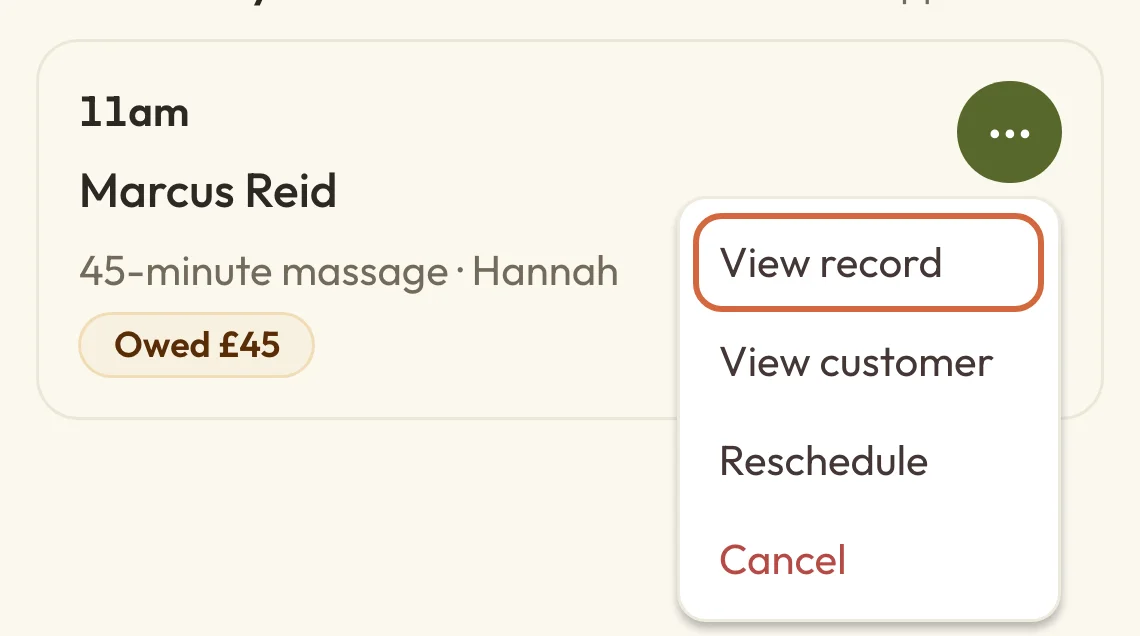 (opens the full-size picture in a new tab)
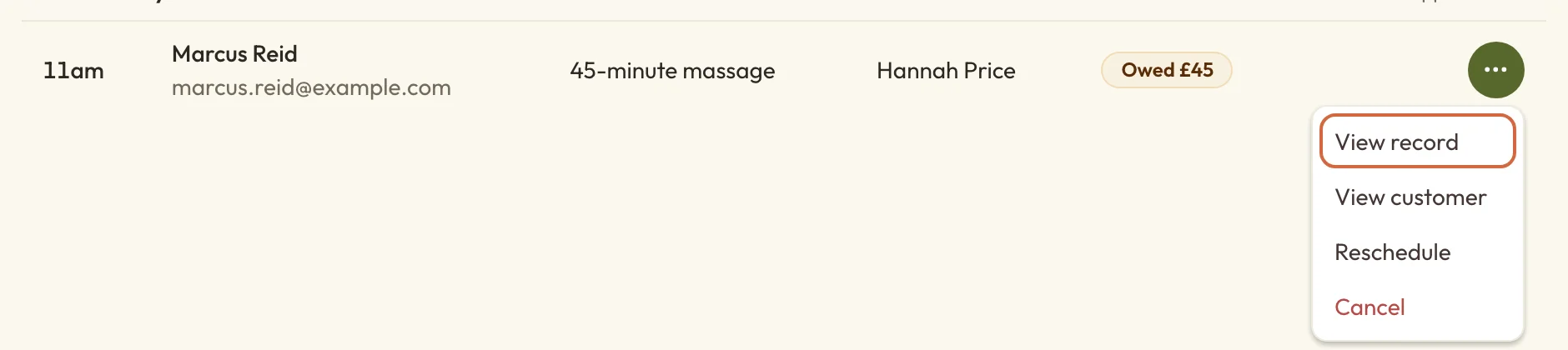 (opens the full-size picture in a new tab)View record opens the appointment, where you'll find everything you can do with it.
Approve or decline an appointment request
Some services ask you to approve each booking before it's confirmed. When someone asks for one, Appointments tells you how many are waiting, and a Waiting for approval tab appears in the list.
- Choose Approve to accept. It's confirmed straight away, with no second step, and your client gets their confirmation email.
- Choose Decline if you can't take it. You can add a message, which goes into their email exactly as you write it, and then choose Decline appointment. The time goes back on your booking page. You can't undo this, but they can book again.
The time is held for your client until you decide. If a request is still waiting when the appointment was due to start, they're told it couldn't go ahead. You can't move a request to another time until you've approved it.
Move an appointment to a new time
If a client wants to move their appointment to another day or time, you can do it for them. Open the appointment, then:
- Choose Reschedule.
- Pick a Date, then a Time from the ones on offer.
- Choose Confirm reschedule.
You'll see a message with the new time. Your client gets an email with the old and new times, as long as they have an email address saved. If you'd rather tell them yourself, untick Email them about the new time (it shows their name) before you confirm. The line under it says whether we'll email them.
To move it to someone else on your team, choose the button under the current person's name first. It uses your word for the people you book with, so it might say Choose another teacher or Choose another therapist.
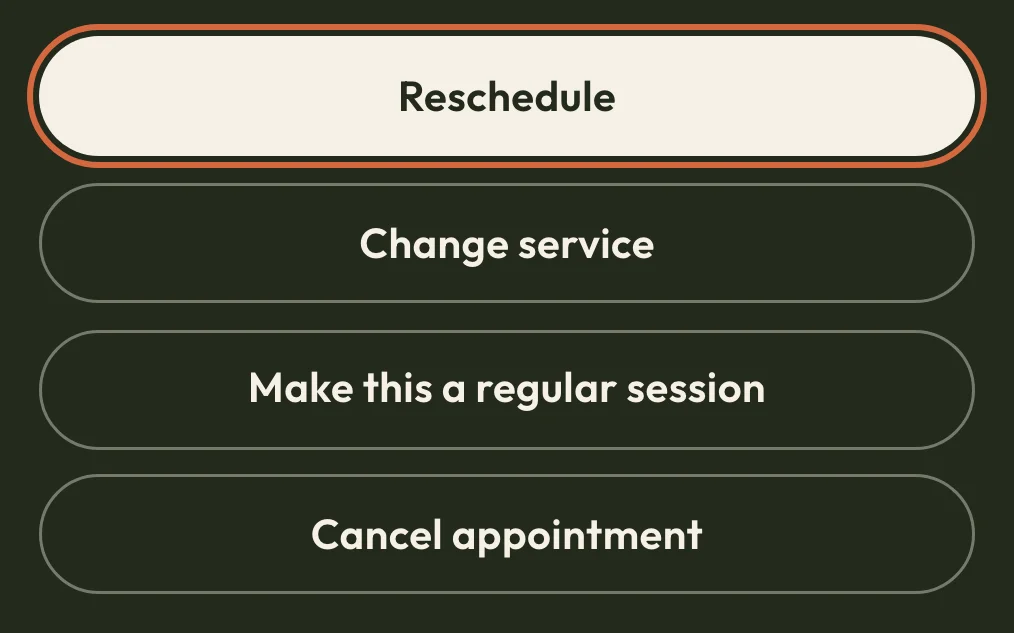 (opens the full-size picture in a new tab)
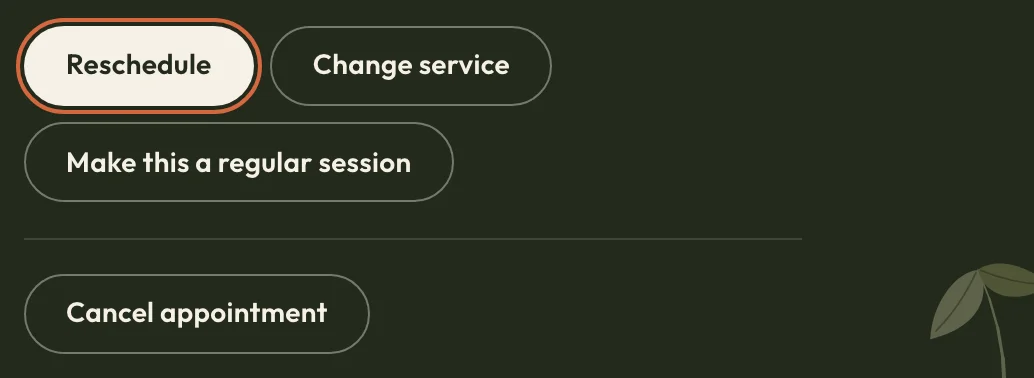 (opens the full-size picture in a new tab)Reschedule is with the other changes you can make to an appointment.
Move an appointment to a time that isn't on offer
You can still choose a date or time that isn't listed. Choose Another date… in the date list, or Another time… in the time list and type a Start time.
The time you've typed is checked against your usual rules. If it breaks one, such as your minimum notice or the gap between appointments, you'll see which one. Tick Book this time anyway if you're happy with it, and Confirm reschedule will work again.
If the time overlaps another appointment, you'll see That time’s already booked. and you'll need to choose a different time.
Move an appointment past the cut-off
You can still move an appointment after the cut-off, when it's too late for your client to move it themselves. The reschedule page shows the time they had until, next to They can move it themselves until.
When you confirm, you'll be asked Override reschedule cut-off?. If clients can't reschedule online at all, it asks Move this appointment? instead. Choose Reschedule anyway to go ahead, and the message afterwards will say the move went past the cut-off. You set the cut-off in Set appointment policies.
Reschedule one of a client's regular sessions
If an appointment is one of a client's regular sessions, it says so under the date. To reschedule it, open the appointment itself, because Reschedule there asks whether you're moving Just this session or that day from then on.
The Reschedule in the list's menu doesn't ask. Change a day or time explains the rest.
What moving an appointment doesn't change
Moving an appointment keeps what your client has paid or owes as it was, so nothing is refunded or charged again. If a payment link was due to go out and hasn't yet, its send date moves along with the appointment. Moving one appointment doesn't change any other booked dates.
Why you can't reschedule an appointment
You can't reschedule an appointment that's already happened, been cancelled or been marked as a no-show. The list's menu might still offer Reschedule on a past appointment, but the page that opens will tell you it can't be moved.
You also can't move an appointment while a payment for it is going through. You'll see a message saying so, and it's usually fine to try again shortly.
An appointment paid for with a package has two more limits. It can't move past the date the package ends, and if the package is with one person on your team, it can only move to another time with them. The page tells you when either of these applies.
Change the service on a booked appointment
If your client wants something different, you can change the service on their booked appointment and keep the start time. Open the appointment, choose Change service, pick the New service and read what the dialog says will happen to the price. Then choose Change session.
The dialog also has a box for emailing your client about the change. On a regular session, only that one date changes.
Mark a no-show if a client didn't turn up
Once an appointment has ended, you can record that your client didn't come. Open the appointment, or its menu in the list, and choose Mark as no-show. Confirm with Mark as no-show, or choose Keep appointment as it is to back out.
This doesn't cancel the booking or refund anything. It stops the follow-up email inviting them to book again, as long as that hasn't already gone out. The appointment then appears under No-shows in the list.
The option only appears on confirmed appointments that have finished. For a class, course or event, see Mark someone as a no-show.
Undo a no-show on an appointment
If you marked an appointment as a no-show by mistake, open it, choose Undo no-show and confirm. It goes back to confirmed, and this doesn't send an email or change any payment.
Keep private notes on an appointment
Each appointment's page has space to jot down what to prepare, how it went and any next steps. Your client can't see any of this. Keep private notes about a client explains how they work, including the first-time setup and who else can read them.
Download your appointments
To get a spreadsheet of your appointments, open the ⋯ menu next to Create appointment and choose Export CSV. It includes the appointments that match the list's tab, search and filters, so set those first if you only want some of them.