Once people start booking, you'll mostly want to check three things: whether someone has booked, who's coming to a class, and how to move someone who can't make it. Your Home page shows the week at a glance and has a search box for finding a person, so it's usually the quickest place to start. Looking around doesn't change anything or send anyone an email.
Find someone's booking, or check whether they've booked
Did Sarah book Thursday's class? To check whether someone has booked, or to find their booking, look them up by name and see what they've got coming up.
- On Home, type their name or email address into Find a person at the top of the page and press Enter.
- Choose their name in the list that opens. You can also get to this list from BookingsPeople.
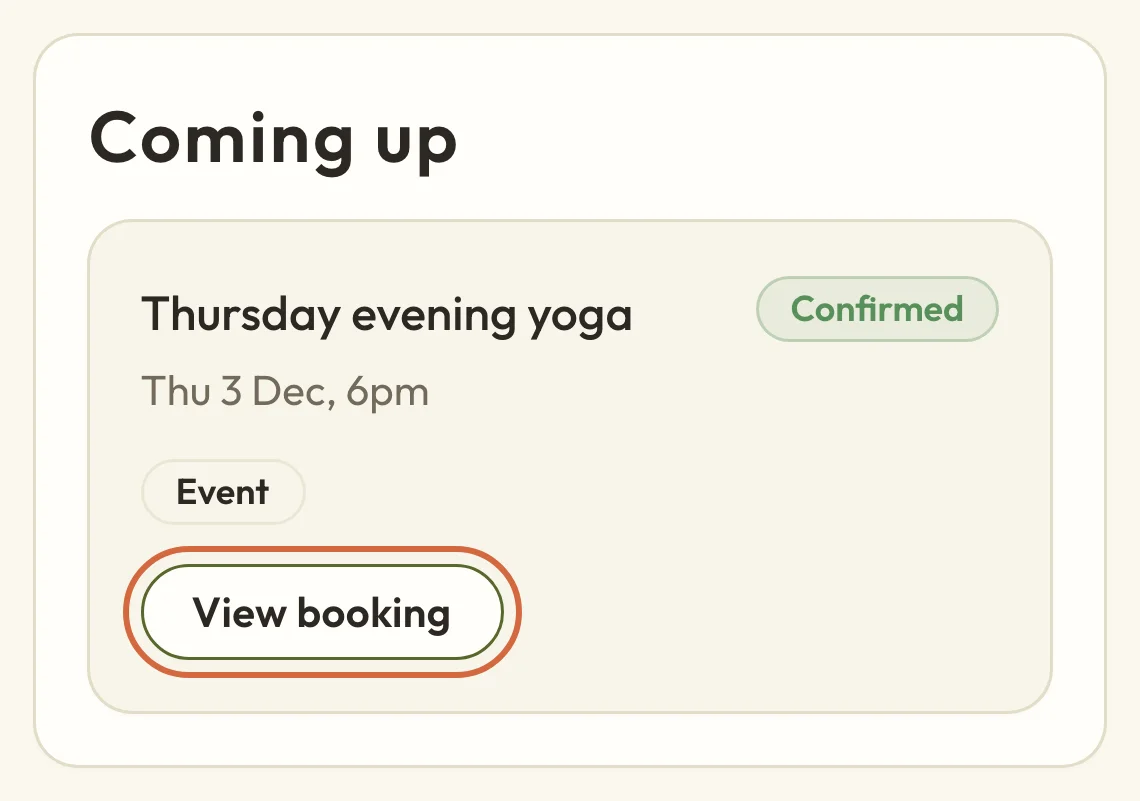
- Their next session is at the top of their page. Below it, Coming up lists everything they've booked from now on.
- Choose a booking to see the date, who's on it and how it was paid.
 (opens the full-size picture in a new tab)
 (opens the full-size picture in a new tab)Search for someone by name or email address
 (opens the full-size picture in a new tab)
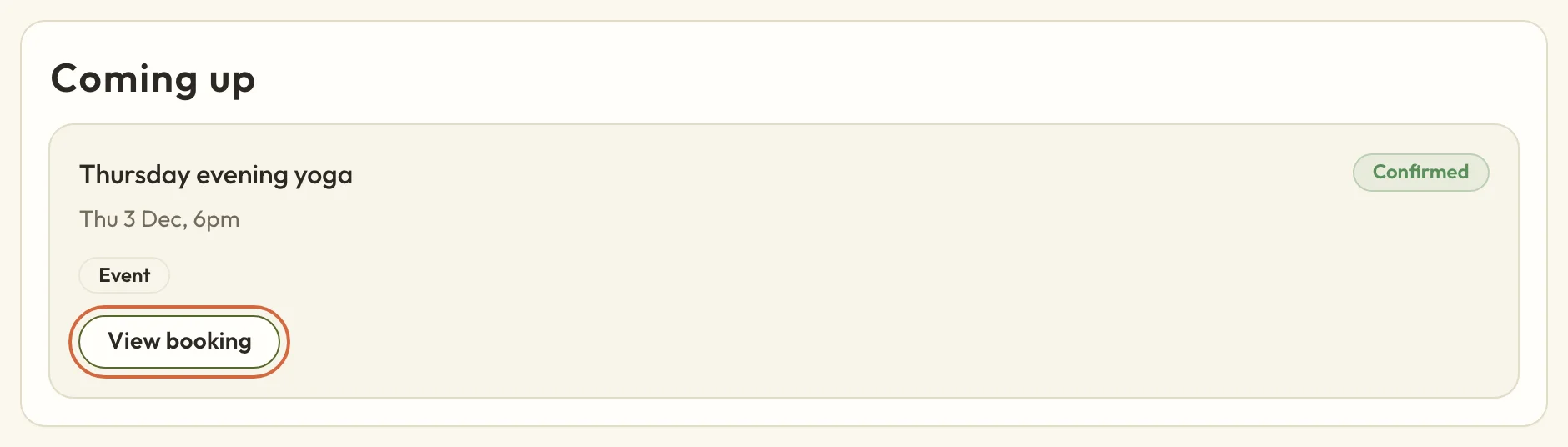 (opens the full-size picture in a new tab)Coming up lists what they've booked from now on
If they aren't under Coming up, they haven't booked anything that's still to come. Their Bookings tab lists their past bookings too. There's more about a client's page in Find a client and see their history.
If they've only just booked, Recent activity on Home might be quicker. It lists the latest bookings and cancellations, and See all activity opens the full list, which you can search. See See your booking activity and download it.
See who's coming to a class or workshop
To see who's booked on one date of a class, workshop or course, open that date.
- For whatever's on next, Next up on Home has See who's coming.
- For another day this week, choose the day under This week on Home. It opens the timetable on that day.
- For any other date, go to BookingsTimetable, find the day, choose the class and then Open.
The date's page lists everyone booked on it, with Add attendee, Take register and Message this date. Choose someone to open their booking. Everything you can do from that list is in Manage event attendees, and the timetable has its own guide, See your timetable.
For appointments, BookingsAppointments shows them on a calendar or as a list you can search. See See and manage your appointments.
Move someone who can't make their date
If a client can't make their date and wants to come on a different date instead, you can move their booking to another date yourself. Nothing is charged or refunded when you do.
- Open their booking, either from View booking under Coming up on their page, or by choosing them on the date's list.
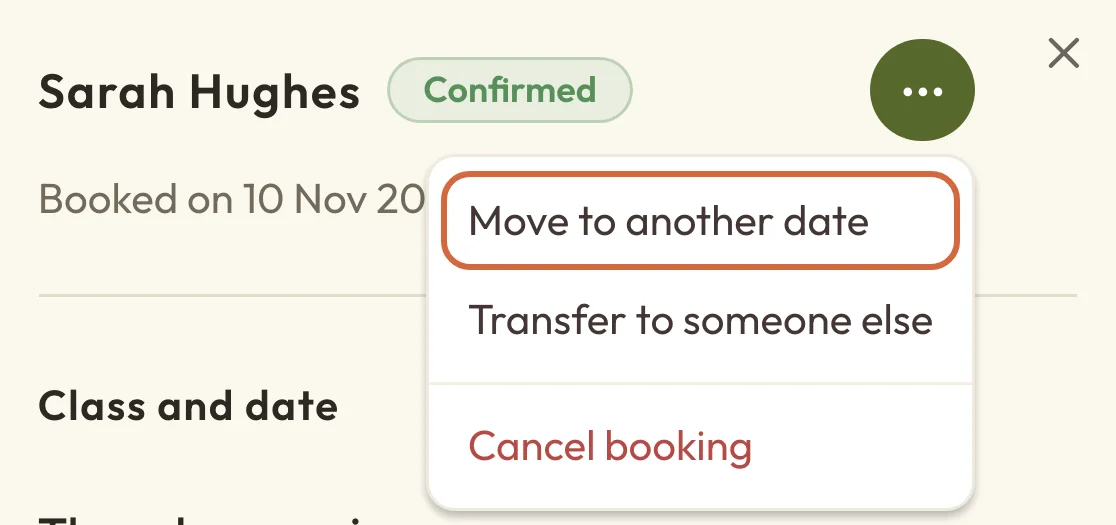
- Choose the ⋯ button beside their name, then Move to another date.
- Pick the new date and choose Continue.
- Read the summary of what's going to happen. The box to email them about the change, with their first name in it, is ticked to begin with. Untick it if you've already told them, and they won't get an email.
- Choose Move booking.
 (opens the full-size picture in a new tab)
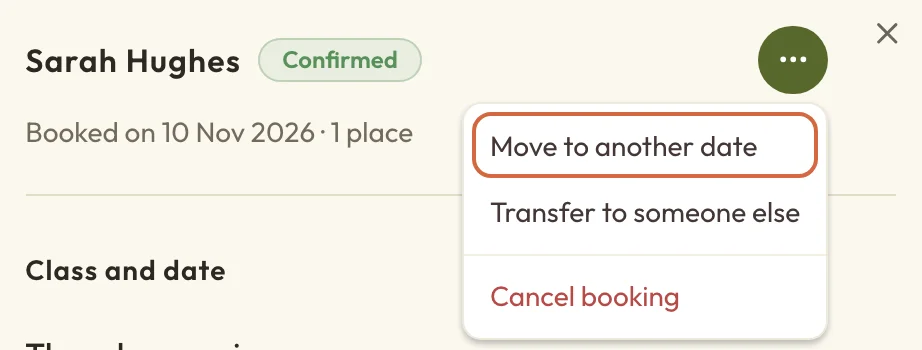 (opens the full-size picture in a new tab)Choose the ⋯ button beside their name, then Move to another date
The booking leaves the old date straight away and shows on the new one, and the place it had on the old date opens up again. Move a booking to another date or class covers moving someone to a different class, when a booking can't be moved, and what happens to their payment.
An appointment moves differently: open it and choose Reschedule. See See and manage your appointments. To cancel a booking or give money back, see Cancel or refund a booking.
Find your way around Bookings on a phone
Everything you've set up, and everyone who's booked, lives under Bookings. It opens on the timetable.
On a phone, Timetable, Appointments and People are in the bar along the top, and everything else is under More: your classes, workshops and courses, venues, services, Time off, passes and packages, and the booking settings. On a computer, they're all listed beside the page.
What clients can change on an appointment
Clients can see their bookings on your booking page, under Your bookings, and change some of them there. Their confirmation email has a Change or cancel this booking link too.
From their bookings, they can Reschedule an appointment up to your rescheduling cut-off, and cancel it any time before it starts. Your settings decide whether each of those is on offer. Whether they get money back depends on your refund policy. If their request is still waiting for you to approve it, they can choose Cancel request instead.
What clients can change on a class or course booking
On your booking page, under Your bookings, a class or workshop booking has an Actions button. It might let them view their ticket or add details for their guests, and it can offer three changes:
- Reschedule moves the whole booking, guests included, to another date of the same class with enough room. Nothing is charged or refunded, and they get a new ticket if you use tickets.
- Transfer to someone else passes their place on to another person.
- Cancel booking cancels it.
Someone who booked a whole course can cancel it, which cancels every session. Courses can't be rescheduled or transferred.
Choose what clients can change themselves
You choose whether clients can reschedule, transfer or get a refund, and up to when, in BookingsBooking settingsEvents. See Set event defaults and categories.
Once the time for a change has passed, they'll see it greyed out with the time it closed and a suggestion to get in touch with you. If a change isn't on offer at all, it isn't shown. If cancelling means they won't get a refund, they're asked to confirm that first.