Your hours decide which times clients are offered on your booking page. Once you've set your usual week you can mostly leave it alone, and any change shows on your page as soon as you save it. Changing your hours doesn't cancel or move anything that's already booked, and nobody gets an email.
Set the days and hours you work
If you work on your own, go to My availability in Bookings, which opens on your Hours tab. You can also get there from BookingsYour profile. On a phone, both are in the More menu along the top of Bookings. If you've got a team, go to BookingsYour profile and choose the person first, because each person has their own hours.
There's a Start times list at the top of the page. You can leave it on Back to back for now, as the section on start times below explains when you'd change it.
Then go through the week:
- For a day you don't work, choose the bin icon beside its hours. The day then says No hours, and nobody can book it.
- For a day you do work, choose Add hours if it says No hours. The hours start at 9 to 5.
- Tap the hour or the minutes to change a time.
- Choose Save hours. You'll see Hours saved once it's gone through.
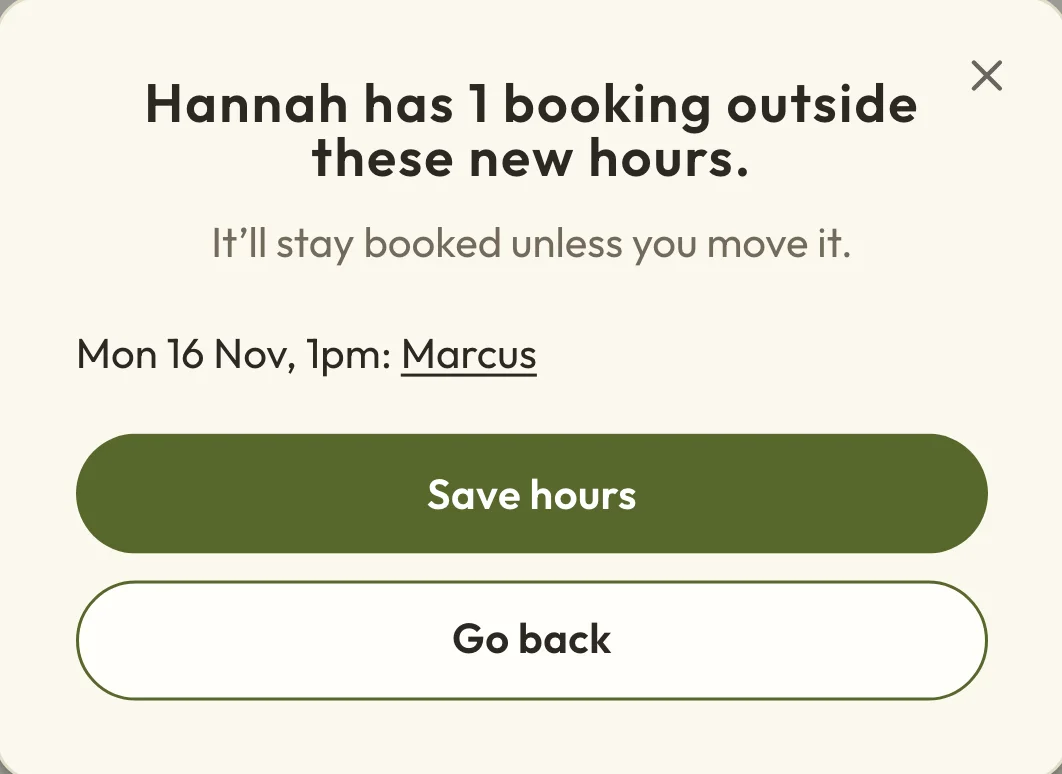
If the new hours leave any upcoming bookings outside them, you'll see those bookings first. Choose Save hours on that message to go ahead, and they'll stay booked.
 (opens the full-size picture in a new tab)
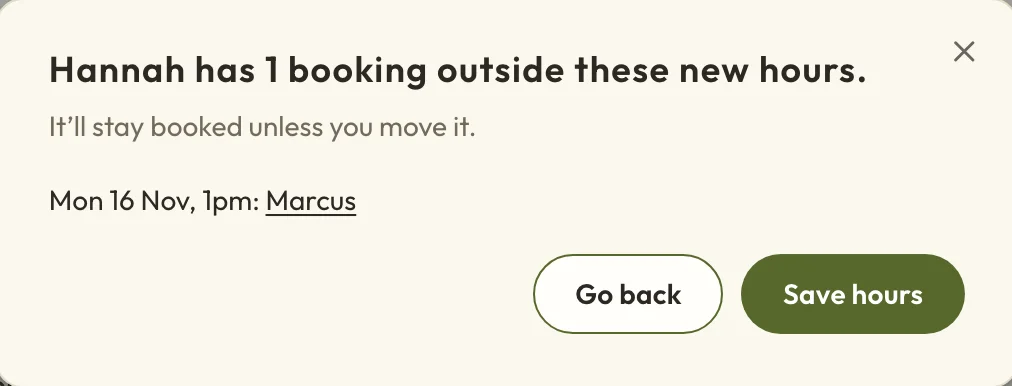 (opens the full-size picture in a new tab)Bookings outside your new hours stay booked.
Add a lunch break or other gap in your day
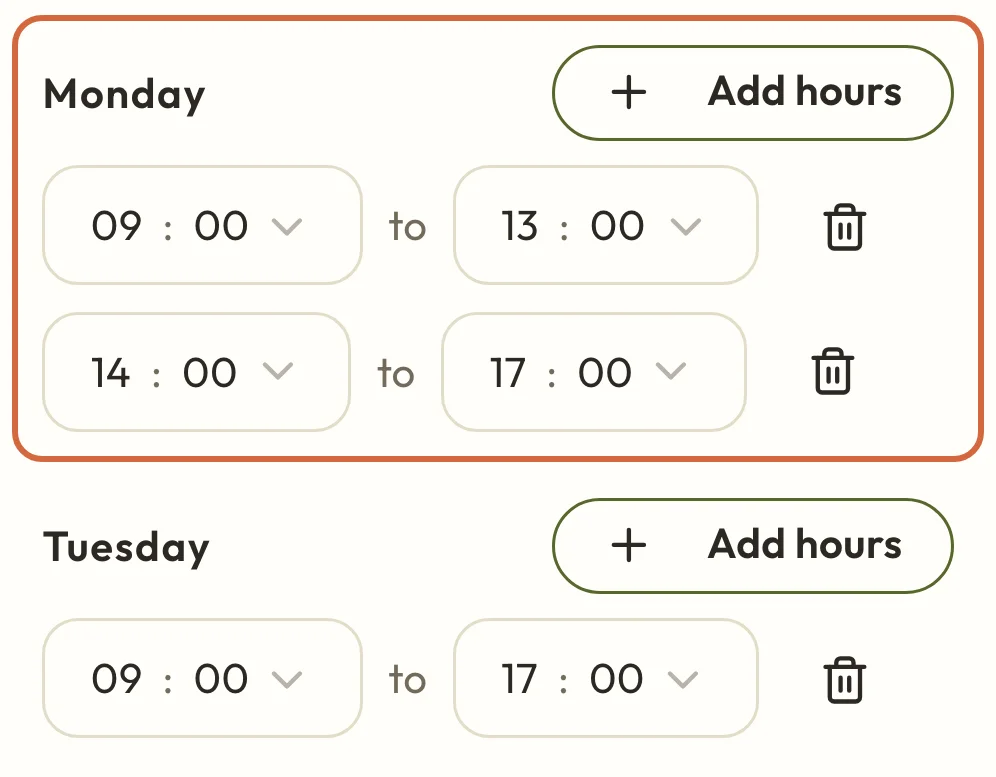
A gap in your day is two sets of hours with space between them. Add hours starts the second set where the first one ends, so on a 9 to 5 day, the new set runs from 5pm to 8pm, and you'll need to change both sets.
The times use the 24-hour clock, so for an hour off at 1pm, change the first set to end at 13:00, then change the second to run from 14:00 to 17:00. Choose Save hours, and clients won't be offered anything that runs into the gap.
 (opens the full-size picture in a new tab)
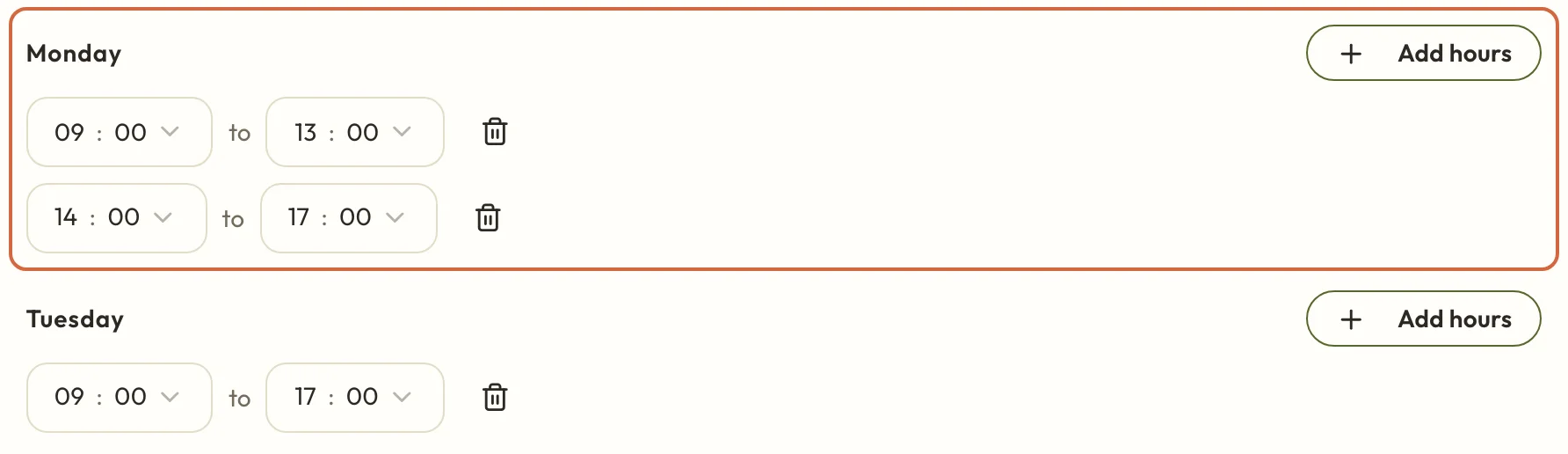 (opens the full-size picture in a new tab)A lunch break from 1pm to 2pm on Monday.
Check the times clients are offered
Open your booking page, choose Check times on a service and pick a day you've just changed. It shows your new hours straight away, so there's no need to wait or publish anything.
The list might have fewer times than you'd expect. A 60-minute service in a 9 to 5 day doesn't give you eight appointments, because the time you keep free around it counts too. If something's missing that you think should be there, the last section of this guide goes through the reasons.
Choose when appointments can start
The Start times list at the top of the Hours tab decides how the times are spaced. Most people can leave it on Back to back.
- Back to back fills your day with one session after another, from the start of each set of hours. The gap between starts is the session plus the time kept free around it, rounded up to the next quarter hour. So a 45-minute session with 10 minutes free after it starts at 9:00, 10:00, 11:00 and so on.
- The choices from Every 10 minutes up to Every hour give clients more times to pick from. With Every 30 minutes, that same session could start at 9:00, 9:30, 10:00 and so on. It's a more flexible choice for clients, but it can leave short gaps in your day that are too small to book.
- Only at set times is for when you only want particular starts, like 10:00 and 2:00. Use Add start on each day. These replace your hours for the day, so you won't set hours as well.
Choose Save hours to keep the change.
If your set times won't save
With Only at set times, there has to be room between each start for the whole appointment, plus any time you keep free around it. If two starts are too close together for a service you offer, the save won't go through until you move one.
The same check works the other way round. Making a service longer, or keeping more time free around it, can fail if it no longer fits between your saved start times. Change the start times first, then the service.
Add time off
If you're away next week on holiday, or just for a day or two, add time off rather than changing your hours. It stops clients booking you while you're away, and your usual week stays as it is.
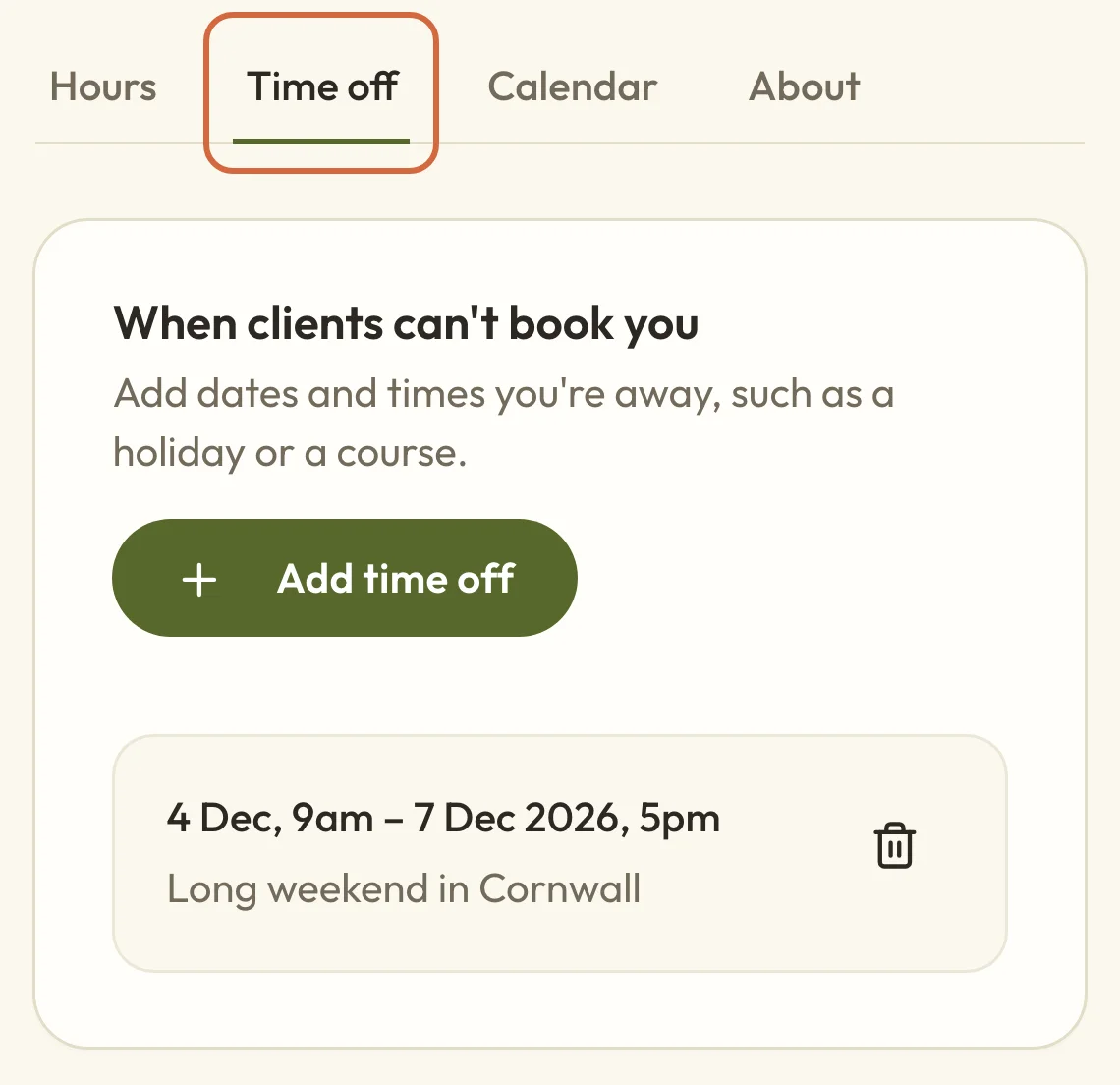
- Go to BookingsYour profileTime off, which is the Time off tab beside Hours on your profile, and choose Add time off.
- Set Starts at and Ends at. Each one has a time as well as a date. They're set to 9am and 5pm to begin with, so check they cover all the hours you'd normally work.
- Add a Reason (optional) if it'll help you remember, then choose Save time off.
 (opens the full-size picture in a new tab)
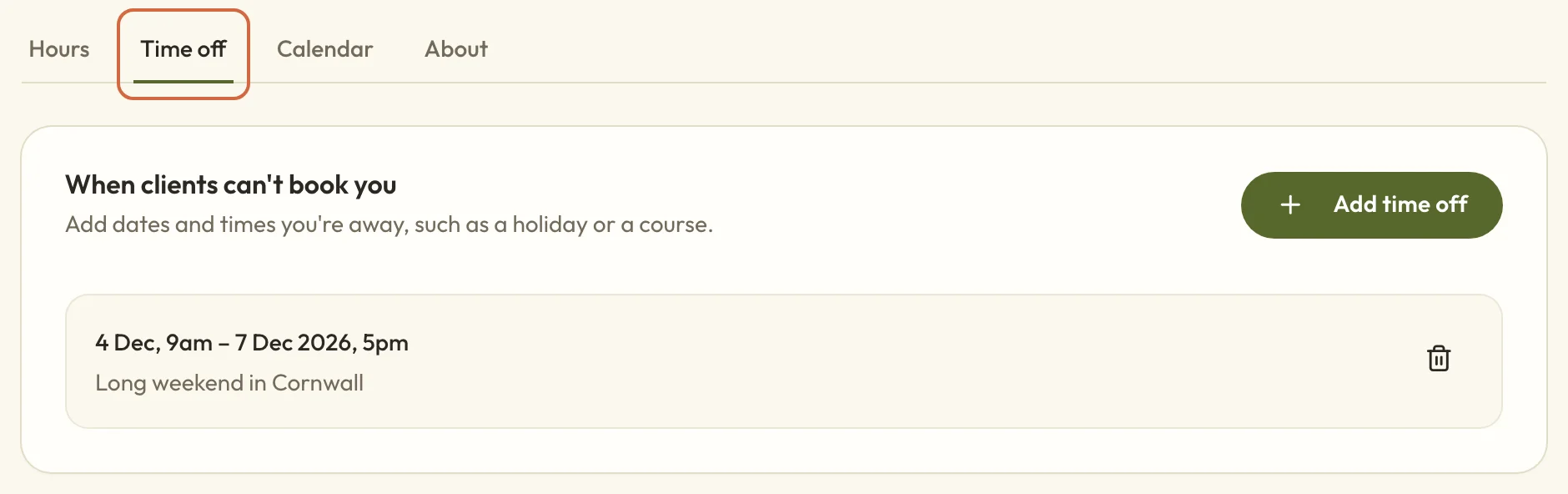 (opens the full-size picture in a new tab)Time off is a tab on your profile.
If you've got appointments during that time, you'll see each one and choose what happens to it before the time off is saved: Cancel, Move to another time or Decide later. Cancelling or moving happens as soon as you choose it, and a note at the top says what changed. The time off itself still needs saving afterwards. Decide later leaves the appointment booked. Regular clients have a few more choices, explained in Set up regular sessions for a client.
There's another Time off, at BookingsClosures, just below My availability in the Bookings menu, and it's not the same thing. That one closes your whole site, and it cancels any classes on those dates and refunds the people booked on them. If you only want to stop appointments, use the tab on your profile. If you do want to close everything, see Close for a holiday or break.
Remove time off
If you added time off by mistake, or your plans changed, you can remove it. Go to the Time off tab on your profile and choose the bin icon beside it. It's removed straight away without asking you to confirm, and those times can be booked again.
Does changing your hours affect bookings you've already got?
No. Changing your hours only changes the times on offer for new bookings. Anything already booked stays booked, nothing is refunded, and nobody gets an email. If you want to move a booking, do it from the appointment itself. See See and manage your appointments or Cancel or refund a booking.
Time off is a little different, because it asks you what to do with each appointment in that time. There's more on that in the section on adding time off above.
Set different hours for some services
If you only want to offer some services at certain times, such as a 90-minute session on Saturday mornings, you can give them their own hours.
The Choose services list only shows services where you've chosen who offers them. If it's empty, your services are set to Everyone, which is how they start. Open the service and go to its Availability tab, then under Who can offer this service choose Choose people, pick yourself and choose Save changes.
Then, on your Hours tab:
- Choose Set different times for some services.
- Choose the services. Each one can only be in one set of different times.
- The hours start as a copy of your main hours, so change only what's different.
- Choose Save these times. If upcoming bookings on those services fall outside the new times, you'll see them first, and they stay booked.
Those services now use these times instead of your main hours. To change a set later, choose Edit on its row. Remove takes it away without asking you to confirm, and those services go back to your main hours.
Why a time you expected isn't on offer
A time can be missing even when it's inside your hours. These are the usual reasons:
- Someone's already booked it, or it falls in the time another booking keeps free.
- The session wouldn't finish in time. The whole session has to fit before the end of your hours, so a 60-minute session in a 9 to 5 day can't start after 4pm.
- It's too soon or too far ahead. Minimum notice and Latest booking window in BookingsBooking settingsAppointments apply to your whole site. If the window is 4 weeks, clients won't see anything beyond that. See Set appointment notice, refund and rescheduling rules.
- You're away. Time off blocks your times, and so does a closure on your whole site. A closure on one venue only stops in-person services at that venue.
- Your calendar says you're busy. If you've connected Google Calendar, busy events on the calendars you've picked block those times. See Sync appointments with your calendar.
- The person doesn't offer that service. On a team, people can only book a service with someone assigned to it. See Change or pause an appointment service.