When a client pays you in cash, by bank transfer or on a card machine, record it in Macadamia and their booking stops showing as owed. If you've decided to let them off paying, you can clear what they owe instead. Neither of these charges anyone or moves any money, and your client isn't emailed about it.
Mark a booking as paid when they pay cash, by bank transfer or card machine
When a client pays you cash, by bank transfer or on a card machine, record the payment to mark their booking as paid.
- Open MoneyOwed to you. You can also get there by choosing See who owes under Needs you on your home page.
- Choose Record payment next to their booking. The booking opens with the payment form ready.
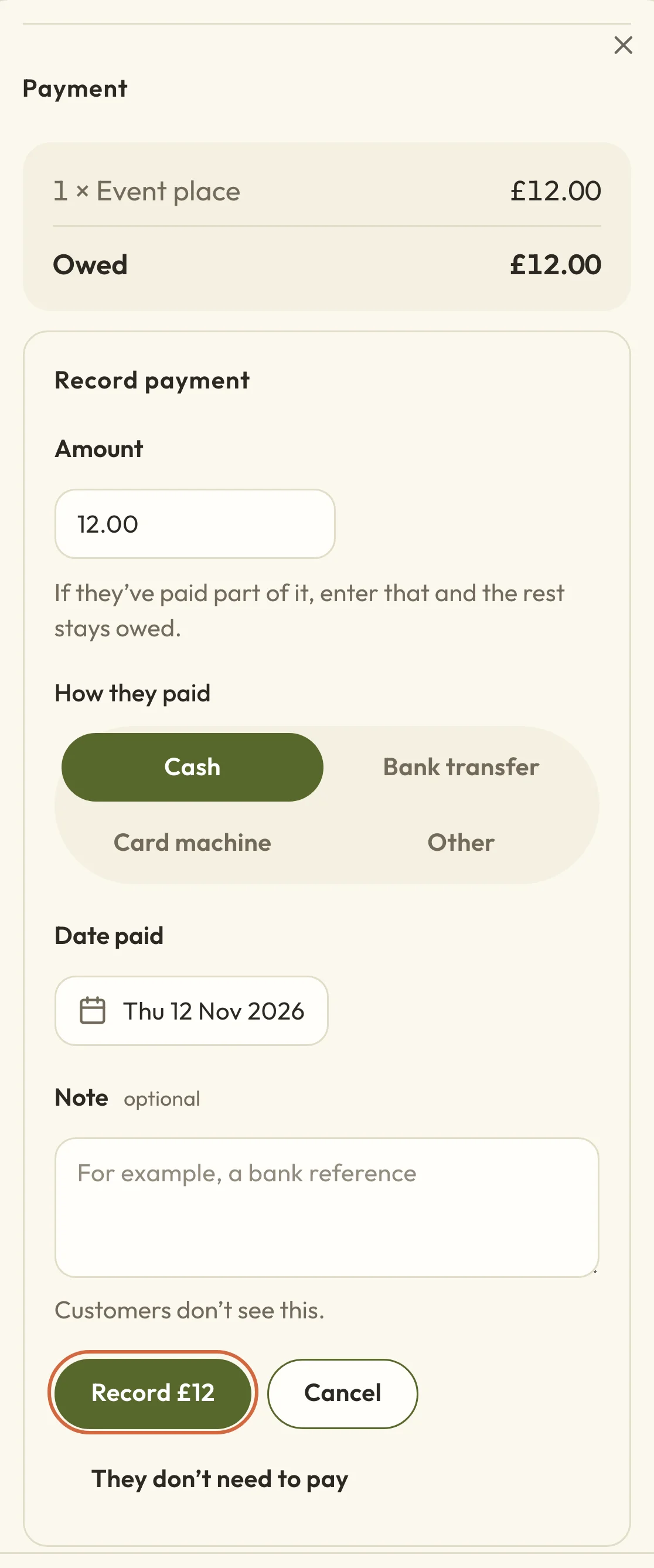
- Check the Amount. It starts as everything they owe for this booking.
- Under How they paid, choose Cash, Bank transfer, Card machine or Other. It starts on Cash.
- Check Date paid. It starts as today and can't be in the future, so change it if they paid you earlier.
- Add a Note if you like, such as a bank reference. Customers don't see it.
- Choose the record button, which shows the amount, such as Record £12.
 (opens the full-size picture in a new tab)
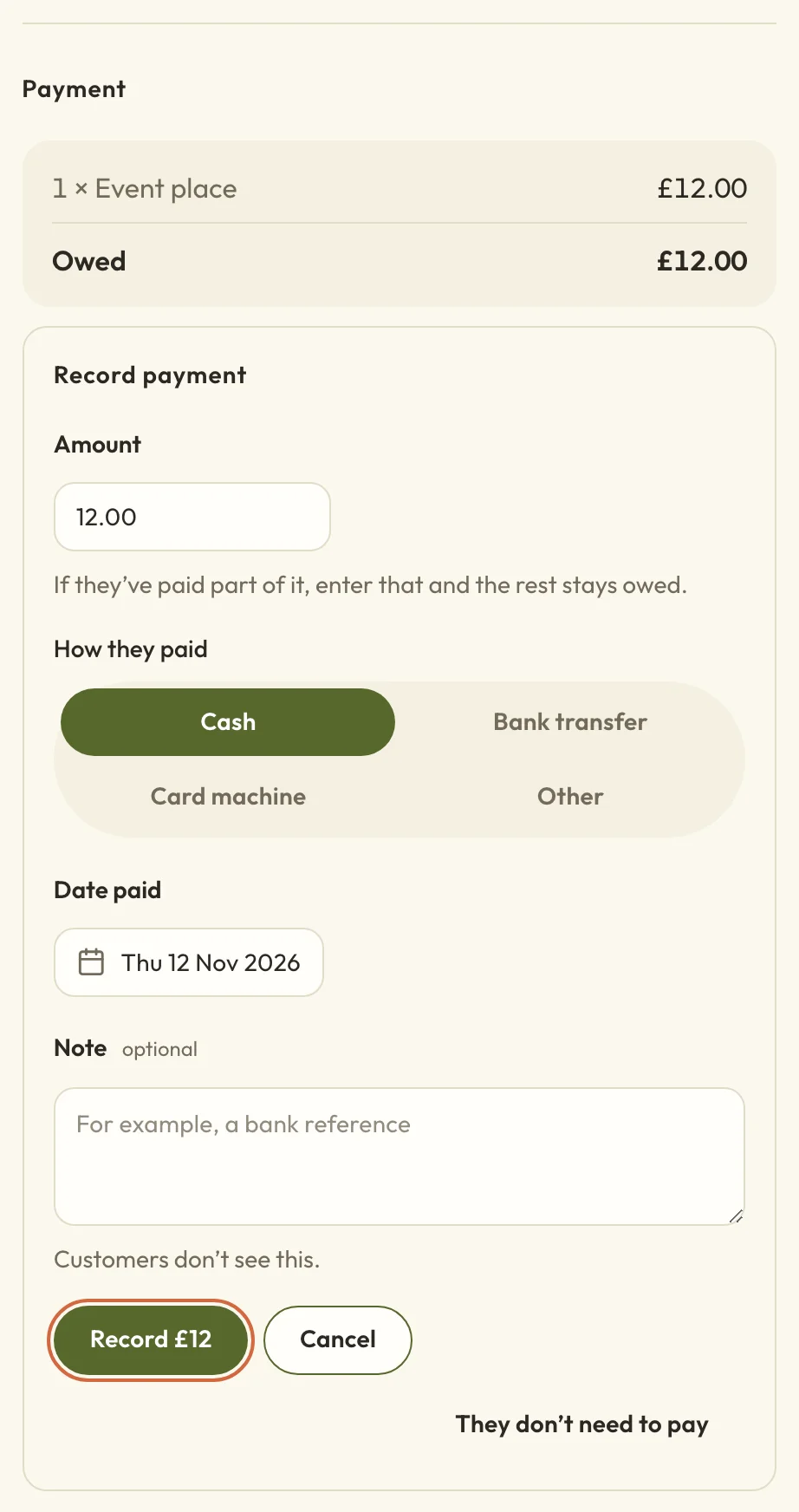 (opens the full-size picture in a new tab)The amount starts as everything they owe, and the method starts on Cash.
You'll see Payment recorded. The booking now shows as paid, with a line saying you recorded it yourself, so no money went through Macadamia. The booking comes off Owed to you straight away.
If what they owe is for a pass or membership, Record payment opens a different page, which Give a client a pass or membership walks you through.
You can also start from the booking itself. For a class, workshop or course, open the date's list of who's coming, choose Actions next to them and then View booking, and choose Record payment under Payment. For an appointment, open it and use Record payment on its Payment card.
If they've only paid part of it
Enter what they've paid in Amount, and the rest stays owed. Their booking stays on Owed to you with what's left, and says how much they've paid so far.
When they pay the rest, choose Record payment again. The amount starts at what's left this time.
Clear what someone owes without charging them
If you've decided to let a client off paying, say because it was a free taster or you made a mistake with the price, you can clear what they owe.
- Choose Record payment on their booking, as above.
- Choose They don't need to pay, beside the record button.
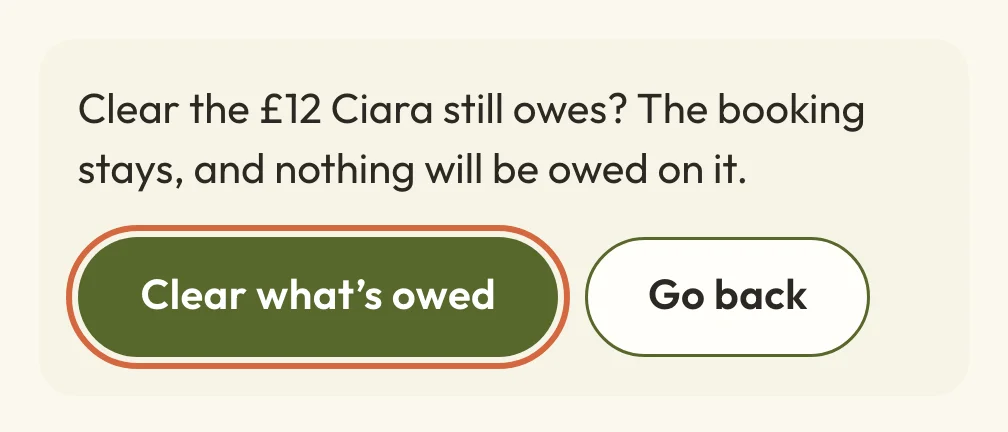
- Check the amount in the message that asks you to confirm.
- Choose Clear what's owed.
 (opens the full-size picture in a new tab)
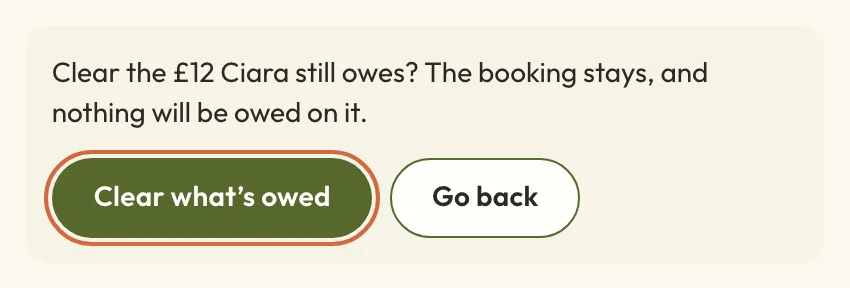 (opens the full-size picture in a new tab)The message says how much you're clearing. Go back leaves it owed.
Their booking stays, they keep their place, and nothing's owed on it any more. In the list of who's coming it shows as Waived. Anything they'd already paid stays paid, so this isn't a refund, and they aren't emailed. There's no undo, so check the amount first.
If the booking is part of a bigger order with other bookings in it, you'll see Waive it on the order page instead, because what's owed belongs to the whole order.
If they aren't coming after all, cancel the booking rather than clearing it. Cancelling a booking that hasn't been paid for clears what they owe too, as Cancel or refund a booking explains.
If you marked a booking as paid by mistake
You can't undo or edit a payment once you've recorded it. Once it's recorded, the booking offers Record a refund instead, but that's for money you've handed back, and the client may get an email about it. So if you've recorded the wrong amount or the wrong booking, contact support and we'll help you put it right.
Where a recorded payment shows up
- In MoneyPayments, as a payment you recorded yourself. Find a payment or refund explains that list.
- In Money taken on the Money overview, which See what money has come in explains.
- In Taken so far on that class date.
Nothing is charged to a card. If you'd sent them a payment link, it won't ask them to pay anything once nothing's owed.
If it says they're paying by card right now
If you see a message saying they're paying by card right now, they've opened a payment link and might be paying as you look. Wait a few minutes and open the booking again before you record anything, so they don't pay twice.
Record or clear a payment from Payment problems
An overdue deposit or payment plan shows in MoneyPayment problems. Open the menu at the end of its row and choose Manage payment…. From there:
- Mark paid records everything that's left as paid.
- Record partial payment records part of it, for orders that allow it. Enter the amount first.
- Mark waived clears what's left without charging them.
These apply to the whole order. Mark paid and Mark waived ask you to confirm first, and neither can be undone.