To let people pay by card when they book, you connect Stripe in MoneyPayment settings. Stripe is the payments company that takes the card payments for Macadamia and pays the money into your bank account. It's a few short forms in Macadamia and then a final step on Stripe's own screens, and you can stop partway and come back later.
Only the owner and administrators of the site can see Payment settings. If your bookings are all free, or people only ever pay you in person, you don't need any of this.
Do I need to set up online payments?
Your booking home will tell you. If anything you offer lets people pay online, the What's next list shows Set up payments, marked Needed to go live. Once you've made a start, it says Finish setting up payments instead, with a Continue setup button.
You'll need it for anything people pay for by card: card prices on services and classes, deposits, instalments, and selling passes, memberships or gift cards online. You won't need it for free bookings or ones people pay you for in person. Choose how customers pay explains the options.
You don't need a Stripe account already. Macadamia sets one up for you as you go through the steps below.
Why Stripe asks for your ID and bank details
Payment companies have to check who they're paying money out to, so Stripe asks for your name as it appears on your ID, your date of birth, your home address and the bank account to pay into. None of these appear on your site.
We send each section to Stripe as you finish it. We don't keep our own copy of your personal or bank details, so if you stop before a section is sent, you'll need to type it in again.
A few things you enter are seen by customers. What you write under What do you sell? also appears on your public page. The number in Phone for customer questions may be shown to customers alongside their payment, so use one you're happy to share (your mobile is fine). We fill in the name customers see on their bank statement from your site's name. If it isn't something they'll recognise, choose Change next to it, so they don't wonder what the payment was.
We also fill in a few things from your site to save typing, such as the closest type of business and, on Who you are, the phone number you gave for customer questions. Check them and change anything that isn't right. Stripe may text a code to the phone on Who you are, so use one you'll have with you.
What it costs to take card payments
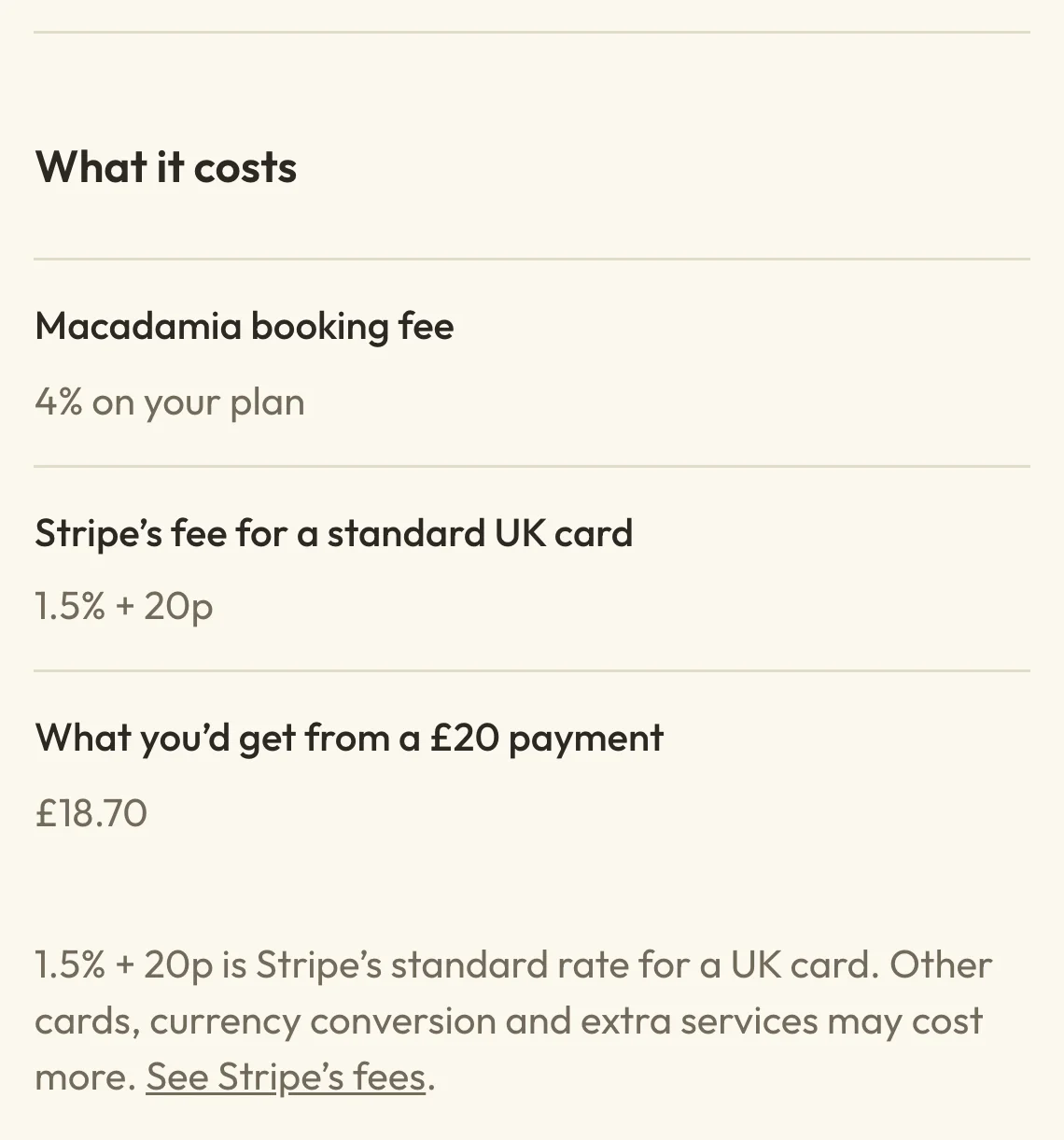
There's nothing to pay to connect Stripe. Each card payment then has a fee taken off before the money reaches you:
- Stripe's fee for a standard UK card is 1.5% + 20p. Other cards, currency conversion and some extra services can cost more.
- On the Free plan, Macadamia also takes a 4% booking fee on card payments. Paid plans don't have one. See Manage your plan and billing.
Before you start, the What it costs section in MoneyPayment settings shows the fee on your plan and what you'd get from a £20 payment.
 (opens the full-size picture in a new tab)
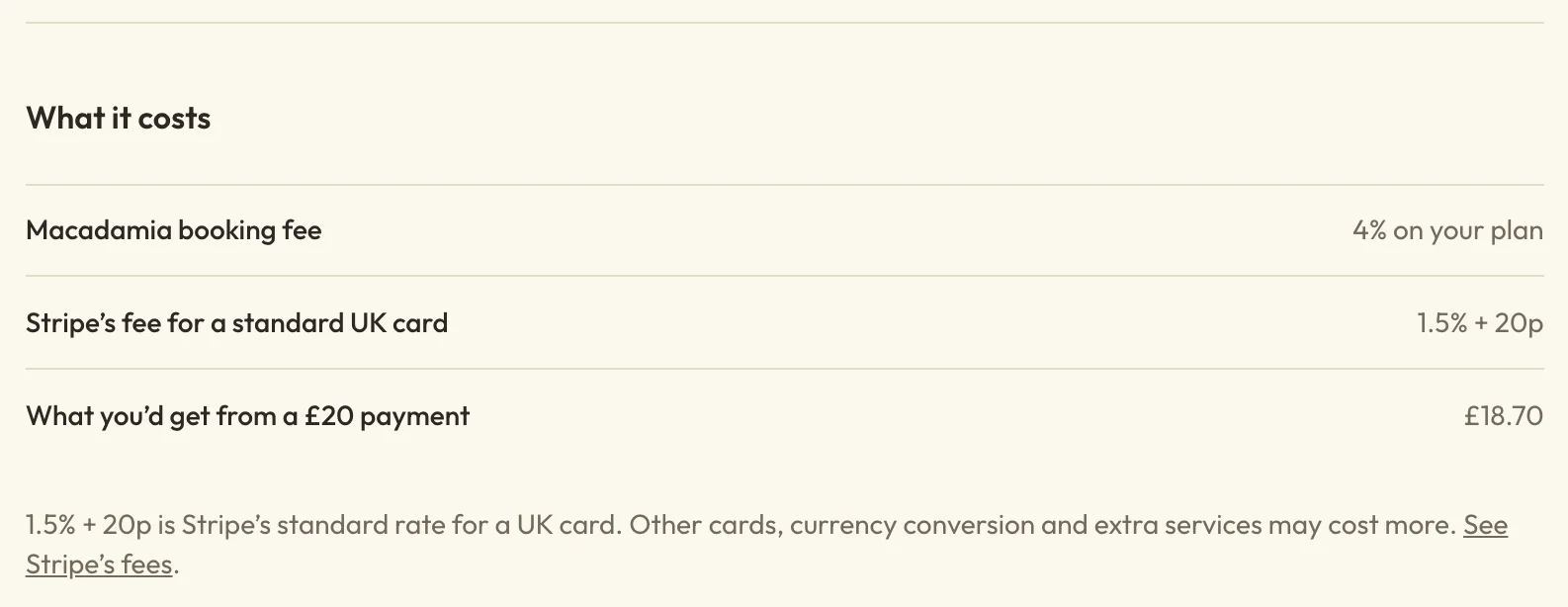 (opens the full-size picture in a new tab)What you'd take home from a £20 card payment on your plan.
Connect Stripe so people can pay by card
Have your ID details and bank details to hand first. If you have a limited company, you'll also want the company number, and the names, dates of birth and home addresses of its directors and owners.
- Go to MoneyPayment settings and choose Set up online payments. If you've already started, it says Continue setting up payments.
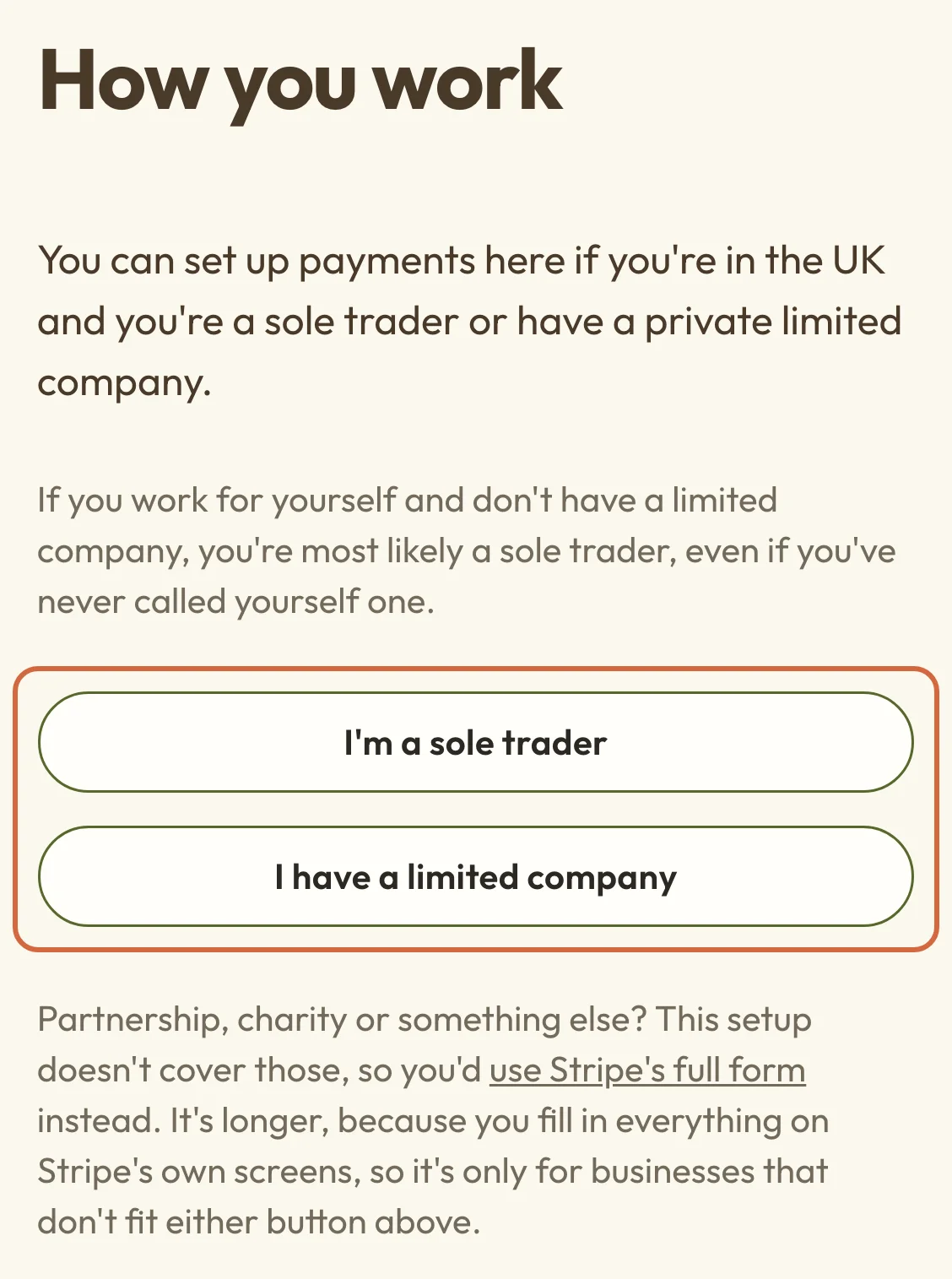
- Choose I'm a sole trader or I have a limited company, then Continue. If you work for yourself and don't have a limited company, you're probably a sole trader, even if you've never called yourself one.
- Fill in each section and choose Continue after each one. A sole trader has three: What you offer, Who you are and Where you get paid. A limited company also has Your company and Directors and owners.
- On Finish with Stripe, choose Open Stripe's final step and follow what Stripe shows you. The next section has more on this part.
This setup is for UK businesses paid into a UK bank account in pounds. If you're a partnership, a charity or some other kind of business, choose use Stripe's full form on the first step instead. It's longer, because you fill in everything on Stripe's own screens, and once you've opened it you'll need to finish there.
 (opens the full-size picture in a new tab)
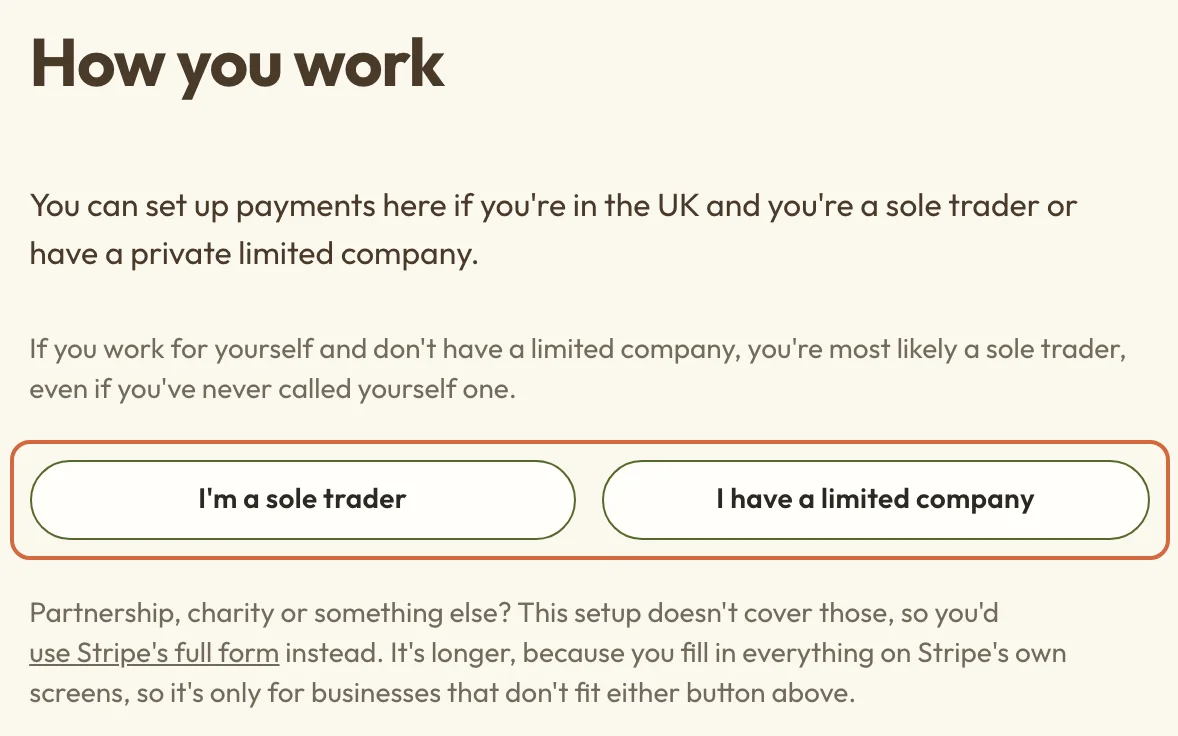 (opens the full-size picture in a new tab)Pick the one that matches how your business is set up.
Finish on Stripe's own screens
The last step opens Stripe's screens inside Macadamia, and it usually only takes a couple of minutes. Stripe may ask you to confirm your email address or phone number with a code, so keep your phone nearby. You'll check the details you've sent, read Stripe's agreement, and sometimes send a document, such as a photo of your ID. If you have a company, Stripe may also ask you to check its owners against company records.
If you need to stop here, choose Finish later. Your Payment settings will then show Finish setting up payments so you can carry on.
How long until you can start taking card payments
You can start taking card payments as soon as Stripe has checked your details. That's often quick once you've finished its step, but it can take longer if Stripe wants a document or more information. To see where you are, go back to MoneyPayment settings and look at the Payment account section. Next to the heading you'll see one of these:
- Ready: you can take card payments now, and Card payments says On.
- Stripe is checking: you've sent everything and Stripe is looking over it. Have another look later, and choose Refresh status to check again.
- Not finished: Stripe still needs something. Choose Finish setting up payments to see what.
- Needs attention: Stripe has asked for more. If Stripe needs more from you explains what each message means.
When it's ready, the page also suggests turning on two-step verification, so someone with just your password can't change where your money goes. Stripe pays your card payments into your bank in batches, a few working days after people pay. When money reaches your bank explains when to expect the money.
Stop partway and finish setting up later
You don't have to do it all in one go. Choose Save and continue later at any point, and the sections you've finished are kept with Stripe. When you come back to MoneyPayment settings, choose Continue setting up payments to pick up where you were.
If you leave without saving, the section you were filling in is lost and you'll need to enter it again. To change a section you've already sent, open it and choose Change this section. You'll need to fill in the whole section again, because we don't keep a copy. Start over takes you back to the beginning, and you'll need to enter all your details again.
What customers see before payments are ready
You can add card prices to your services and classes while you're still setting up your page. Until you go live, visitors to your booking page see Bookings open soon, and you can see your full page with Preview your page.
Once your page is live, you can't save a new online price until Stripe is connected. You'll see a note saying so, and in the meantime you can let people pay you themselves (for an appointment service, that's Paid in person). Free bookings and ones people pay for some other way aren't affected.
Disconnect or replace your Stripe account
If you set up payments in Macadamia, you can't disconnect or replace the account yourself. Contact support and we'll help in a way that keeps your existing payments, refunds and any disputes.
If your site set up payments a while ago, the page may say Stripe Account Linked instead. In that case you can disconnect it from Payment settings yourself. Your Stripe account isn't deleted, but you'll stop taking new online payments. You can't connect it again yourself afterwards, so contact support if you want to take online payments again. Disconnecting doesn't refund or change payments you've already taken. If you have members paying monthly, or someone is paying right now, you'll be asked to contact support or wait.