If a client comes to you at a set time, like every Tuesday at 7, you can set up regular sessions for them. You choose the days and the time, their packages pay for the sessions they cover, and then you can book their next few dates in one go. When something changes, such as a holiday or a new time, you make the change once and it's applied to every date it affects. Anyone who books appointments can do this, and team members can do it for their own clients.
Set up regular sessions
Use this when a client comes on the same days and times every week, every 2 weeks or once a month. It lets you book their dates ahead, either for a term or for as long as they keep coming. The client needs to be in your people list first. If they've bought a package, it's used for their sessions automatically.
Choose Set up regular sessions on the Regular clients tab of your appointments, then choose who it's for. You can also start from the client's own page, where the same button is on the Regular sessions card. If they've already got an appointment booked, open it and choose Make this a regular session. That starts with the appointment's service, day and time already filled in.
Setting up takes two steps: the sessions, then book and pay. The link at the top takes you back to where you started. If you leave part way, what you'd filled in is kept on this device for next time.
The sessions
- Choose the Service and who it's With.
- Under How often, choose Every week, Every 2 weeks or Once a month. Once a month means the same weekday each month, like the first Friday, and the line under How often spells out the pattern, such as "The first Friday of each month, starting 6 November."
- Under Days, pick each day they come, then set the Time. If they come at different times on different days, choose Use a different time on some days and set each one. The time can be any free time within their working hours, even if it isn't one of the start times your clients see online.
- Pick the date of the First session, or with several days, the date they're Starting from. With one day, changing the date changes the day to match.
- Under Until, choose Keep going, Until a date, or After a number of sessions. With several days, sessions on all of them count together.
- Keep "Keep … free at this time" ticked so nobody else can book those times, even on weeks you haven't booked for the client yet. If you untick it, other people can book those weeks, and any week someone takes is skipped when you book the client's next dates.
If they already have regular sessions with the same person and service, and you pick a day they don't come yet, you'll see a note suggesting Add another day on their existing regular sessions instead, so all their days share one payment and end. You can still carry on and set up separate ones if that's what you want.
If one of the days is outside the person's working hours, for example "Dan doesn't work on Saturdays at 7am", you'll see that straight away. Choose the link to set their hours, which opens in a new tab, then come back and choose Check again. Or choose another day or time. You can't finish setting up until it's sorted.
Book and pay
Under Book ahead, choose how many of the next sessions to book now. You can book more later.
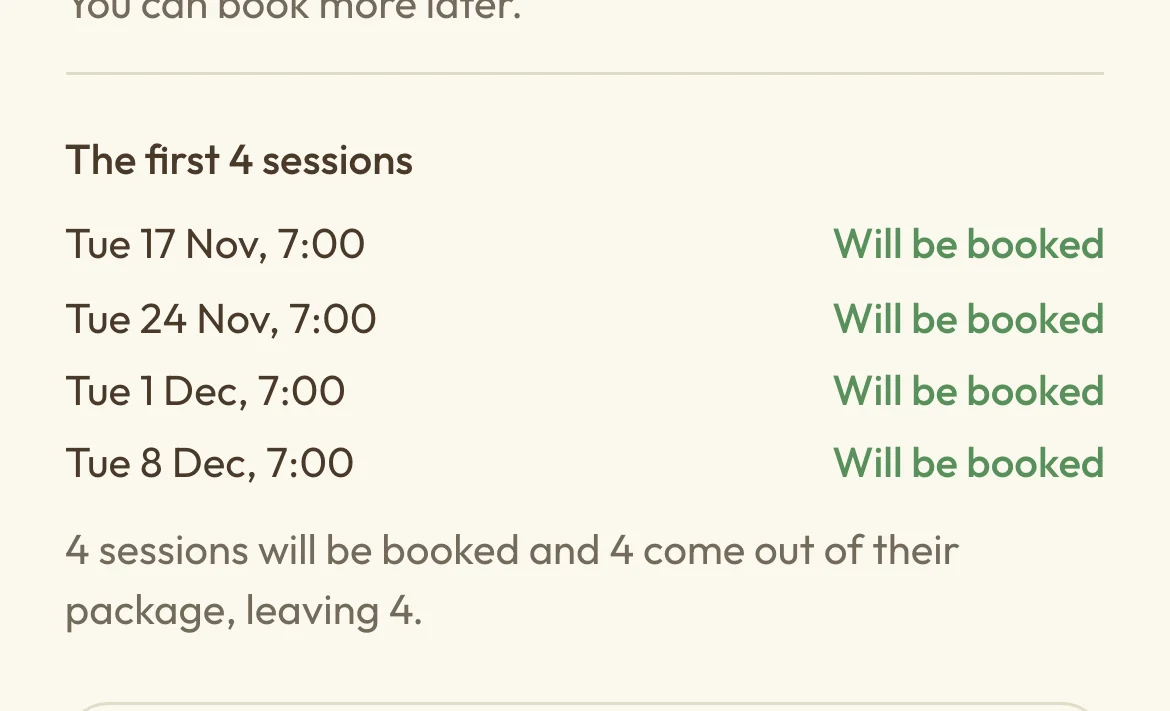
Below that you'll see every date in the first stretch. If whoever they're with can't do one of those dates, that date is skipped and isn't booked, and you'll see why, for example another client's already booked then, or the time's held for another client's regular sessions. A skipped date doesn't use up a session from their package, so the next date uses it instead. After you've set up, you can find the skipped date on the regular sessions page and choose Pick another time for it. Each date says which package pays for it, or Owed if none of their packages covers it. The summary at the bottom tells you how many will be booked and what that does to their packages. Then choose Set up and book, and you'll land on their new regular sessions page.
If every date is skipped because of other clients or time off, you can still set it up. The summary says nothing's booked yet and which date the held time starts from, and you can book dates from their page later.
 (opens the full-size picture in a new tab)
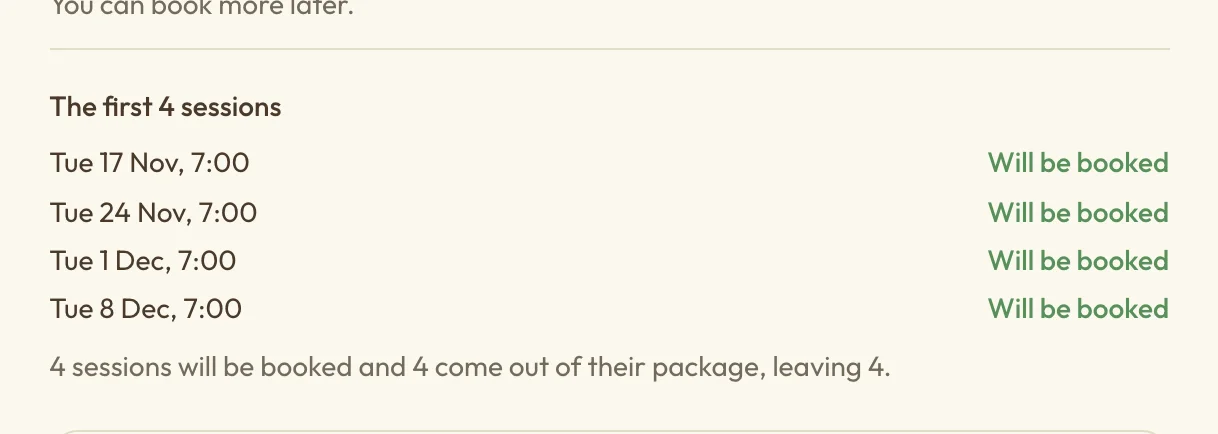 (opens the full-size picture in a new tab)The summary shows what will be booked before you confirm.
How they pay
You don't pick a package. Each session is paid from a package they hold that covers this service and this person, with sessions left. If they have more than one, the one that ends soonest is used first. How they pay on the Book and pay step says which packages that is, and your bookings dashboard reminds you before they run out.
A session none of their packages covers is owed. If you take online payments, you can choose Change there to pick what happens to those sessions:
- They pay you directly shows the session as owed until you record how they paid, from Owed to you.
- We email a payment link emails them a link to pay a set number of days before each session, which you choose. See Set up online payments.
Sessions that are already booked keep the payment they were booked with. If they buy a package later, sessions already booked as owed stay owed.
See their dates
 (opens the full-size picture in a new tab)
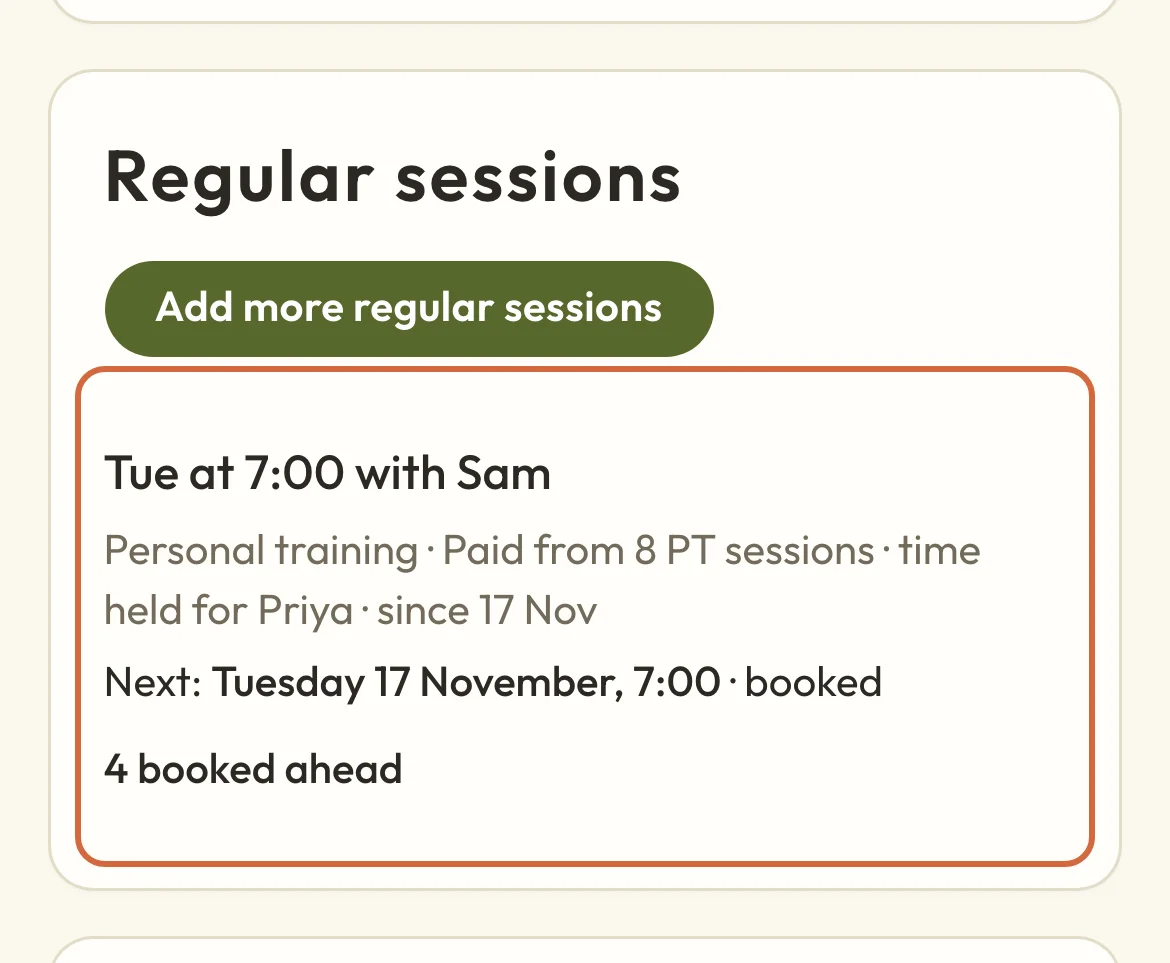
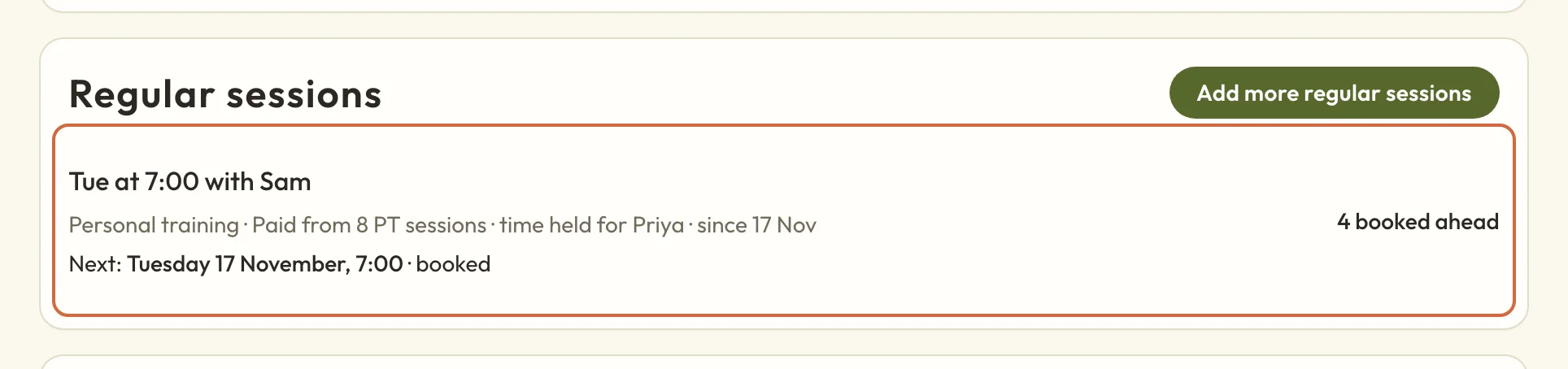 (opens the full-size picture in a new tab)Their regular sessions, on their page.
Choose their regular sessions on the Regular sessions card to open their page. The top of the page says when they come each week and who with, what service it is, how they pay and when it ends. If a change hasn't started yet, such as Wednesdays moving to Fridays from 4 Dec, it's listed under the title, one line for each day that changes. Each date below shows one of these:
- Done: the session has happened.
- Booked: it's in the diary as an appointment. If another team member is covering it while the usual one is off, it says who's taking it.
- Held: it isn't booked yet, but the time is kept for them.
- Away: they're away, so nothing's booked. A time away is one line, however many of their days it covers, with the date they're back and how many sessions aren't booked.
- No session: the person they're with has time off then, or your site is closed, so there's nothing to book.
- Cancelled: it was booked and then cancelled.
The list starts with the next 4 weeks. Choose Show more to see further ahead. To add more sessions, choose the button that starts Book the next. It offers about 4 weeks of sessions, so for someone who comes twice a week it says Book the next 8 held dates. That stays the same however many weeks the list is showing.
If a date was cancelled, it says who cancelled it, and you can choose Book again to put it back in the diary.
Before anything's booked, you'll see the dates it would book and which package pays for each. There's a box to email them about it. Untick it if you've already sorted it out with them another way. If we don't have an email address for them, it says so, and you'll need to tell them yourself.
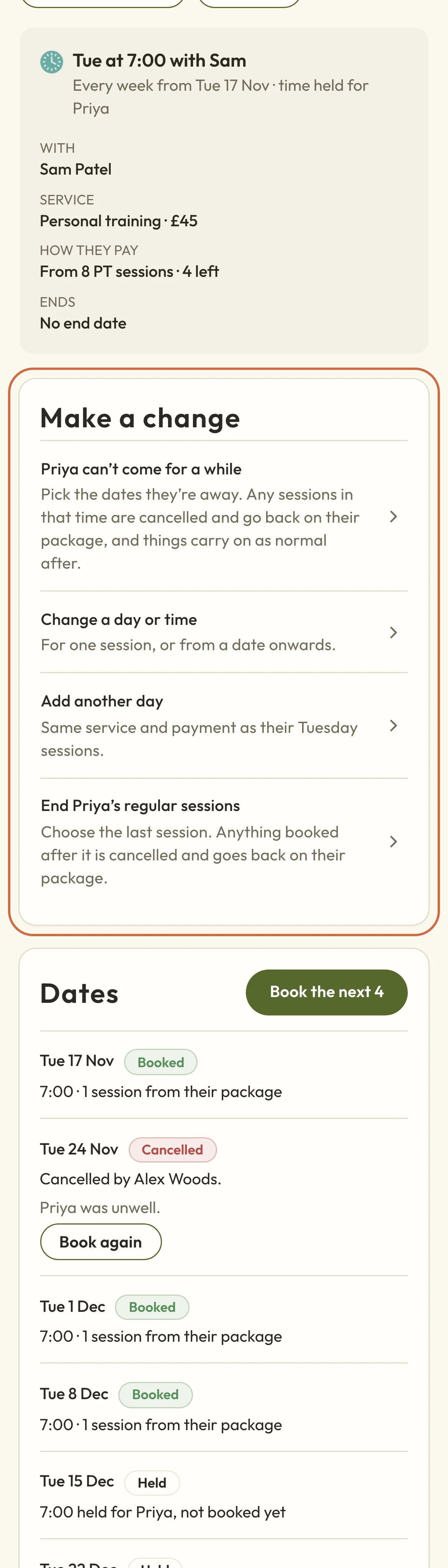 (opens the full-size picture in a new tab)
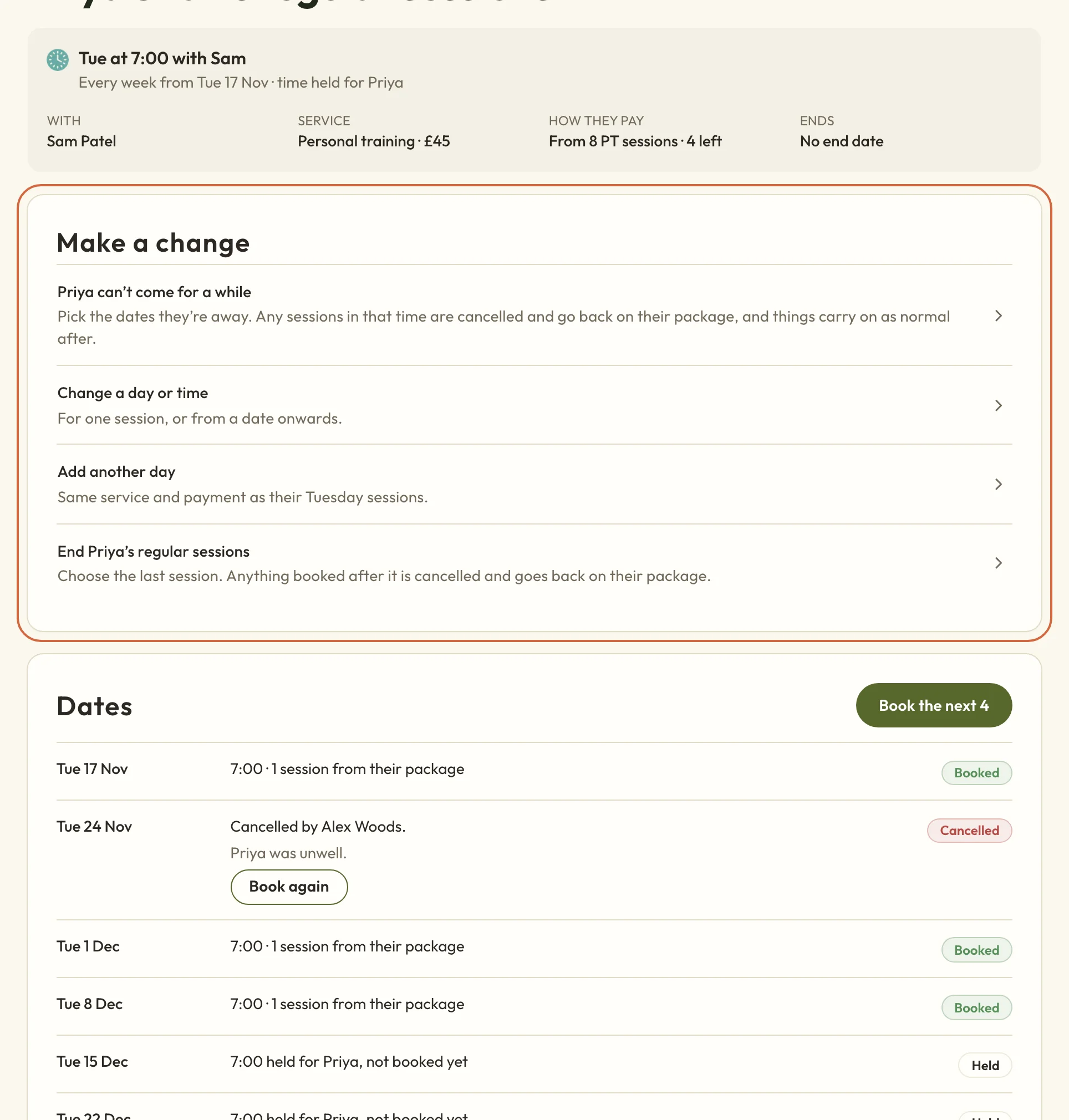 (opens the full-size picture in a new tab)Each date and what's happening with it, with Make a change above.
Each date that isn't booked yet says how it'll be paid: from which package, or owed once their packages have run out. Owed means it's in the diary and waiting for payment. The top of the page says when their package runs out and what happens to the sessions after it.
When they're away
Choose Make a change, then the option that says they can't come for a while. Set the From and Back on dates. If they come on more than one day, sessions on all of their days in that time are included. Under What changes you'll see what happens to each booked date before you confirm:
- A session paid from their package is cancelled and goes back into their package.
- A session they paid for online is cancelled. The preview shows whether their payment is refunded under your cancellation policy. You can still cancel inside the cancellation window, without a refund.
- If they paid you in cash, or another way you recorded yourself, you can choose to record a refund. You don't need to tick the box to cancel.
- A held date that isn't booked has nothing to cancel, and its time opens up for other clients to book.
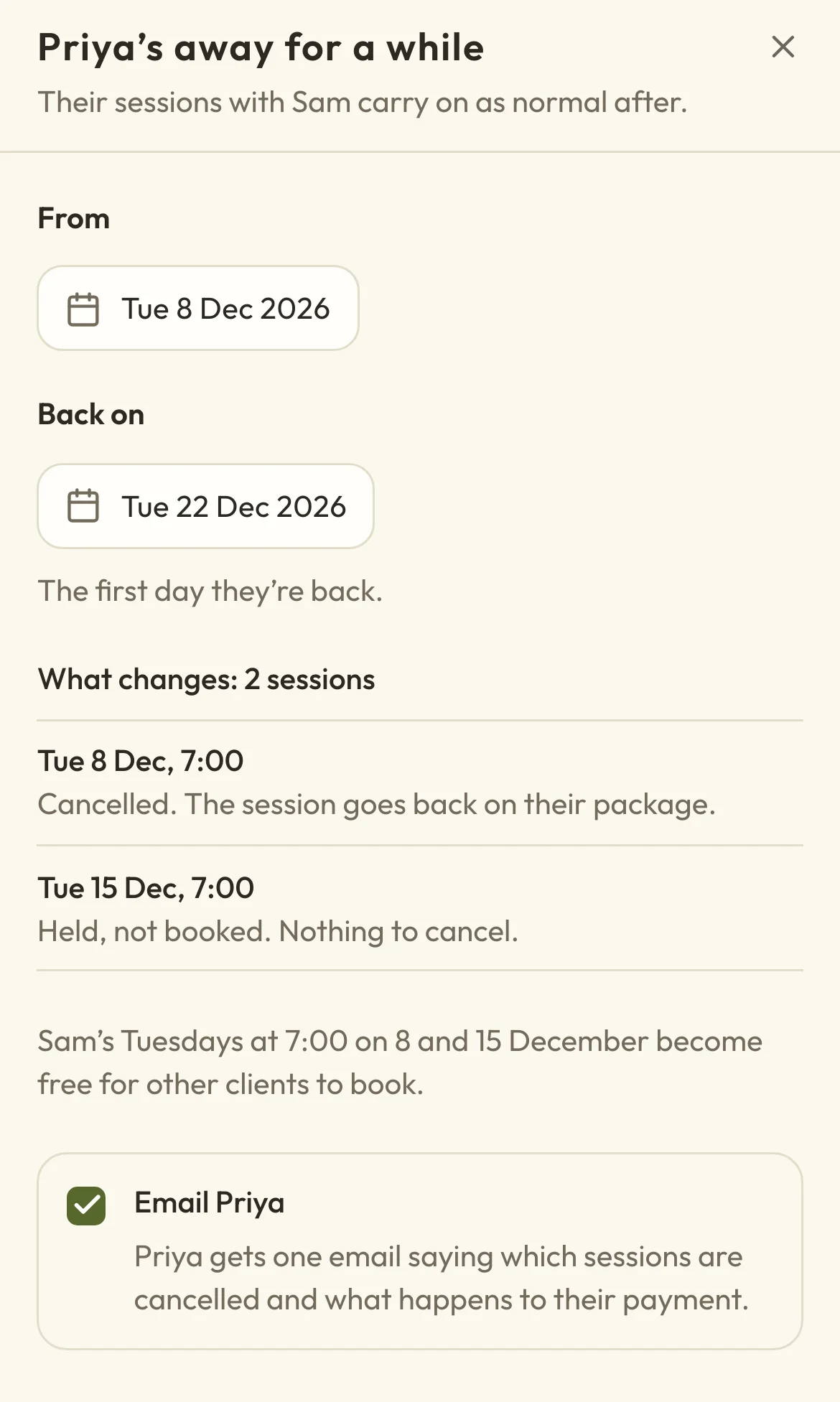 (opens the full-size picture in a new tab)
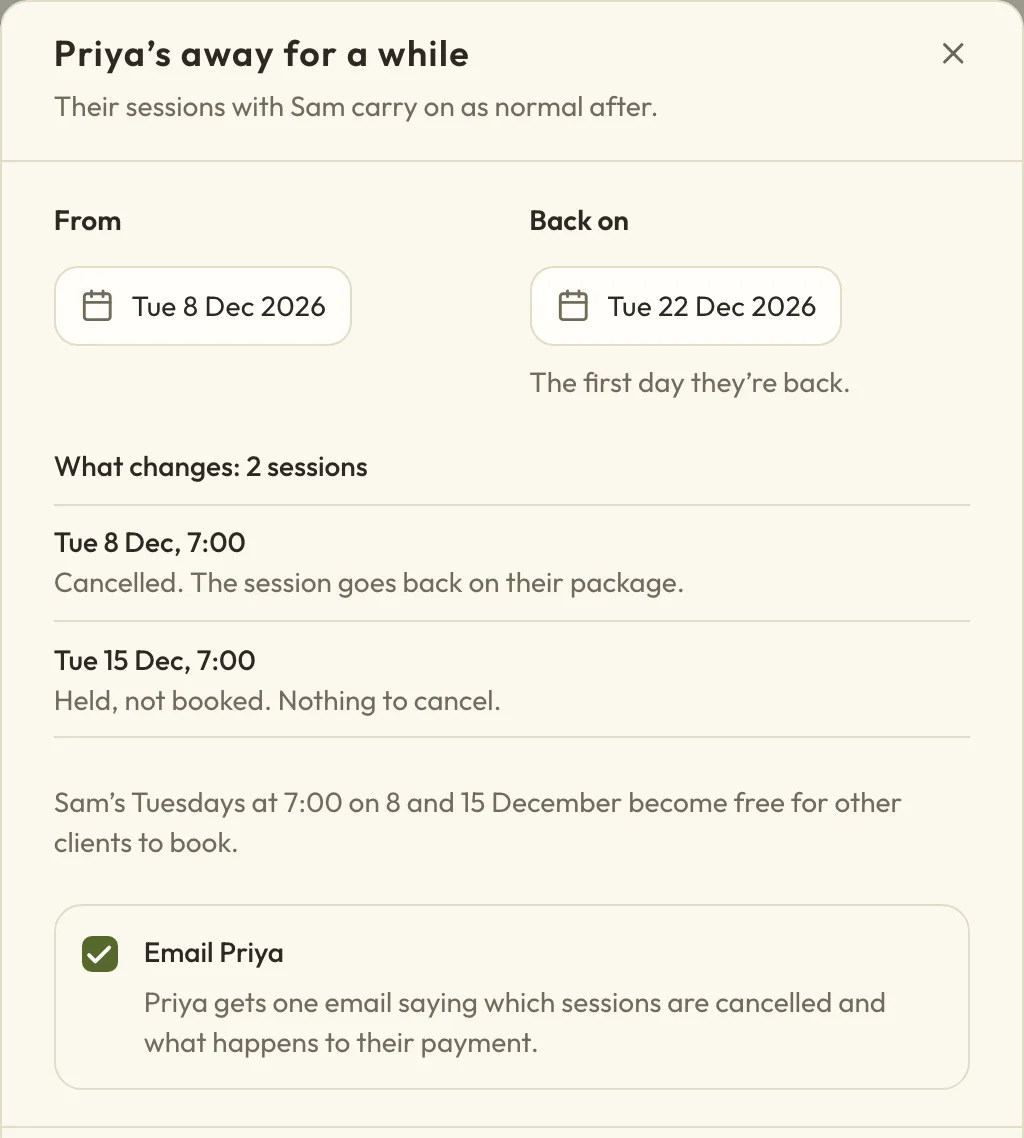 (opens the full-size picture in a new tab)What changes shows each date before you confirm.
Their sessions carry on as normal from the date they're back.
When you take time off
When you add time off on the Time off tab and it covers regular sessions, you'll see each regular client it affects before anything's saved.
Held dates inside the time off are released for other clients, and show as No session. If their regular sessions end after a number of sessions, these dates don't count towards it, so their sessions run a little longer instead.
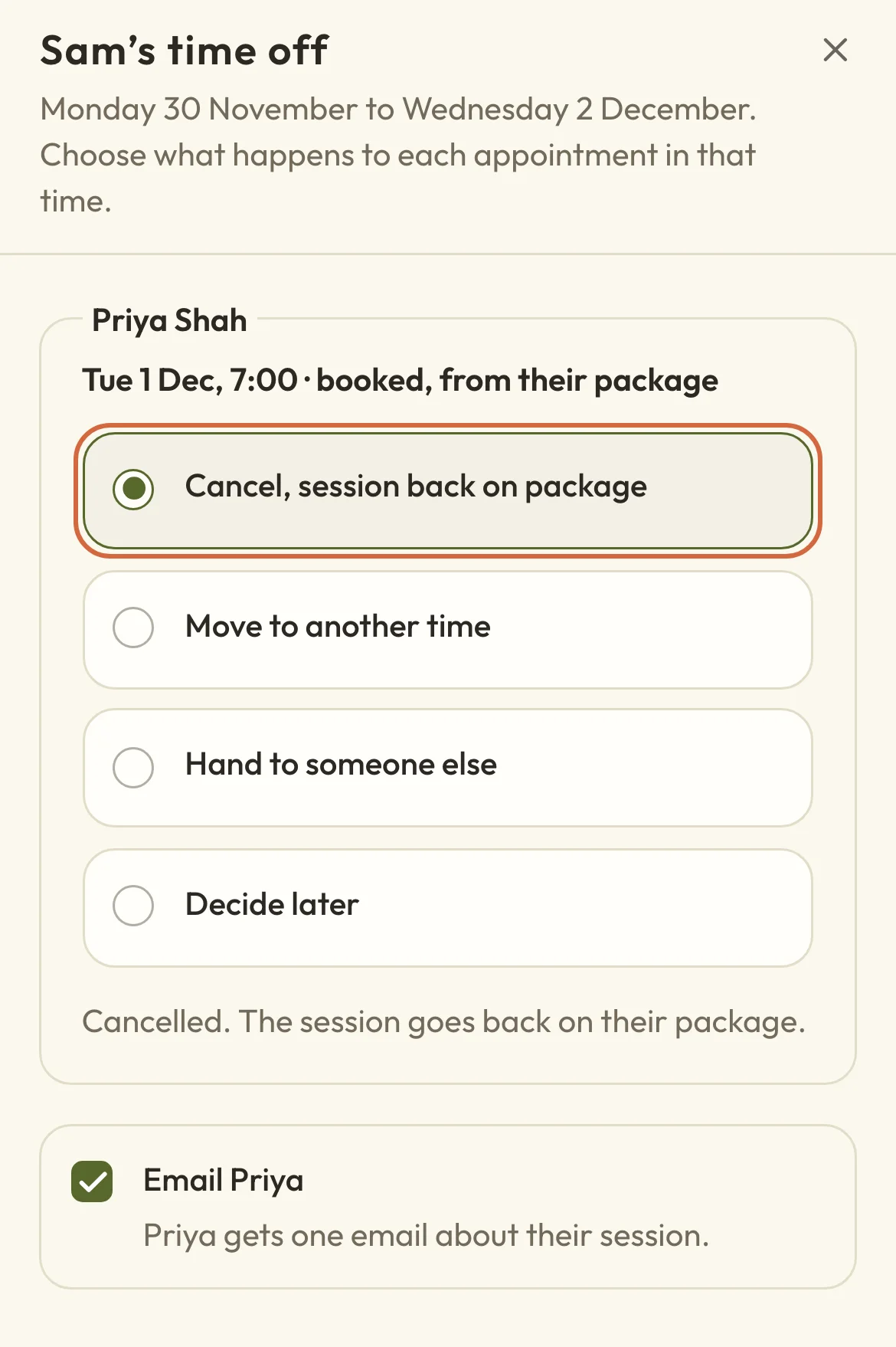
For each session that's already booked, choose what happens:
- Cancel. If it came from a package, the session goes back into the package. If they paid, you'll see how much will be refunded before you save.
- Move to another time with the same person, at a time outside the time off. Only times that can be booked are offered.
- Hand to someone else, at a time they're free. Only site editors see this, because it books someone else's time.
- Decide later, which leaves it booked for now. Your client still expects to come, so move or cancel it before the day. Until you do, the Regular clients tab flags them as booked during your time off.
 (opens the full-size picture in a new tab)
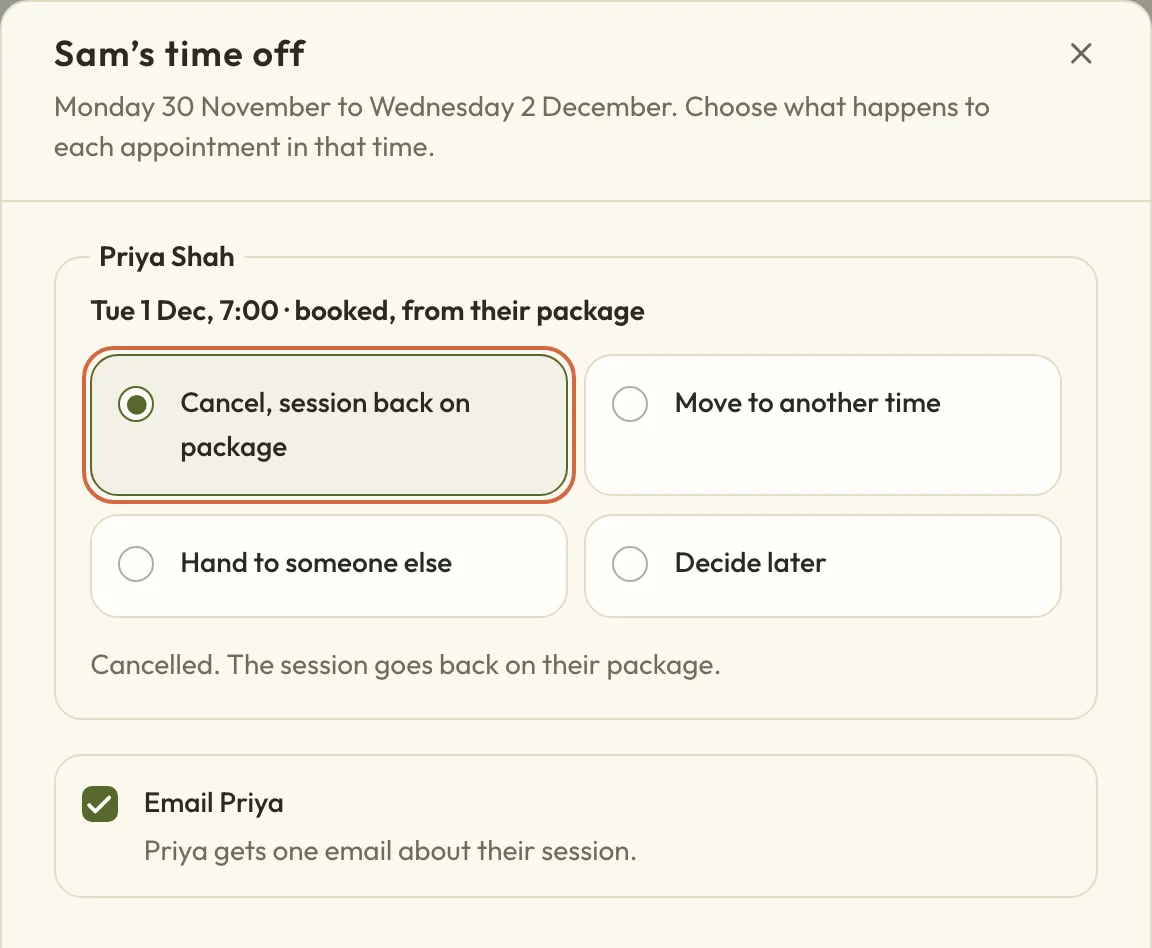 (opens the full-size picture in a new tab)Each booked session in your time off, and what will happen to it.
If someone paid you directly, by cash or bank transfer, the box that starts "Record a refund for" is optional. Tick it to note that you'll give that money back yourself. Macadamia doesn't pay anything out. Leave it unticked to cancel without recording a refund of their direct payment. The preview shows card refunds and account credit separately.
Your client-facing cancellation window decides the default refund. It doesn't stop you cancelling your own sessions. Inside the window, the preview says when a payment is kept; you can open the appointment if you want to choose a different refund.
You can send each client one email about their own sessions. After saving, you'll see what changed. If something couldn't be done, or an email didn't send, the summary names the clients you'll need to follow up with.
If you close your whole site for a while, held dates are released in the same way, but booked sessions aren't cancelled for you. When you add the closure, it lists any regular sessions still booked while you're closed, each with a link to that client's dates so you can move or cancel it.
Change a day or time
Choose Make a change, then Change a day or time. Choose whether the change applies From a date onwards, or for Just one week.
You can also start from one of their appointments. Its page says it's part of their regular sessions, and Reschedule gives you two choices: Just this session, or the day from that date on, such as Every Wednesday from 25 Nov. Either one opens this same box with the session or the day and date already chosen.
For a change from a date onwards, set Starting from first. If they come on more than one day, choose Which day you're changing, and the other days stay as they are. Then set the New day and New time. The days they already come aren't in the New day list, and a note under it says which ones are missing and why.
Check What moves before you confirm. Each booked session moves to the new day nearest to it, so a Tuesday session moving to Thursdays goes to the Thursday of the same week. A moved session still uses the same package session. When booked sessions will move, the button says how many, such as Move 2 booked sessions. The email box above it says whether they'll be told. If you untick it, we don't email them about the change, so you'll need to tell them yourself.
If the change starts on a later date, their page keeps showing the time they come at the moment until then, with the change listed under the title.
Only the sessions that change are listed, and the email only mentions those too. If one can't move, it stays at its old time and you'll see why before you confirm, for example "Tue 3 Nov stays at 7am, because a session at 9am that day wouldn't fit Sam's hours." You can pick another time for it afterwards. If the new day or time would clash with another of their own days, you'll see a message saying so, and you can choose something else.
For Just one week, choose the date from the list, which has every date from all of their days. If that week isn't booked yet, choosing a time books it. It uses a session from their package if they pay that way. A date that can't be booked or moved says why, and you can't save until you choose another time.
To change how often they come, say from every week to every 2 weeks, end their regular sessions and set up new ones. The same goes for changing who they're with.
Add another day
If they start coming on another day too, choose Make a change, then Add another day. The new day has the same service, payment and end as their other days. You'll see this option for weekly and every-2-weeks sessions, but not for monthly ones.
Choose the Day, the Time and the date it's Starting. Their existing days aren't in the list. If their sessions end after a number of sessions, a note says they'll finish sooner, because the new day counts too. Under Book ahead, choose how many of the new day's sessions to book now, and check the dates it would book. Then choose the button that starts Add, such as "Add Fridays and book 4".
Change the service or what happens to owed sessions
Choose Edit on their regular sessions page. You can change the service, whether the time is held for them, and what happens from now on to a session nothing covers. Sessions that are already booked stay as they are, and keep how they were paid.
If you change the service, you'll see any dates that aren't booked yet that it can't be booked on, for example because a longer session would run into another client's booking. You can still save, and pick another time for those dates when you come to book them.
If you change that, you can tick the box to email them about the change. They'll get a short email saying how they'll pay from now on, and that sessions already booked keep how they were paid. If you're moving someone to payment links, this lets them know the first link is on its way.
End their regular sessions
Choose Make a change, then the option to End their regular sessions. If they come on more than one day, choose whether to end all of them or just one day. Ending one day leaves their other days as they are. The Last session date is already set to the last one booked, so nothing's cancelled unless you choose an earlier date. If you do, you'll see which sessions will be cancelled. They go back into their package or are refunded, the same as when they're away. Once they've finished, the card shows how many sessions they had and when they ended.
What your client gets
You can choose to email them whenever you set up their sessions, book more, mark them as away, move or end their sessions, or change how they pay. They get one email listing every date the change affected, rather than a separate email for each session.
For each booked date, the email says how it's paid. For a cancelled date, it says whether the session went back into their package or is being refunded. If you're handing a refund back yourself, the email says you'll give back the money they paid you directly. Card refunds and account credit are described separately.
You can change the wording of these emails in Change the wording of your booking emails. They're called When you book someone's regular sessions and When you change someone's regular sessions. The list of dates is filled in for you.
See everyone with regular sessions
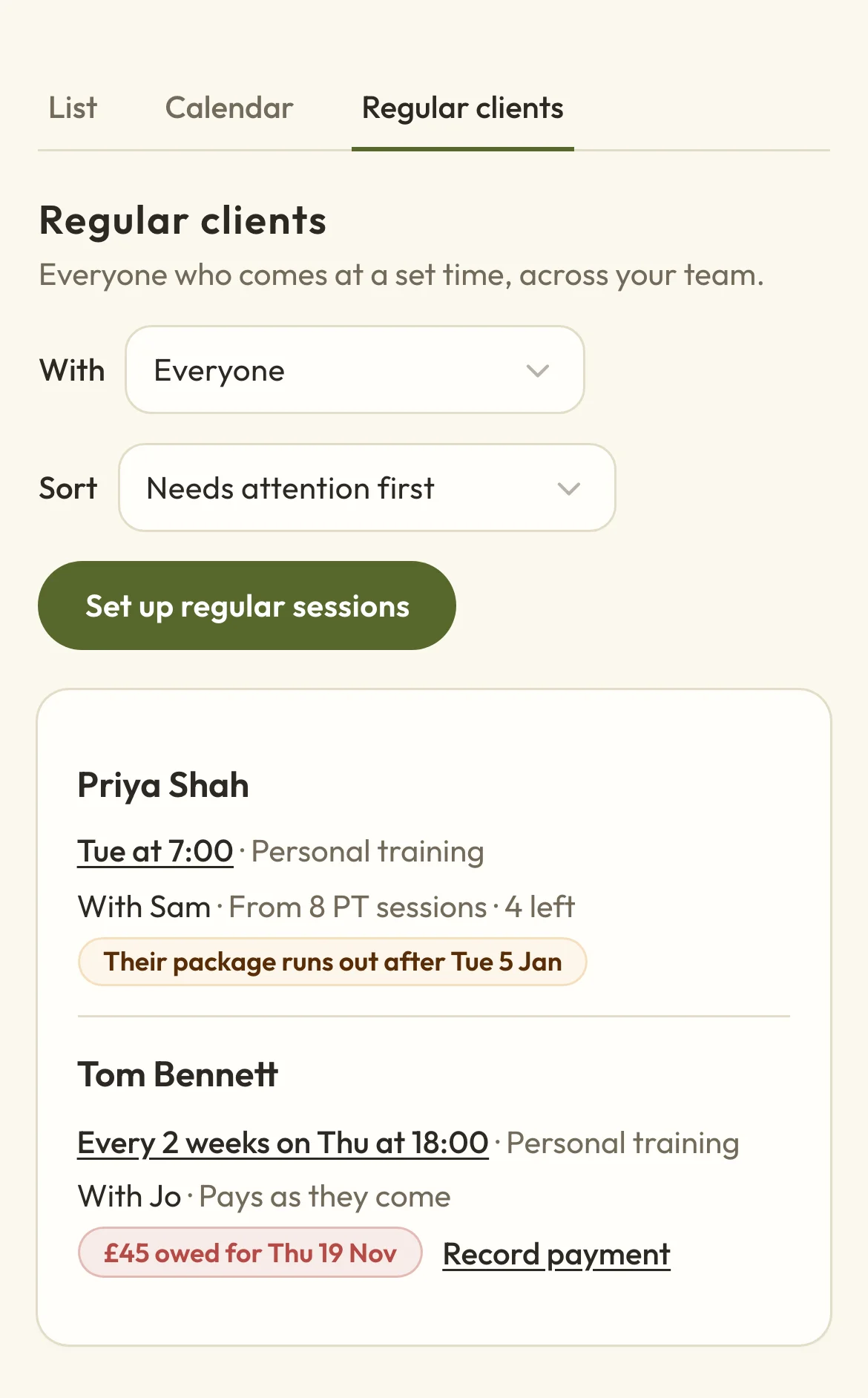
The Regular clients tab in your appointments lists everyone who comes at a set time across your team. It shows when they come, who they're with and how they pay. Anyone who needs something doing is listed first, with a note under how they pay: a session still booked during someone's time off, a package that's about to run out, or money they owe. Money owed comes with Record payment, which opens that session so you can note how they paid.
 (opens the full-size picture in a new tab)
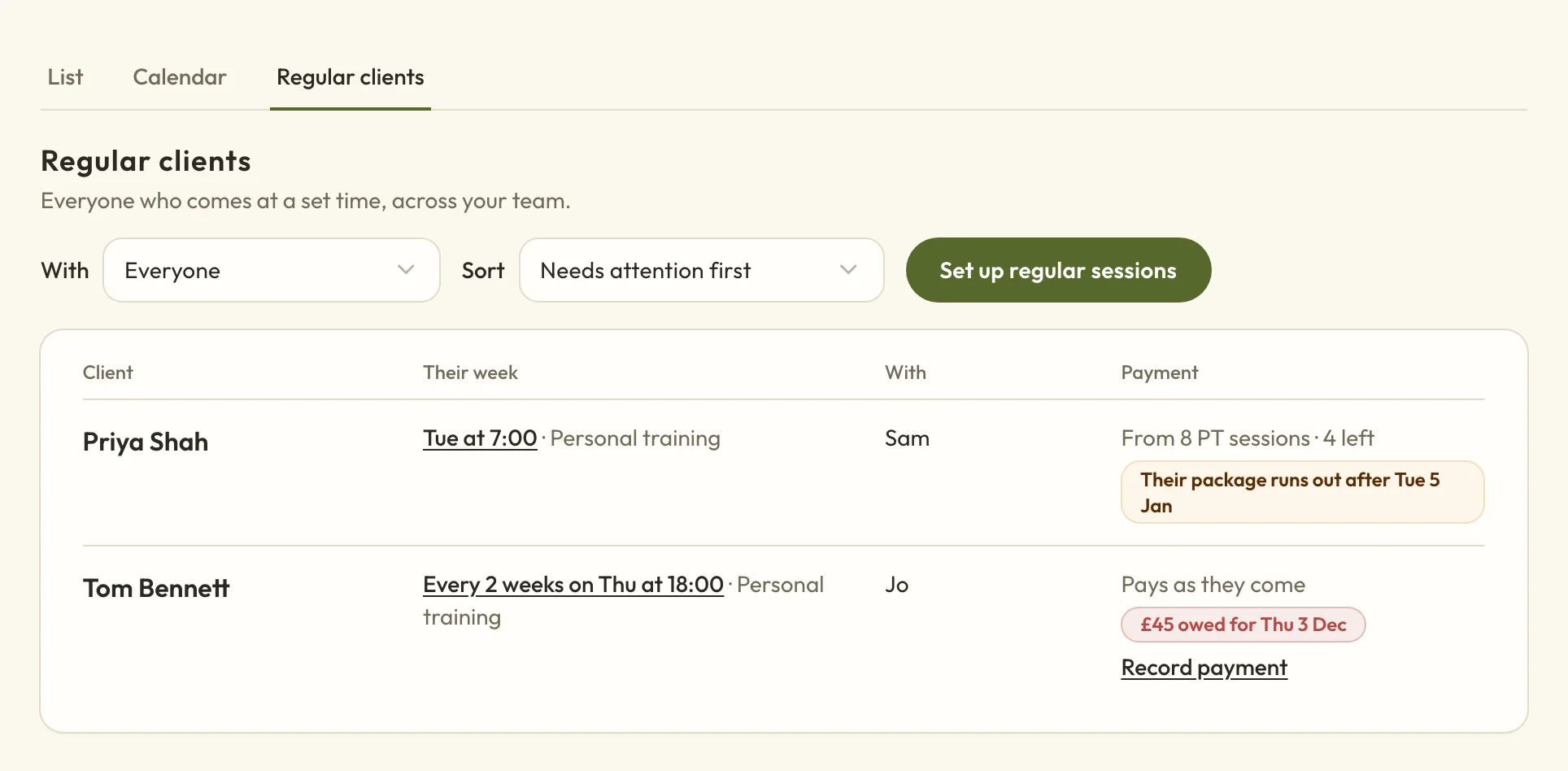 (opens the full-size picture in a new tab)Everyone with regular sessions, across your team.
Your bookings dashboard also reminds you when a client has fewer than 2 sessions booked ahead, or when their package is about to run out.