You can change a service at any time, even once people have booked it. A new price or length is only for new bookings, so anyone already booked keeps the appointment they booked and what they agreed to pay, and nobody gets an email about the change. Most changes show on your booking page as soon as you save them. The words and photo on a service's own page wait until you publish them.
This guide covers changing the price or length, stopping bookings for a while, getting rid of a service, and the rest of what's on a service: its page, how people pay, where it happens and who offers it. To add a new one, see Add an appointment service.
Open a saved service
- Go to BookingsServices. On a phone, Services is in the More menu along the top of Bookings.
- Choose the service's name, or choose Edit from the menu on its row.
The service opens on its Details tab. The others are Content, Availability, Booking and Questions, and on a phone you might need to swipe the row of tabs to see them all. Most tabs save with Save changes, and you'll see Service updated. once it's gone through. If you try to leave with changes you haven't saved, you'll usually be asked first.
Change the price
To put your price up or down, say your massage is going from £45 to £50, change it on the service. People who've already booked don't pay more.
- Open the service and go to its Booking tab.
- Under Pricing, leave it on Single price and type the new amount in Price (optional). An empty price makes the service free.
- Choose Save changes.
The new price is for new bookings. People already booked keep the price they booked at, whether they've paid or still owe it, so nobody is charged more or refunded because of the change. If you'd rather let clients choose what they pay within a range, choose Sliding scale and fill in Minimum price, Maximum price and Suggested price.
The currency is set for your whole site, so you can't change it here. See Choose how customers pay.
Change how long it is
To make a session longer or shorter, say your massage is going from 45 minutes to an hour, change its length. People already booked keep the length they booked.
- Open the service and go to its Availability tab.
- Under Length, choose a new length, or Different length to type your own.
- Change Keep free before or Keep free after too if you want more or less time between clients.
- Choose Save changes.
Appointments that are already booked keep the length they were booked at, so a 45-minute booking stays 45 minutes after the service becomes an hour. If you later move one of those appointments to a new time, it takes the new length.
If your hours use Only at set times, a longer service might not fit between your start times any more, and the save won't go through. Change the start times first. See Set your appointment hours.
Does changing a service affect appointments already booked?
No. Changing what a service costs or how long it lasts only affects new bookings. Nothing already booked is moved, cancelled or refunded, and nobody gets an email. Those appointments stay as they were when the client booked.
Two things work a little differently. If you change the link clients use to join a video call, clients see the new link from then on, but emails they've already had still show the old one (see the section on join links below). And if you limit who offers the service, existing appointments stay with whoever they're booked with.
If you want to change a booking that's already been made, do it from the appointment itself. See See and manage your appointments or Cancel or refund a booking.
Pause a service
To stop people booking a treatment or session for a while, maybe over the summer or while you're injured, pause the service. That stops new bookings without deleting it. Everything about it is kept for when you switch it back on, and anyone already booked stays booked.
- Open the service. It opens on the Details tab.
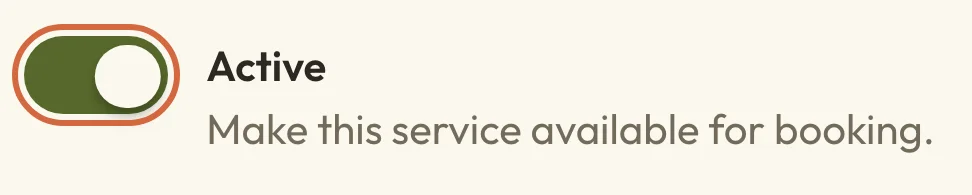
- Switch off Active.
- Choose Save changes.
 (opens the full-size picture in a new tab)
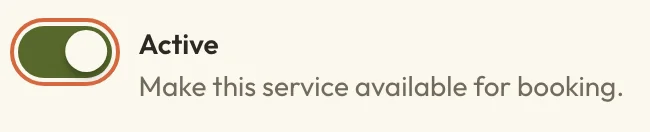 (opens the full-size picture in a new tab)Switch off Active to pause a service.
The service goes from your booking page straight away, its own page goes offline, and it shows as Paused in your list of services. You can't book anyone into it yourself while it's paused either.
Pausing doesn't cancel or refund anything, and you won't be warned about appointments that are already booked. They stay booked and go ahead as normal. If you need to cancel some of them, do that from each appointment. See Cancel or refund a booking.
To start taking bookings again, switch Active back on and choose Save changes.
If you'd like to keep a service bookable but off your list, for clients you send the link to, choose Unlisted under Who can find this instead.
Delete a service
You can only delete a service that has never been booked. Once anyone has booked it, even if that appointment has since been cancelled or is in the past, the service has to stay so the booking history still makes sense. For a service like that, switch off Active instead, as described in the section on pausing above. It stays in your list, marked Paused, and nobody can book it.
If you try to delete a service that's been booked, you'll see a message saying it can't be deleted, and the service stays as it was.
 (opens the full-size picture in a new tab)
 (opens the full-size picture in a new tab)A service that's been booked can't be deleted.
To delete a service nobody has booked:
- Open the service. It opens on the Details tab.
- Scroll to Delete this service at the bottom of the page and choose Delete service.
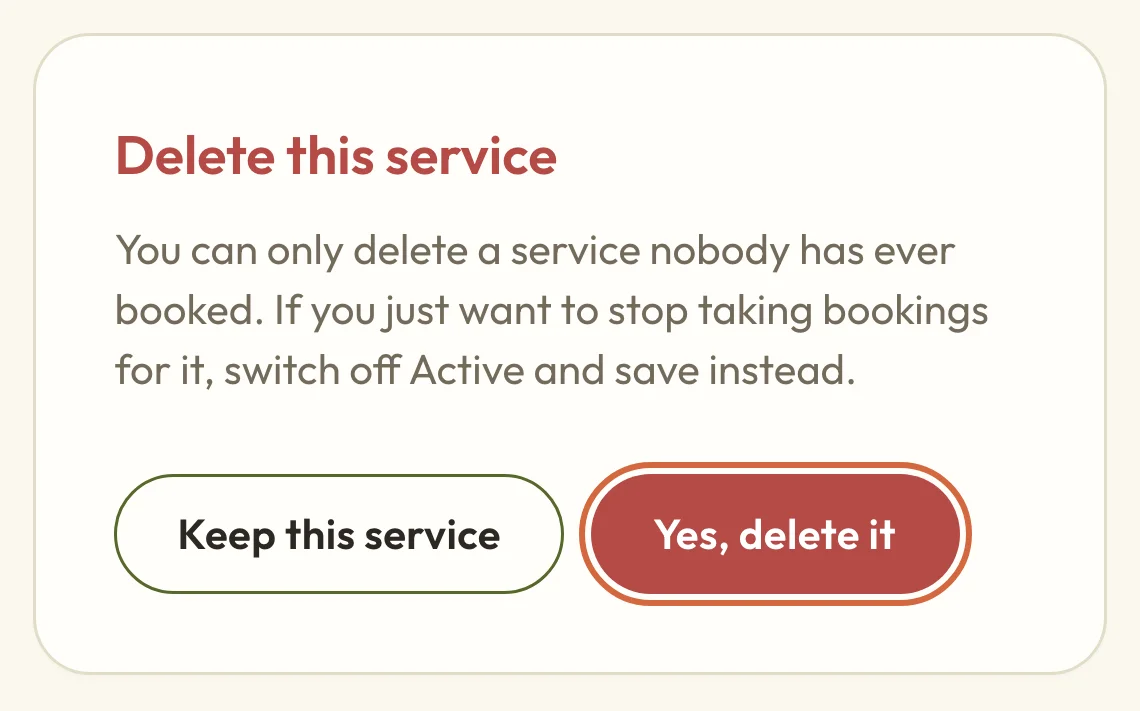
- Choose Yes, delete it, or Keep this service if you've changed your mind.
 (opens the full-size picture in a new tab)
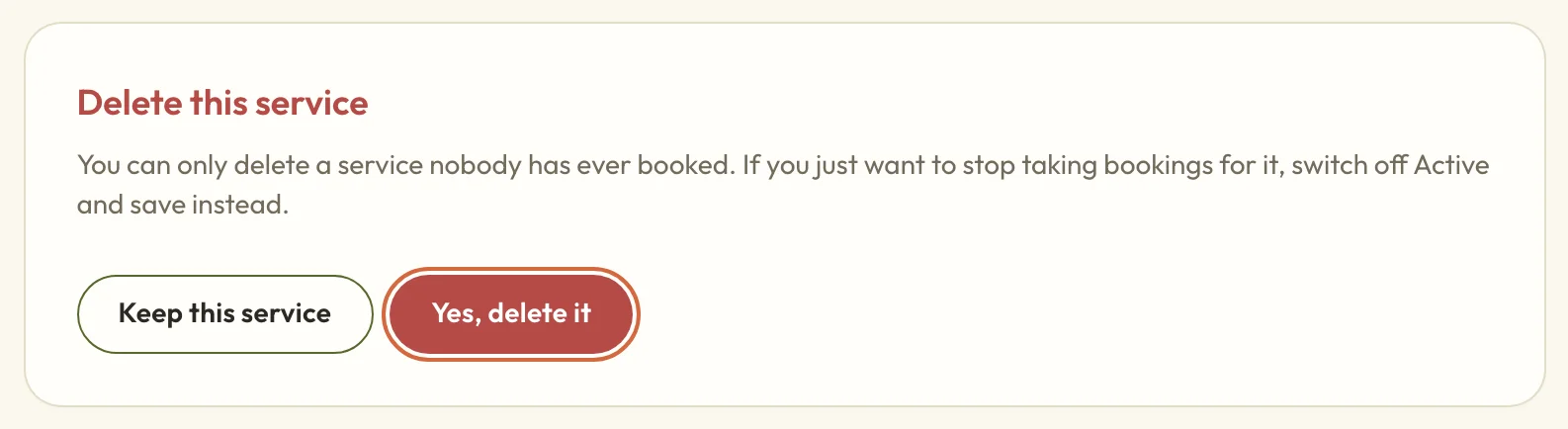 (opens the full-size picture in a new tab)Deleting asks you to confirm first.
You'll go back to your list of services, and the service is gone. Deleting doesn't affect any bookings, because a service can only be deleted when it has none.
Change the link clients use to join
On the BookingsServicesServiceAvailability tab, a video service has Join link, Access code and Notes. Change them and choose Save changes. Clients with upcoming bookings see the new link on their account, and any emails sent from then on use it. Emails they've already had still show the old one, so you might want to let them know.
A video service that's active and Public needs a link. On an Unlisted service, or one you've paused, you can leave it blank, but client emails won't include any joining details, so you'll need to send them yourself. You'll be asked for a link before you can make the service Public, or make a paused Public service active again.
If someone on your team uses their own link for this service, their clients get that one instead. See Edit a team member's details, services and page.
Let people pay only with a package
On the Booking tab, How clients pay online decides whether clients can pay for one session at a time:
- Per session or with a package lets them pay for one session, or use a package.
- Only with a package means they need a package that covers this service to book online. You can still book someone in yourself.
If you choose Only with a package and no package on sale covers the service yet, you'll see a warning. Saving this doesn't create a package for you. See Create and sell passes.
Take a deposit or let people pay in instalments
On the Booking tab, Payment options starts on Use the usual payment options, which follows your site's settings for appointments. To do something different for this service, choose Choose payment options. You can then offer paying in full now, paying in person, a deposit with the rest later, or an instalment plan, though not a deposit and instalments together.
For what each option means, see Choose how customers pay.
Change where it happens
On the Availability tab, How customers meet you can be Video call, In person or Video or in person. For in-person appointments, choose the Venue. Choose Save changes when you're done. People already booked aren't told, so let them know yourself if it affects them.
Choose who can offer it
If you have a team, the Availability tab has Who can offer this service:
- Everyone includes everyone who offers appointments, including people you add later.
- Choose people means only the people you pick. You'll need at least one.
If someone you chose is no longer available, they're highlighted, and you'll need to remove them or choose someone else before saving. Existing appointments stay with whoever they're booked with.
When more than one person can offer the service, you'll also see Offer “Anyone available”, which starts switched on. Clients booking online then get Anyone available as their first choice. They see every free time across those people's diaries, and the booking goes to whoever's free at that time. If several people are free, it usually goes to whoever has fewer bookings that day. Clients can still pick a name. If your clients always book a particular person, switch it off, and they'll need to choose someone before they see any times.
You can also choose which services one person takes from their About tab. See Edit a team member's details, services and page.
A service a trainer added for themselves says Only Priya Shah offers this, because they added it, with their name in it, instead of the list of people. To share it, choose Make it a studio service. They'll still offer it but won't be able to change it, and you can then choose who else offers it. It also stays off your public list until you change that on its Details tab.
If saving only partly works
Who can offer a service is saved separately from the rest of it. If you see an error about practitioners after saving, your other changes have probably been kept. Check Who can offer this service, fix it and choose Save changes again.
If a field on another tab needs fixing, the message tells you which tab to go to.
Change its name or category
Open the service's Details tab. You can change the Service name and Category. When a service moves to a new category, it goes to the end of that group, and you can reorder it from BookingsServices. See Group and order your services.
The Page address doesn't change when you rename a service, so links you've shared keep working. Under Advanced settings, you can pick a Colour for the service.
Change the words and photo on its page
Go to the service's Content tab. You can change the Short description, the Photo and the Full description. The short description and photo also show in your list of services.
Unlike the other tabs, the words on this one stay as a draft until you publish them:
- Make your changes, then choose Save draft. Discard throws them away instead.
- Under Changes not published yet, choose Publish changes. Your changes are then on the service's page.
If the service is paused, its page is offline, so nobody sees it whatever you publish. Anything you publish will be there when you switch Active back on.
Fill in the sections on a service's page
If you've added sections for your services, like "Before your first session", they're under Sections on this page on the Content tab, one box for each. A section you leave empty won't show on the page. Every service shares the same sections, but what you write in them is just for that service.
If there aren't any yet, choose + Add a section to every service page. To add, change or reorder the sections themselves, see Add sections and quick facts to your pages.
Change what people are asked when they book
The Questions tab is where you choose whether people agree to your booking terms, add an extra agreement, or ask booking questions for this service. See Edit booking questions.