If you're going away for a holiday, Christmas or a training course, you can close your booking page for those dates so nobody can book while you're gone. Before anything changes, you'll see a list of everyone it affects, and you can still back out at that point.
The thing to watch is that a closure cancels any classes, workshops and course sessions on those dates, and it refunds the people booked on them in full unless you change that. Appointments that are already booked stay booked, so you'll need to move or cancel those yourself.
If you work on your own, this is called Time off. Your profile has a Time off tab as well, and it's a different thing. Each screen says which one it is and links to the other, and the next section explains the difference.
Check which time off you need
There are two places to add time off, and they do different things.
- The Time off tab on your profile, beside Hours, only stops appointments. Your classes and events carry on as normal. Use it when you're away from appointments but your classes are still running, or someone else is teaching them. It's explained in Set your appointment hours.
- BookingsClosures closes your whole booking page. It stops new appointments, and it cancels and refunds classes and workshops on those dates. This guide is about this one.
If you work on your own, it's called Time off. You'll find it in Bookings, under Appointments, just below My availability. If you only run classes, it's under Availability. On a phone it's in the More menu along the top of Bookings. If you've got a team, it's called Closures, and the buttons say closure instead of time off, so you'll see Preview closure where this guide says Preview time off.
Close your booking page for a holiday
If you're going on holiday or away for Christmas, here's how to close everything while you're gone:
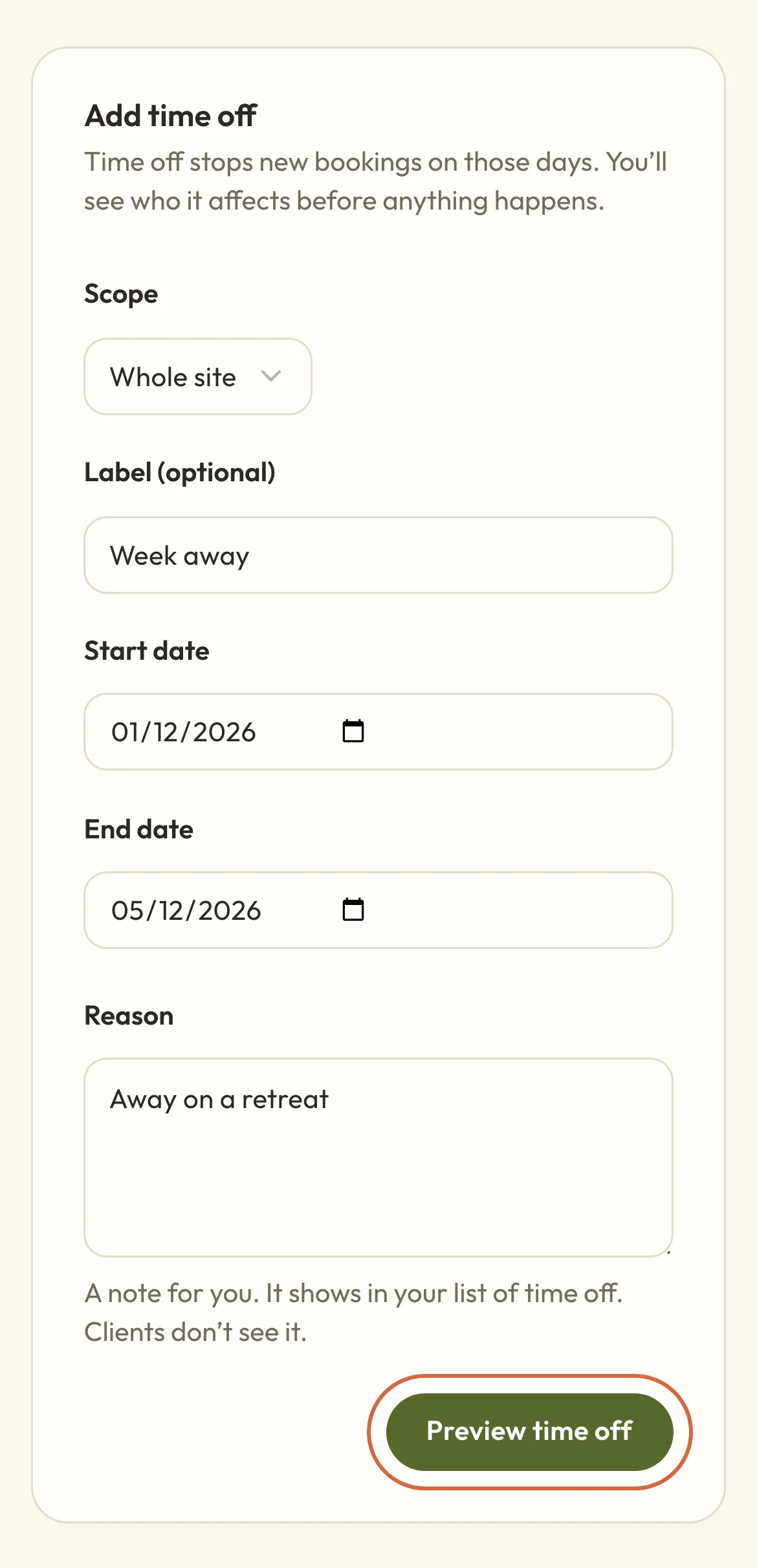
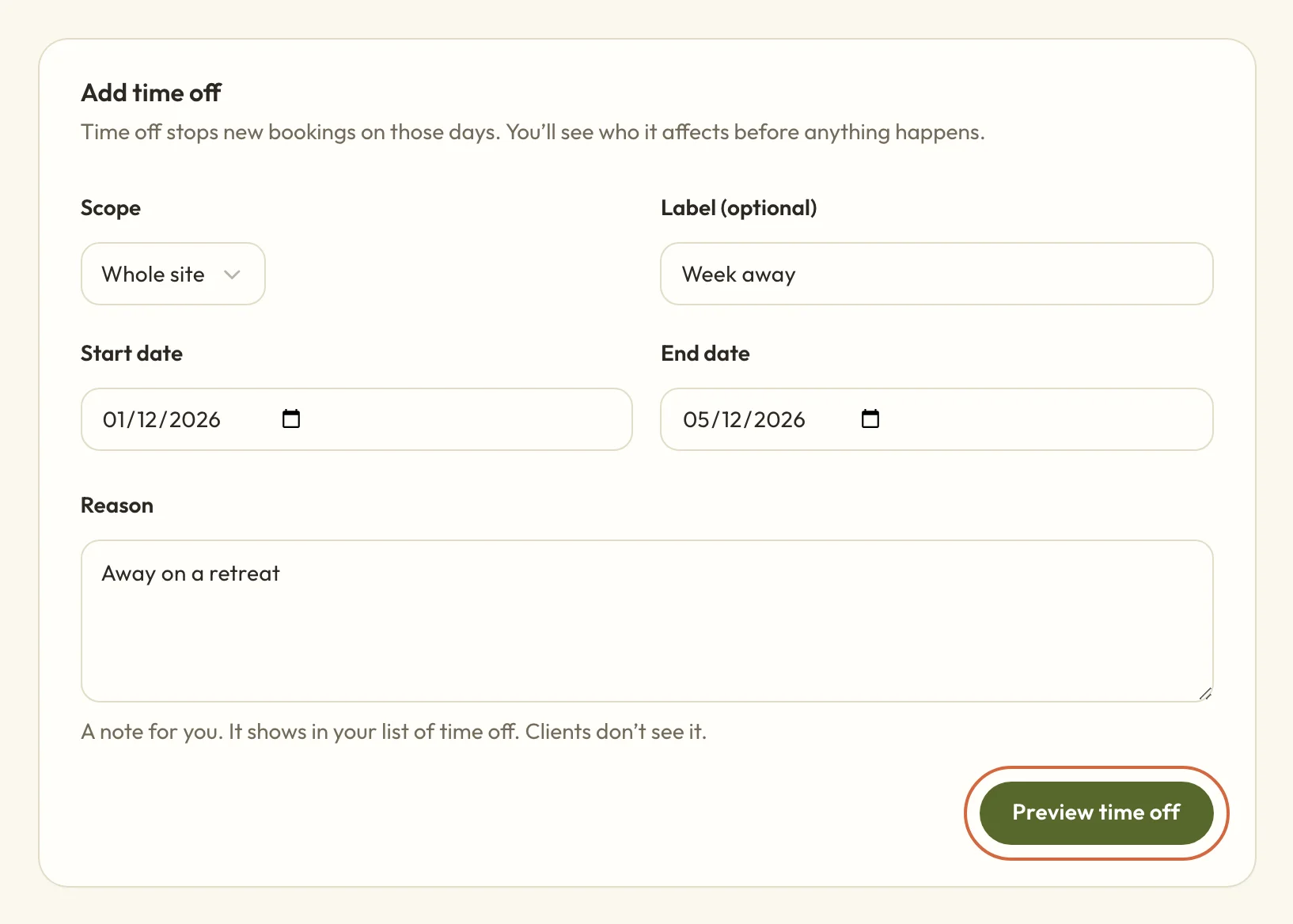
- Go to BookingsClosures.
- Leave Scope on Whole site. There's more on One venue further down.
- Add a Label (optional) if you'd like a name for it, such as "Christmas".
- Set the Start date and End date. They're whole days, so the closure runs from the start of the first day to the end of the last.
- Fill in the Reason. It's a note for you that shows in your list, and clients don't see it.
- Choose Preview time off.
 (opens the full-size picture in a new tab)
 (opens the full-size picture in a new tab)Nothing changes until you've checked the preview and confirmed.
A window opens called "Check what this time off affects", and the next section goes through what's in it.
Check what it'll cancel before you confirm
The preview lists everything on those dates, in this order:
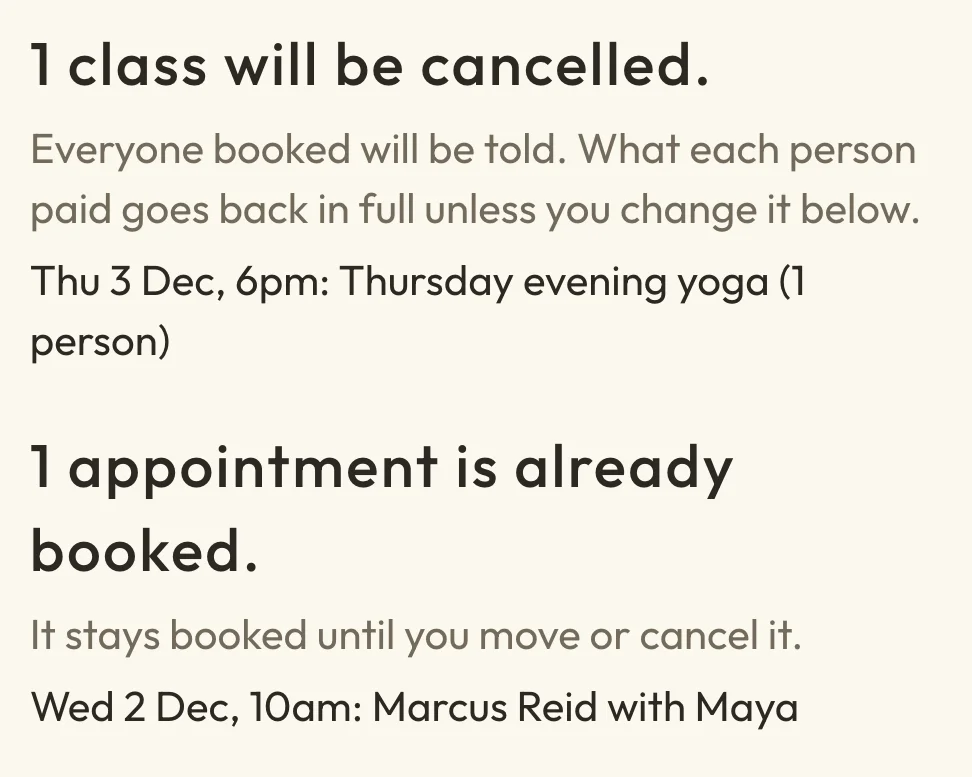
- Classes and workshops that will be cancelled, such as "3 classes will be cancelled.", with how many people are booked on each.
- Course sessions that will be cancelled. People on the course keep their place, and nothing is refunded.
- Appointments that are already booked. These aren't cancelled, and they stay booked until you move or cancel them.
- What each person booked on a cancelled class gets back, one row per person. Each one starts on a full refund.
 (opens the full-size picture in a new tab)
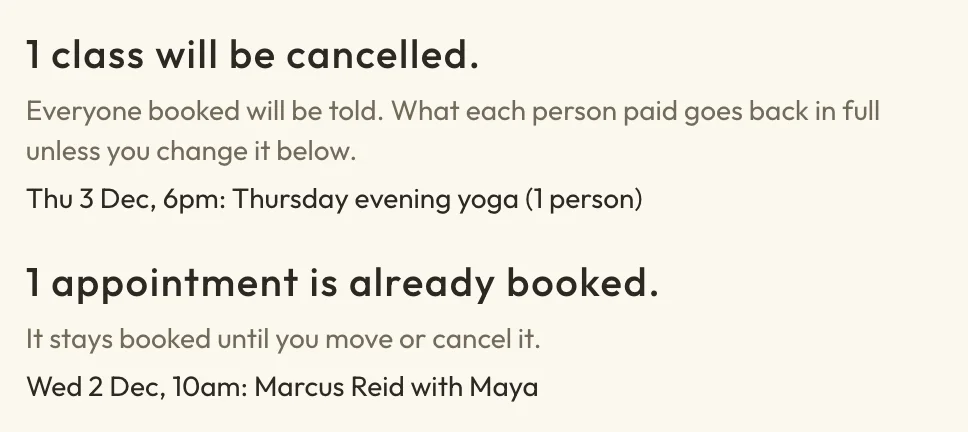 (opens the full-size picture in a new tab)The preview names each class it will cancel and each appointment that stays booked.
Read the list before you go on. If you see a class you'd forgotten about, or dates you didn't mean, choose Back to change them, or close the window. Nothing is saved until you confirm.
The button at the bottom says what it'll do, such as "Add time off and cancel 3 classes". It's red when something will be cancelled. When nothing will be cancelled, it just says Add time off.
Refunds and emails for classes and courses a closure cancels
If you close for Christmas or a holiday, any class or workshop on those dates is cancelled. Everyone booked on it has their booking cancelled and gets a cancellation email, and their money goes back in full unless you choose otherwise in the preview. If they booked with a pass, the credit goes back on it, and anyone on the waiting list is told too.
For what people paid online, the preview has a choice for each person, under "What … gets back". It starts on a full refund, paid back the way they paid. If you'd rather keep some or all of what someone paid, change it for that person to Refund part of it or Don’t refund. If your site gives refunds as account credit, that's a choice here too. Someone who paid you in cash or by bank transfer can't be refunded here, and the preview asks you to sort that out with them yourself.
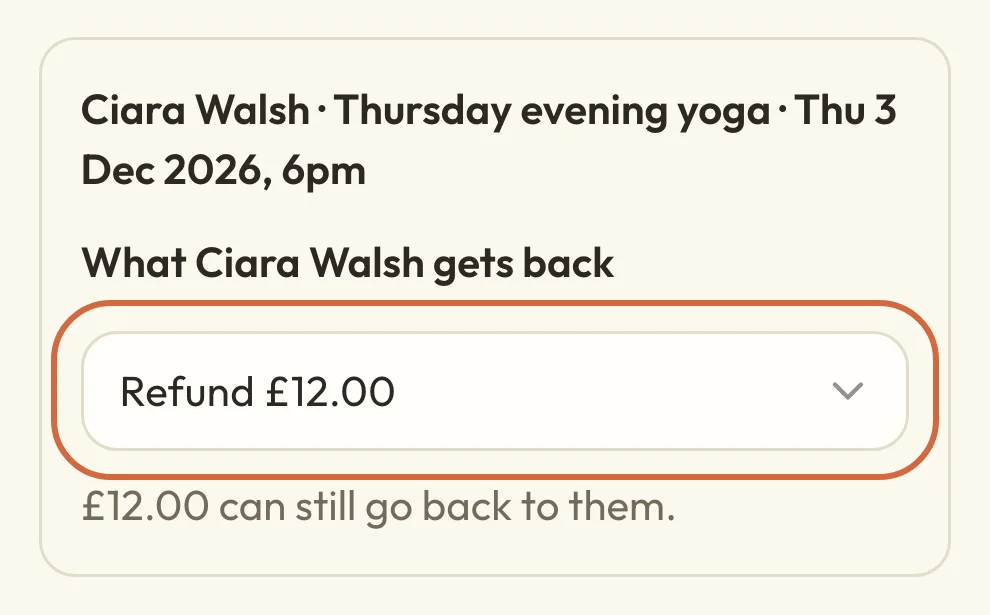 (opens the full-size picture in a new tab)
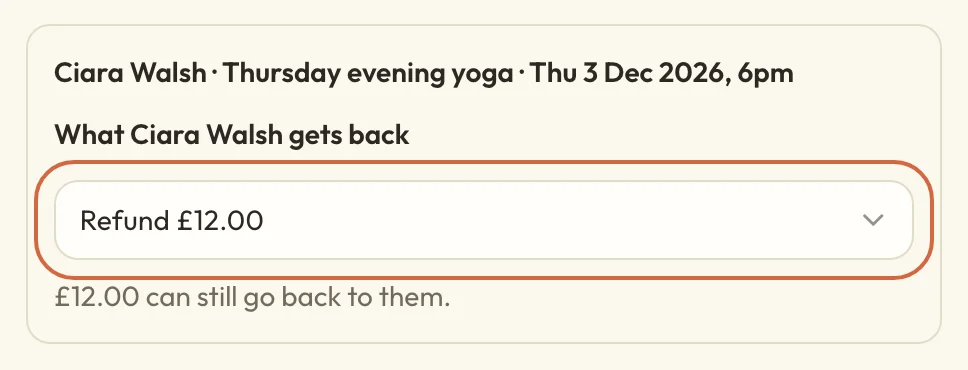 (opens the full-size picture in a new tab)Each person starts on a full refund. Change it here before you confirm.
Below the list there's Add a personal note to the email, if you'd like to say something in your own words, such as when you'll be back. It goes in the cancellation email and is kept in each booking's history.
People booked on a whole course are treated differently, because their place covers the whole run rather than one date. They keep their place and nothing is refunded. They get one email listing the sessions that were cancelled. If you'd like to make up a missed session, you can add one to the run. See Change or cancel a course session.
If someone has no email address, such as a person you added by hand, the preview lists them under Contact these customers directly, so you can tell them yourself.
Appointments during a closure
If you close for Christmas or any other break, appointments that are already booked aren't cancelled, moved or refunded. The client stays booked, and keeps what they paid, until you move or cancel the appointment yourself. New appointment times stop straight away, so nobody else can book during those days.
After you confirm, a window lists them under a heading such as "2 appointments still to sort", with Move and Cancel on each one. Each row disappears once you've dealt with it. If you'd rather do it later, you can come back to the list from Details on your time off. If a client has regular sessions, there's also a Regular sessions link, which opens their dates.
To move one, there are steps in See and manage your appointments. To cancel one and decide on a refund, see Cancel or refund a booking.
Dates that need a look from you
Some event dates aren't cancelled by a closure, and the preview lists them separately under "These dates need a look from you." with Open on each. You might see Partly overlaps for a session that starts or ends outside your dates, Already in progress for one that's started, or Hybrid venue event when a closure on one venue touches an event that's partly online. A session that runs overnight shows as Spans the closure, even if it's completely inside your dates.
Open each one and decide what to do with it. See Change or cancel class and workshop dates.
Check it worked
Once you confirm, you'll see Time off added (or Closure added), and it appears under Upcoming time off (Active closures on a team site). Choose Details on it to see what it cancelled and any appointments still to sort.
Now and then, cancelling, refunds or emails don't all finish straight away, and the message says so, such as "Some refunds or emails aren’t finished. Check the affected class Dates." If you see that, open the class and check its dates. If you see "The impact changed", someone booked or cancelled while you were looking, so check the updated list and confirm again.
Remove time off or a closure
If your plans change, choose Remove on it under Upcoming time off (Active closures on a team site), then Remove time off (or Remove closure) to confirm. Those days can be booked again, unless something else still blocks them, such as your profile's own time off or days with no hours.
Removing it doesn't undo what it did. Dates people had booked stay cancelled, nobody is rebooked, and any refunds that went out aren't taken back.
Dates it cancelled that nobody had booked can come back. If there are any, you'll see a box such as Bring back 2 dates nobody had booked, ticked for you, so untick it if you'd rather leave them cancelled. Only future dates that haven't been changed since can come back this way. Course sessions are listed with a link to their course, where you can bring each one back. If a date can't be brought back, you'll see a message saying so, and you can reopen it from the event's dates. See Change or cancel class and workshop dates.
Close just one venue
If you teach in more than one place and only one of them is closed, such as a hall that's being decorated, choose One venue under Scope and pick the Venue. You can only choose it once you've added a venue.
A closure on one venue only cancels classes and events at that venue. For appointments, it stops new bookings for in-person services set to that venue, and its preview lists the appointments already booked there. Online and hybrid services keep their times, because clients can still join online.
If only one person on your team is away
On a site with a team, if only one person who takes appointments is away, you don't need a closure. Add time off on their profile instead, which only stops their appointments. See Set your appointment hours.