If a client has paid you in cash or by bank transfer, or you'd like to give them a pass for free, you can add a pass, package or membership to their account yourself. They can use it straight away.
Adding one doesn't charge a card, and your client isn't emailed about it, so you'll want to tell them it's ready. A membership you add works a little differently from one bought online, because it runs for one month or year and then stops.
Add a pass, package or membership to a client
To add a pass, package or membership to someone who's already in your client list:
- Go to BookingsPeople, open the client and choose Purchases.
- Choose Add a pass or package or Add a membership.
- Pick the one you want from the list.
- Check the Price, and change it if you've agreed something different.
- Under Payment, say whether they've paid you.
- Read the line at the bottom, which sums up what they'll get, then choose Add pass, Add package or Add membership.
 (opens the full-size picture in a new tab)
 (opens the full-size picture in a new tab)Passes, packages and memberships are added from the client's Purchases page.
It appears on their Purchases page as soon as you've added it.
If they aren't in your client list yet, start from BookingsPasses, packages & memberships instead. Open the menu on the pass or membership's row, choose Add to someone…, then choose Add someone new. You'll need their email address, because their bookings are kept under it.
If the one you want isn't on the list, it's probably set to Not on sale. You can change that under How do clients get it? in Create and sell passes or Create and sell memberships.
If a client bought it with cash or a bank transfer
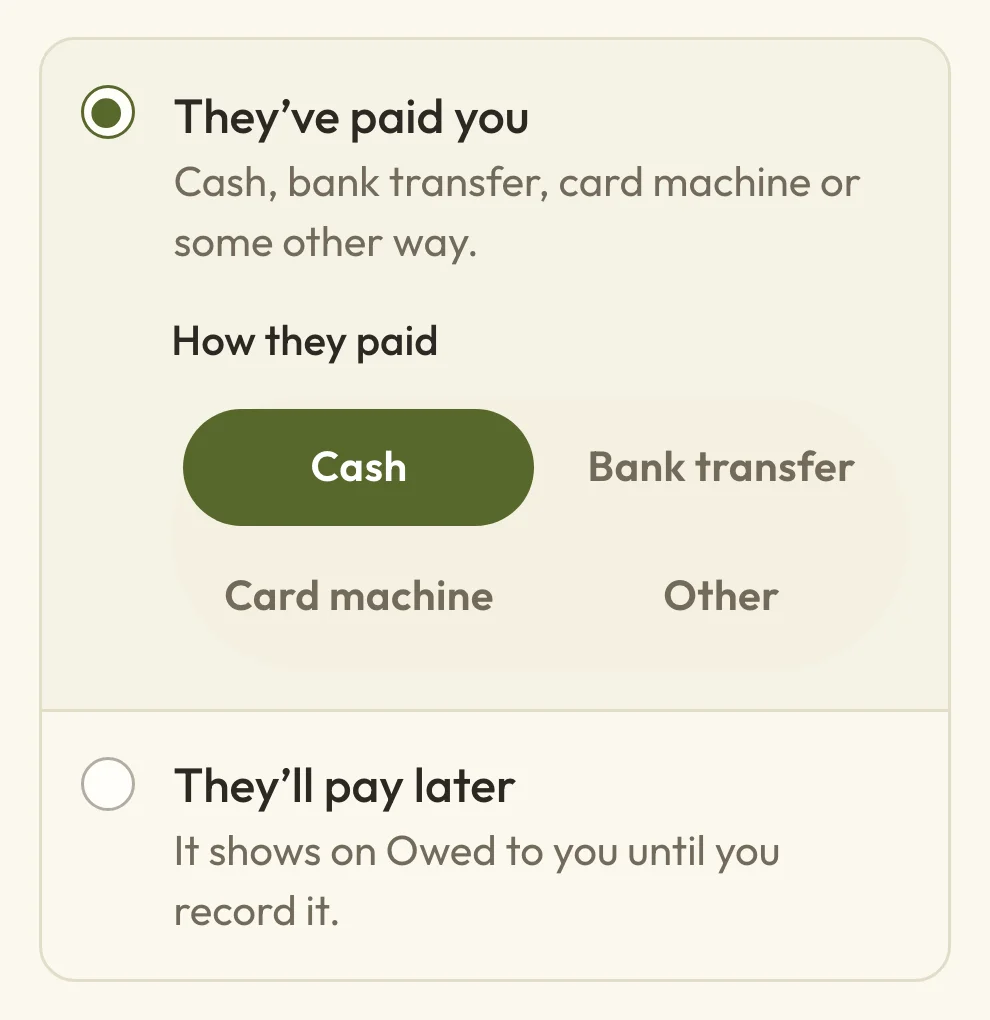
When you add a pass, package or membership that has a price, Payment asks whether the client has paid you:
- Choose They’ve paid you if you've already had the money. Then, under How they paid, choose Cash, Bank transfer, Card machine or Other.
- Choose They’ll pay later if the money's still to come. They can use it in the meantime, and you can record the payment when it arrives.
 (opens the full-size picture in a new tab)
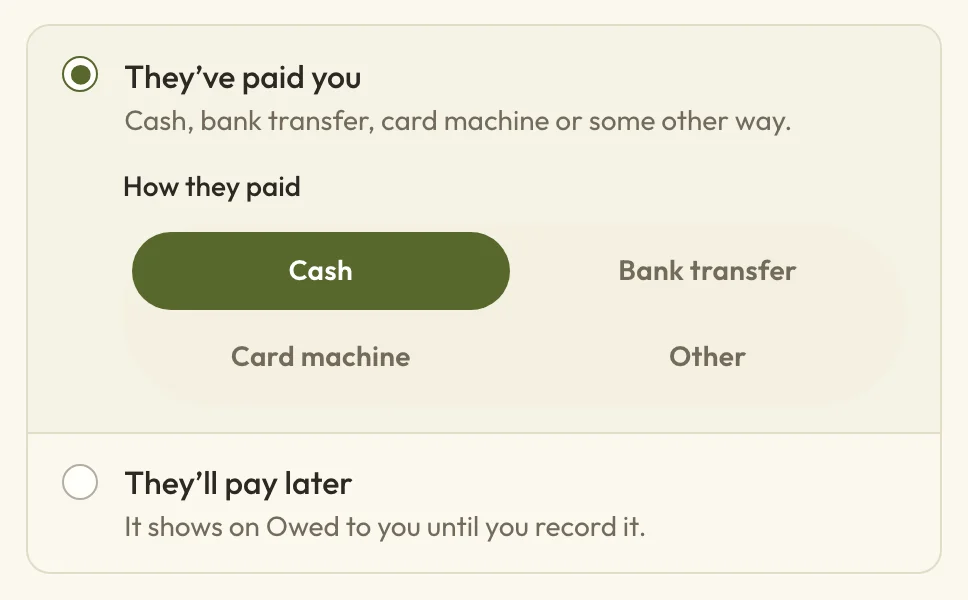 (opens the full-size picture in a new tab)Choose how they paid, so your records match the money you've taken.
A payment you record goes into MoneyPayments with today's date, marked as one you recorded yourself. It's only a record, so no money moves through Macadamia and there are no card fees.
If you see a message saying it was added but the payment couldn't be recorded, the client has still got their pass or membership, so don't add it again. Record the payment from MoneyOwed to you instead.
Give it for free or at a different price
The Price starts at the usual price, and you can change it for this one client, perhaps to give a discount. To give a pass, package or membership away for free, put 0. The Payment question then disappears, and it shows as free on their Purchases page.
Changing the price here doesn't change what anyone else pays.
If a client is going to pay you later
If you chose They’ll pay later, your client can use their pass or membership while they owe you for it. The amount shows on their Purchases page and in MoneyOwed to you.
When the money comes in:
- Go to MoneyOwed to you and choose Record payment next to the pass or membership. This opens its order.
- Find Settle outstanding balance, which is a long way down the page on a phone.
- Choose How they paid and check Date paid.
- Choose Mark paid, then Mark paid again to confirm.
To ask them to pay by card instead, see Follow up money you're owed.
Does your client get an email when you add a pass or membership?
No, your client doesn't get an email when you add a pass, package or membership to their account, or when you record their payment. It's worth letting them know yourself, and telling them which email address it's under.
To use it, they choose Sign in while they're booking and they're emailed a link. If they sign in with the email address you have for them, their pass or membership is offered as a way to pay. They can also see it under Your bookings on your booking page.
You can book them in yourself too, as Use a pass or membership for a booking explains.
Does a membership you add for a client renew?
No, a membership you add for a client doesn't renew. It gives them one month or one year, depending on its billing interval, starting today, and then it stops. A membership a client buys online is different, because it renews by itself and takes the payment from their card.
 (opens the full-size picture in a new tab)
 (opens the full-size picture in a new tab)The dialog tells you how long the membership lasts before you add it.
- Their card is never charged, and nobody is reminded before it ends, so it's a good idea to note the last day. You'll see it on their Purchases page.
- They can't cancel it from their account, though they can see its last day there. If it needs to stop early, see Cancel or refund a membership.
- You can't add the same membership again while it's still running. You'll see They already have this membership, so there's nothing to add.
Keep a membership going after the one you added ends
Once a membership you added has ended, you can add it again and record the new payment, which gives them another month or year.
To give them longer without a gap, open the menu on the membership on their Purchases page, choose Change dates and set a later Last day. Your client is emailed the new dates. This doesn't record a payment, so it suits a free extension better than a renewal they've paid for. Cancel or refund a membership has more on changing the dates.
If you'd like them to pay automatically every month, ask them to book a class on your booking page and choose the membership when they pay, once the one you added has ended.
Choose who a client books with on a package
If a package is tied to one team member, you'll be asked to choose them under Team member. You'll only see people who offer the services the package covers. A team member adding a package always adds it with themselves.
To move a client's unused sessions to someone else later, see Change or refund a client's pass.
If you added the wrong pass or membership
Adding one can't be undone, but you can end it. For a pass or package, choose End without a refund on its menu, as Change or refund a client's pass explains. For a membership, choose End now on its menu, which emails your client to say it's ended.
A payment you've recorded can't be edited, so if the amount or method is wrong, contact support and we'll help you put it right.