You can give a client longer to use their pass, change how many credits it has, end it or refund it, all from their Purchases page. Changing the credits or the expiry date doesn't move any money or touch their bookings, and your client isn't emailed about it.
A refund needs a little more care, because the dialog starts with the pass set to end, and ending it can cancel classes they've already booked. It lists those dates and shows the amount before anything happens, so you can check both first.
Open the menu beside the pass
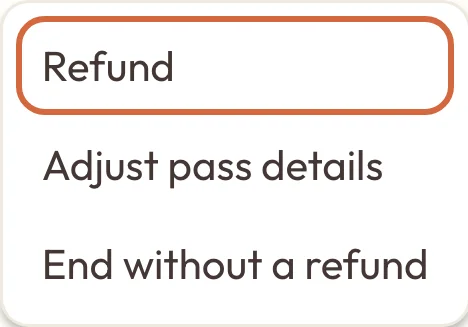
Everything you can do to a pass is on the menu beside it:
- Go to BookingsPeople, open the client and choose Purchases.
- Find the pass or package, and open the ⋯ menu beside it.
 (opens the full-size picture in a new tab)
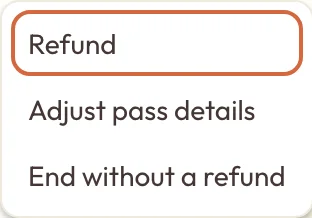 (opens the full-size picture in a new tab)Refunding, adjusting and ending a pass all start from this menu.
Whatever you change here only affects this client's pass, not the pass you sell.
Add credits back or change the expiry date
To give a client more credits, or longer to use their pass:
- Choose Adjust beside the pass. This opens Adjust pass details, or Adjust package details for a package.
- Change the number under Classes left, which is Sessions left on a package.
- Change the Expiry date if you need to. Leave it blank if the pass shouldn't expire at all.
- Choose Save.
The change applies straight away. No money moves, their bookings stay as they are and your client isn't emailed, so you'll probably want to tell them yourself.
A pass has to be valid when the class starts, so they can't use it for a class that's after the expiry date.
If you give them more credits than the pass came with, its total goes up too. A 5-class pass with 7 credits reads 7 of 7 classes left. Taking credits away doesn't lower the total, so going down to 3 reads 3 of 7 classes left.
If a pass has run out or expired
To bring back an expired pass, choose Adjust and set a later Expiry date. It goes back to active with the credits it had left.
A pass with no credits left shows as Exhausted. You can still choose Adjust and raise Classes left to top it up.
If you choose a date that's already passed, you'll be asked Expire this pass now? before it's saved. Choose Confirm and save to expire it. You can change the date again later to bring it back.
Refund a pass or package
To give a client their money back for a pass:
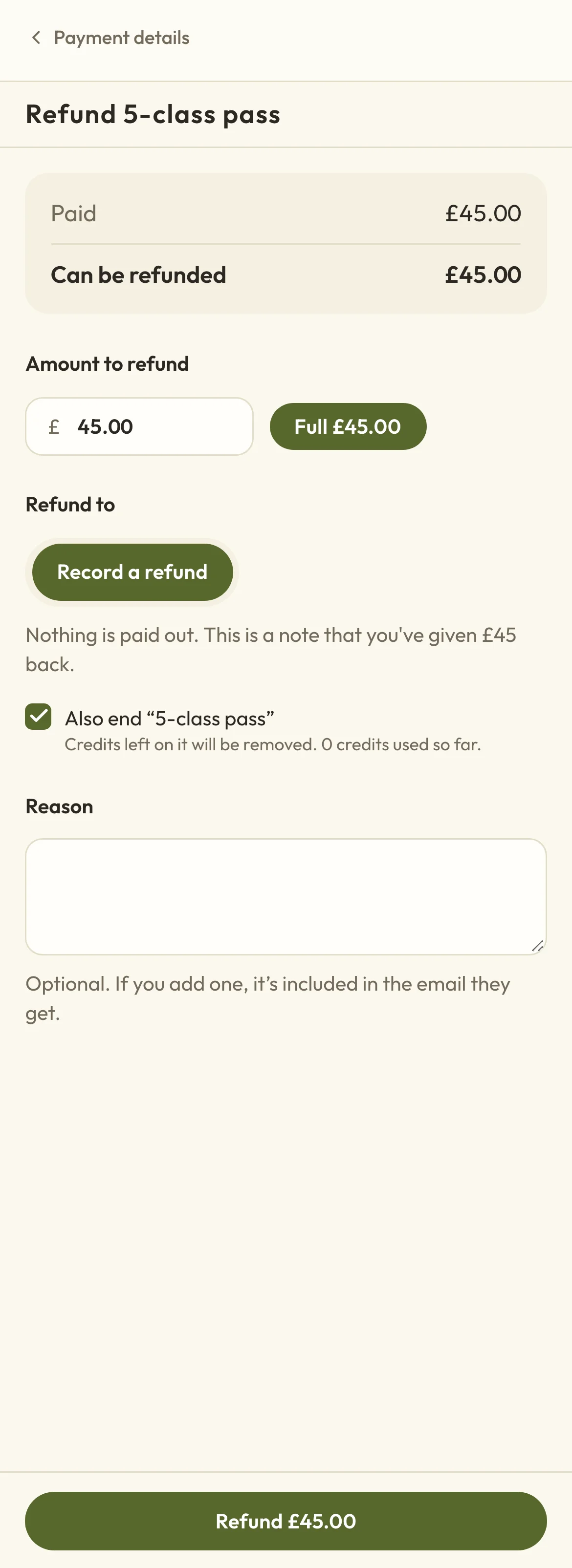
- Open the ⋯ menu beside the pass and choose Refund.
- Check Can be refunded, then the Amount to refund.
- Decide whether the pass should end. The tick box starting "Also end" is ticked to begin with.
- If dates are listed under the tick box, decide whether to cancel them.
- Add a Reason if you'd like to. It's included in the email your client gets.
- Choose the button at the bottom, such as Refund £27.00.
Nothing is refunded until you choose that last button. If you leave without choosing it, everything stays as it was.
 (opens the full-size picture in a new tab)
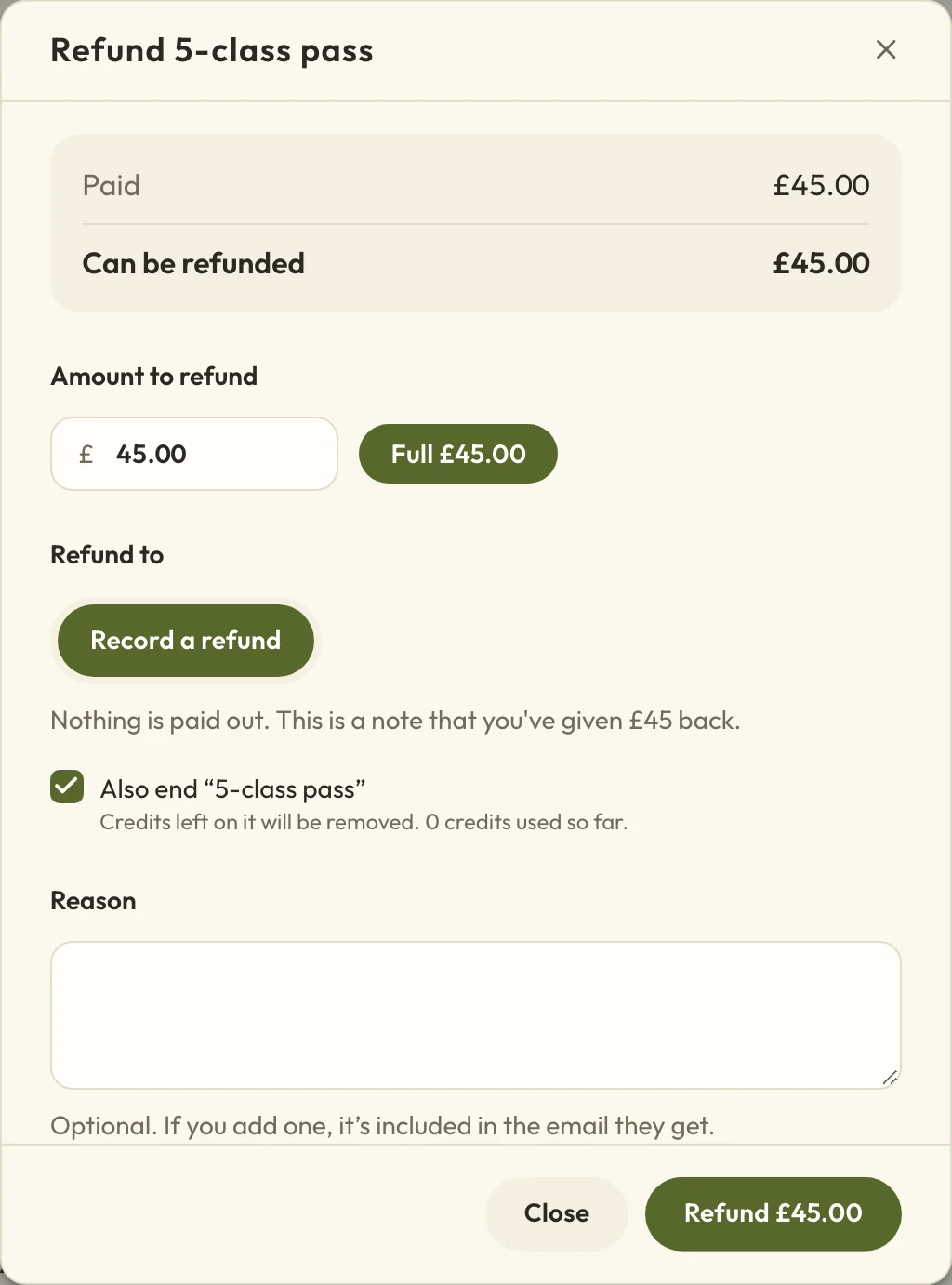 (opens the full-size picture in a new tab)Check the amount and whether the pass should end before you choose the button.
How much to refund on a part-used pass
When a client wants money back on a part-used pass, the dialog works out a starting amount for you. If the pass is set to end, Amount to refund starts at the share of the price for the credits they haven't used, less anything you've already refunded on that pass. Classes that are about to be cancelled count as unused, and classes they've already been to don't.
You can type any amount up to what Can be refunded shows, or choose the full-amount button, such as Full £45.00.
Here's how the choices change the amount on a £45 pass for 5 classes, with 3 credits left and 2 classes booked:
- With both boxes ticked, the pass ends, the 2 classes are cancelled and the amount starts at £45.00.
- If you untick Also cancel these 2 bookings, they keep those 2 classes and the amount drops to £27.00, which is the 3 unused credits.
- If you untick the box that ends the pass, they keep their credits and bookings, but the amount goes back up to the full £45.00. Lower it, unless you want them to keep the pass and get all their money back.
What a refund does to classes they've booked with the pass
If you refund a pass and end it, any credits left on it are removed. Classes still to come that were booked with it are listed in the dialog, and they're cancelled unless you untick Also cancel these 2 bookings. Classes that have already happened aren't changed.
If you untick the box that ends the pass, it stays active with its credits and bookings, whatever amount you refund.
To cancel just one of their bookings, see Cancel or refund a booking.
Once a pass has been refunded and ended it shows as Refunded. You can't adjust it or bring it back, and its menu only offers View refunds, so it's worth checking the amount before you confirm.
Refund a pass bought with cash or a bank transfer
If a pass was paid for directly, Macadamia can't send the money back for you, so give it back first. The dialog then shows Record a refund under Refund to, which notes what you've given back so your figures stay right. Nothing is paid out, and the refund email still goes out.
Where a card refund goes and how long it takes
A card payment goes back to the card they paid with. It usually takes around 5 to 10 working days to show at their bank, and Cancel or refund a booking explains what it costs you.
If you've turned on refunds to site credit, Refund to lets you choose Original payment or Site credit.
Does your client get an email when you change or refund a pass?
Your client gets one email when you refund a pass. It shows the amount, your reason if you gave one, any dates that were cancelled and whether the pass is still active.
They aren't emailed when you adjust their credits or expiry date, end a pass without a refund or move a package to another team member.
End a pass without a refund
To stop a pass being used without giving any money back:
- Open the ⋯ menu beside the pass and choose End without a refund.
- Choose End pass to confirm, or Keep pass to leave it as it is.
The pass expires today, so it can't be used to book anything new. Bookings already made with it stay booked. If you change your mind, set a later Expiry date from Adjust pass details.
This also suits a free pass or one you added by mistake. Refund is still on the menu for a free pass, but there's no payment to give back.
Ending a pass doesn't clear anything your client still owes for it, so the amount stays in MoneyOwed to you.
Move a package to another team member
If a package is tied to one team member and your client needs to see someone else, you can move their unused sessions:
- Open the ⋯ menu beside the package and choose Change team member. It's only there while the package is active.
- Pick who they'll book with under Move to.
- Choose Change team member.
Appointments they've already had stay as they are, and nothing is charged or refunded. If you see No one else offers this package’s services., you'll need to add those services to another team member first.
If a refund doesn't go through
If a card refund fails, or it can't be confirmed that it worked, it shows in MoneyPayment problems. Don't refund again until you've checked, and Sort out a payment problem explains each case.
If the money went back but the pass didn't end, the dialog tells you and offers Finish refund, which finishes the job without refunding them twice.