A pass lets a client pay once for a set number of classes, such as a 5-class pass, and then book with it until the classes are used up or it expires. For appointments the same thing is called a package, such as three massages.
Passes don't have their own section on your booking page. Clients are offered one while they're booking a class, at the step that asks how they'd like to pay. You can also add a pass to a client yourself if they've paid you another way.
Create a pass or package
To make a class pass, such as a 10-class pass, or an appointment package, go to BookingsPasses, packages & memberships and choose New, then New pass or New package. You'll only see the ones that match what you offer.
- Give it a Name. Clients see this when they buy it, and it follows the words "Buy a" on your booking page, so something like "5-class pass" reads well.
- Set how many Classes a pass has, or how many Sessions a package has. You can't change this once it's created, so it's worth checking.
- Set the Price, which has to be more than 0. You'll see what that works out to for each class or session.
- Check what it can be used for and how long it lasts. The next sections explain both.
- Under How do clients get it?, choose how it's sold.
- Check the summary at the bottom of the form, then choose Create.
If you've chosen to sell it online and your online payments are set up, it's on sale as soon as you've created it. Creating it doesn't give it to anyone or send any emails.
Choose which classes a pass covers
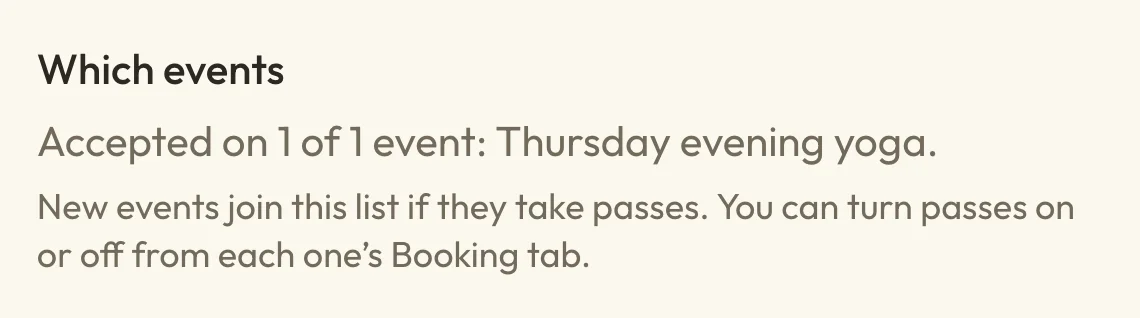
The pass form shows where a pass can be used today, with a line such as "Accepted on 6 of 9", followed by the names of those classes.
 (opens the full-size picture in a new tab)
 (opens the full-size picture in a new tab)The form lists the classes this pass can be used on.
If you've set up event categories, the form also asks which ones the pass covers. Leave it on the "All" option for everything, including events with no category, or open it and tick the ones you want, perhaps beginners' classes only.
Why a client can't use a pass on a workshop or class
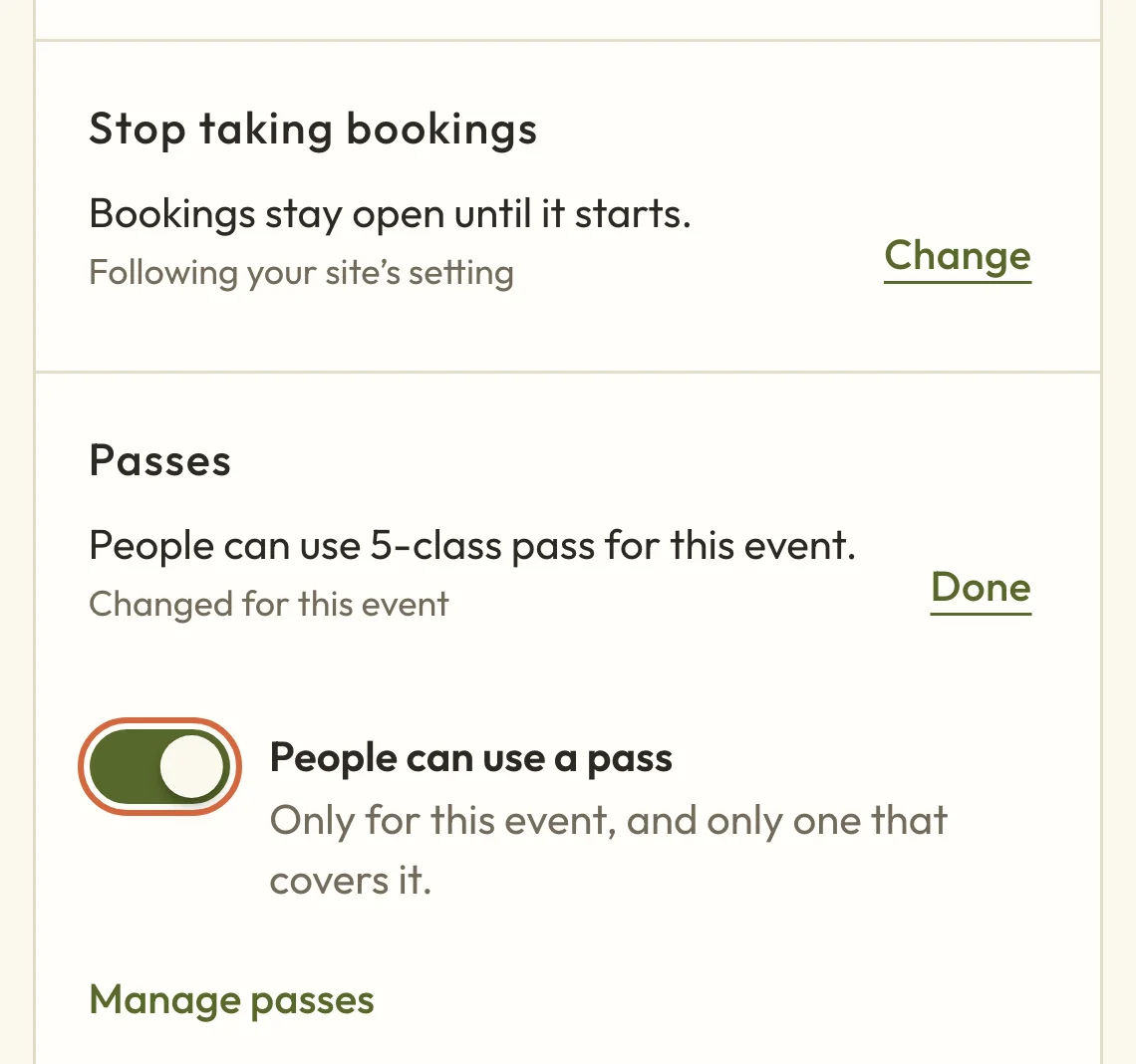
If a client can't use a pass on your workshop or class, it may not be set to take passes. New classes take passes from the start, but workshops and other events don't, so you'll need to turn passes on for those:
- Open the workshop or event and go to its Booking tab.
- Under Passes and memberships, or Passes if you don't sell memberships, choose Change.
- Turn on People can use a pass, then choose Done.
- Choose Save booking settings.
 (opens the full-size picture in a new tab)
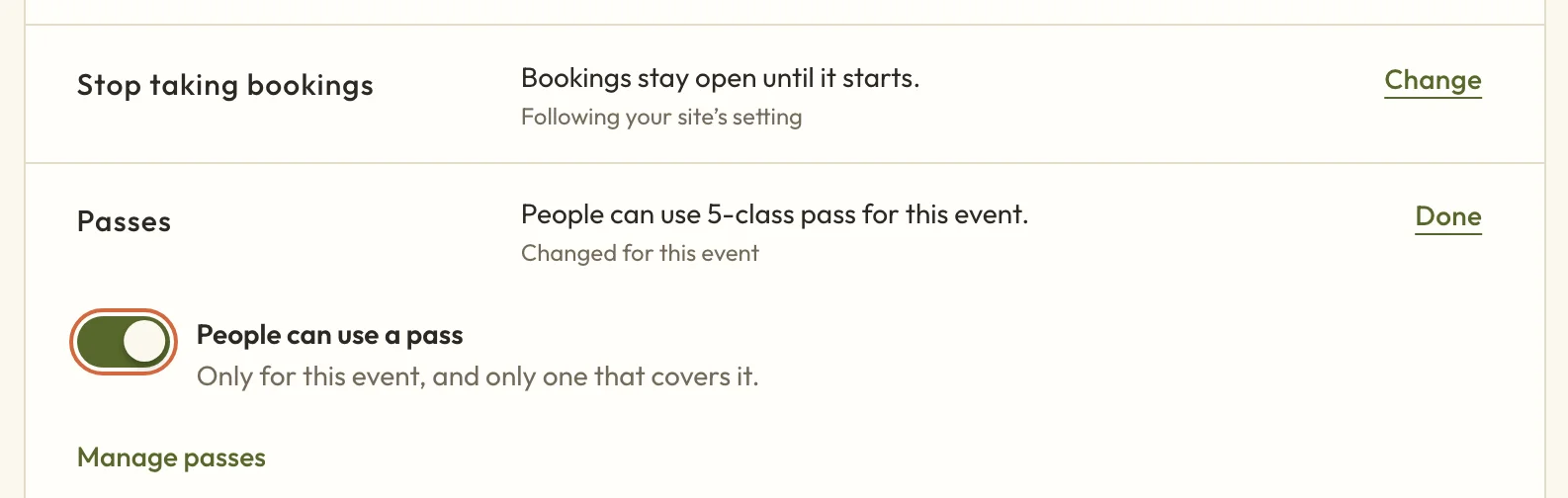 (opens the full-size picture in a new tab)Each class, workshop or event has its own setting for passes.
Passes can't be used for free events or to book a whole course. They also only work when someone books one place, so a client booking for themselves and a friend pays the usual way.
Choose what a package can be used for
Which services starts as All services. To limit a package to certain appointments, open it and tick the ones you want.
If more than one team member offers those services, you'll also see Who can they book with?. Clients can either book anyone who offers the service, or stay with one person each time. With the second choice, they pick that person when they buy the package, or you pick when you add it for them.
Choose when a pass expires
To set when a class pass expires, go to How long it lasts on the form. Leave No expiry chosen, or choose Expires after and set a number of days. It starts at 90, which is about three months.
The days are counted from the day the client buys it, and they're told the end date before they pay. A 90-day pass bought on 18 November ends on 16 February, for example.
A pass only covers classes that take place before it ends. If a client books several dates and some fall after that, they'll pay for those dates separately.
Changing how long a pass lasts only affects people who buy it from then on. To give one client longer, see Change or refund a client's pass.
Decide whether clients buy it online or you add it for them
Under How do clients get it?, choose one of these:
- They can buy it online, or you can add it for them offers it to clients on your booking page.
- You add it for them keeps it off your booking page, for clients who've paid you some other way.
- Not on sale means nobody can buy it and you can't add it to anyone, but people who already have it can still use it.
Clients can only buy online once you've set up online payments. Until then you can still create passes and add them to clients yourself.
How clients buy a pass on your booking page
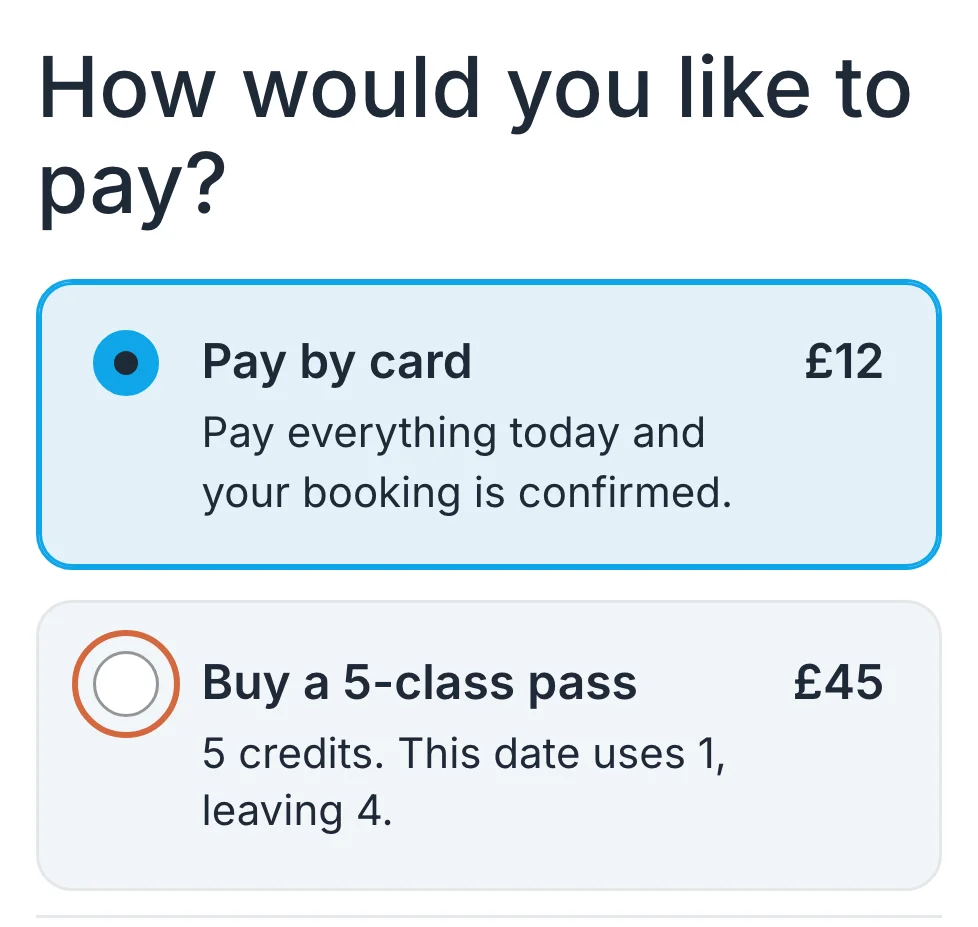
Clients buy a class pass on your booking page while they're booking a class. After they've chosen a date and filled in their details, How would you like to pay? lists Pay by card alongside each pass that covers that class. Each one shows its price, how many credits it has and how many are left after this booking. If the pass expires, it shows the end date too.
 (opens the full-size picture in a new tab)
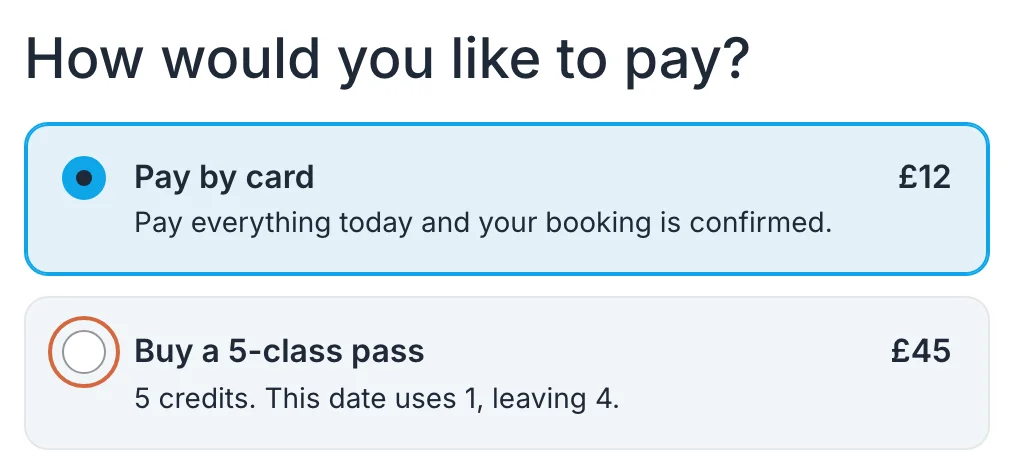 (opens the full-size picture in a new tab)Clients see your passes when they choose how to pay for a class.
If they choose a pass, the button changes to Buy pass and book. They pay the price of the pass, and one credit goes towards the class they're booking.
There's no separate page for buying a pass, so if you're telling clients about one, point them to any class it covers.
How clients use a pass they already have
Next time they book, clients choose Sign in on the booking form and they're emailed a link, so there's no password to remember. Their pass then appears as a way to pay, and each date they book uses one credit.
They can see what's left on their pass, and what it's paid for, under Your bookings on your booking page.
Change a pass you've already made
Choose the pass in your list, or Edit on its menu. You can change its name, description, price, how long it lasts, what it covers and how clients get it, then choose Save changes. The number of classes or sessions can't be changed.
Someone who's already bought the pass keeps their credits and expiry date. If you change which classes or services it covers, though, that does affect what they can book with it from now on.
To change one person's credits or expiry date, see Change or refund a client's pass.
Stop selling a pass
To stop selling a pass without affecting people who already have it, open the menu on its row and choose Deactivate, then confirm. The message tells you how many people have it. Nobody new can buy it, and anyone who already has it can still use what's left. To sell it again, open it and choose a different option under How do clients get it?.
Once it's off sale, the same menu offers Archive if someone still has the pass, or Delete if nobody does. If it's been sold in the past, choosing Delete archives it instead, so your records stay complete. Neither can be undone. To see archived passes, choose Show archived.
For unlimited bookings for a monthly or yearly fee, see Create and sell memberships.