Every payment people make through your booking page is in MoneyPayments, along with payments you've recorded yourself, like cash or a bank transfer. You can search it by name, email or order number, open a payment to see what it was for and how it was paid, and refund it from there.
If a client's worried about a payment, such as a card that didn't work or a refund they're waiting for, Sort out a payment problem starts from what they've told you.
Find a payment
Go to MoneyPayments and type a name, email address or order number into the search box. If someone's paid under a different email, try that too.
Each row shows who paid, what for, the date and the amount, and says Refunded or Part refunded if money has gone back.
If the list is long, you can narrow it down:
- Choose Payments, Refunded payments or All. Refunded payments shows payments that have had money given back, listed by the day they were paid. If you need refunds listed by the day you made each one, download them from Reports instead. Download your figures for your accountant explains how.
- Use the dates menu, which starts on All time, to show something like Last 30 days or Last 12 months.
- Open the All kinds menu to show only one kind of thing, such as Appointments, Passes or Memberships. The same menu has How paid, where you can show only Cash, Bank transfer, Card machine or Paid by card payments.
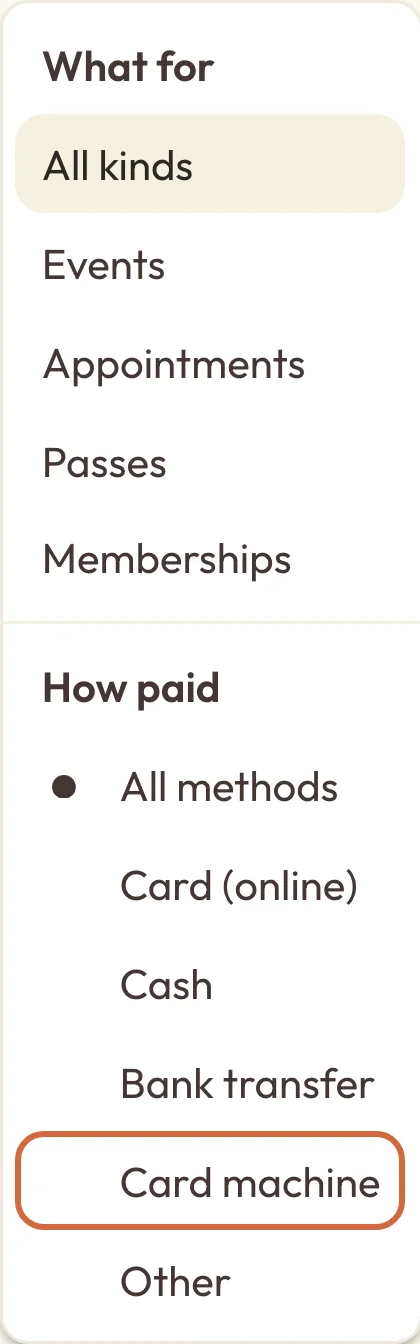 (opens the full-size picture in a new tab)
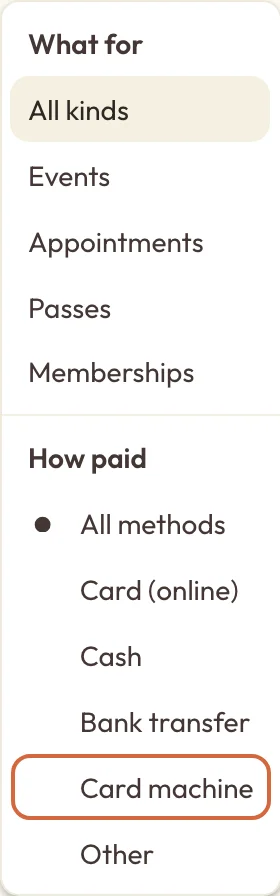 (opens the full-size picture in a new tab)How paid is in the same menu as the kinds of booking.
You can show 20, 50 or 100 rows at a time at the bottom of the list.
What a payment's details show
Choose a payment to open it. The amount is at the top, with what's happened to it:
- Paid means the money was taken and none of it has gone back.
- Part refunded and Refunded mean some or all of it has been given back.
- Being checked means the money arrived but we couldn't match it to their booking yet, so you can't refund it from here. A client has paid but hasn't got a booking says what to do.
Below that, you'll see:
- who paid, with a link to their details;
- what it was for, with the order number and whether it was a full payment, a Deposit, a Balance payment, an Instalment or a Membership renewal;
- the breakdown: the price, any discount code, what was paid and what's been refunded;
- The whole order, if this payment was only part of it, with the Order total, what's been Paid so far and what's Still to pay;
- how it was paid: Taken online through Stripe, or You recorded this payment yourself.
See the fees and which payout it was in
To see how much Stripe and Macadamia took from a card payment, open it. The owner and administrators see Stripe fee, Macadamia fee and Take-home in the breakdown. Editors don't see fees or payouts.
Under Paid out, it says which payment into your bank it was part of and when that arrived or should arrive, with See the payout. If Stripe hasn't paid it out yet, it says so. Stripe usually pays out a few working days after someone pays, and When money reaches your bank explains the timing.
The fees come from Stripe, so they might not be there straight after someone pays. Until they are, you'll see Fees and take-home will show here once we've fetched this payment from Stripe.
If your payments go to a Stripe account with its own dashboard, there's also Open in Stripe, which takes you to the same payment on Stripe's website. Stripe accounts that Macadamia set up for you don't have a dashboard, so there's no link.
Refund or cancel from a payment
At the bottom of a payment you might see:
- Refund, when there's still money that can be given back. For a payment you recorded yourself, like cash or a bank transfer, it says Record a refund.
- View refunds, once a payment has been fully refunded, to see when each refund was made and where it went.
- Cancel booking, for a single class, workshop or course booking that's still going ahead.
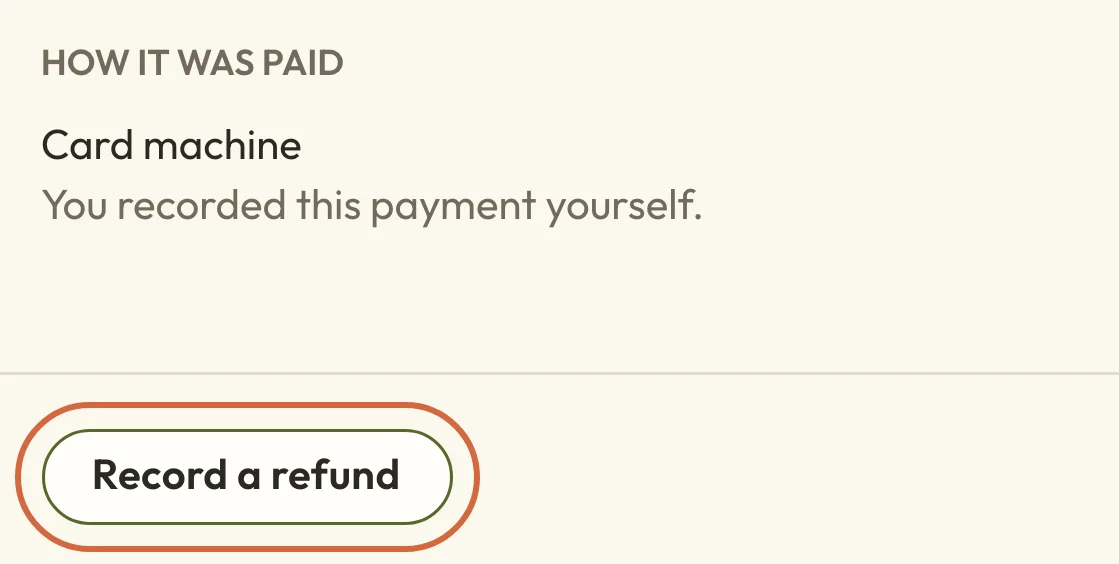 (opens the full-size picture in a new tab)
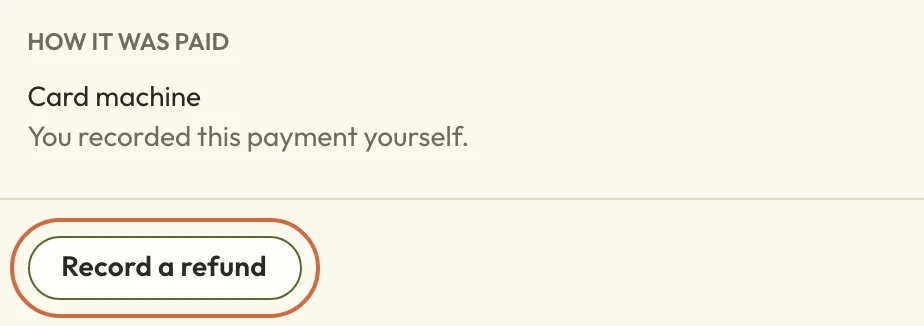 (opens the full-size picture in a new tab)A payment you recorded yourself has Record a refund.
Choosing Refund gives money back and leaves their booking as it is. The amount starts at everything that's left, and you can change it to refund part. Any Reason you add goes in the email they get.
Record a refund only makes a note of the refund. We don't send any money, so you'll need to give it back yourself, the way they paid.
If the payment covered several things, such as a few class dates booked together or a pass bought with a class, the buttons are beside each one under What it was for rather than at the bottom. The refund starts from that one thing's share of the payment, so refunding one date leaves the others as they are.
For what happens to someone's place and their money when you cancel, see Cancel or refund a booking.
Why a payment has no Refund button
If a customer has disputed the payment with their bank, you can't refund it here, and the payment tells you why. A customer disputed a payment explains what to do.
If you're an editor, some appointment payments can only be refunded by an administrator, and the payment says so.
Download a list of payments
Export CSV downloads every payment that matches your search and filters, not just the page you're looking at. Download your figures for your accountant says what's in it and which other downloads there are.