When a client's on the phone or at your door, the quickest way to find them is the Find a person box on your dashboard home. Their page shows their next session and how many sessions they've got left, and Purchases has their memberships and payments.
Before you tell someone they're all paid up, open the booking itself, because a booking can say Confirmed while money is still owed on it. There's more on that below, under checking whether a client has paid.
Find a client
Type their name or email address into Find a person on your dashboard home, then press Enter or Go on your keyboard. You'll land on BookingsPeople with the matches listed, and you can choose a name to open their page.
 (opens the full-size picture in a new tab)
 (opens the full-size picture in a new tab)Find a person is on your dashboard home.
If you're already on BookingsPeople, the search box there does the same job and updates as you type. Part of a name or email is enough.
If someone doesn't come up when you search, it's usually one of these:
- Accents count, so "Siobhan" won't find a name saved as Siobhán. Try the part before the accent, like "Siobh", or search their email.
- The words you type have to sit side by side in the saved name. "Maeve Byrne" won't find Maeve Anne Byrne, so try just one of their names.
- You can't search by phone number. Ask for their name or email instead. Once you've opened their page, their number is under their name.
- They might have used another email address, or be on your list twice. See Add a client or update their details.
Filter your client list by pass or membership
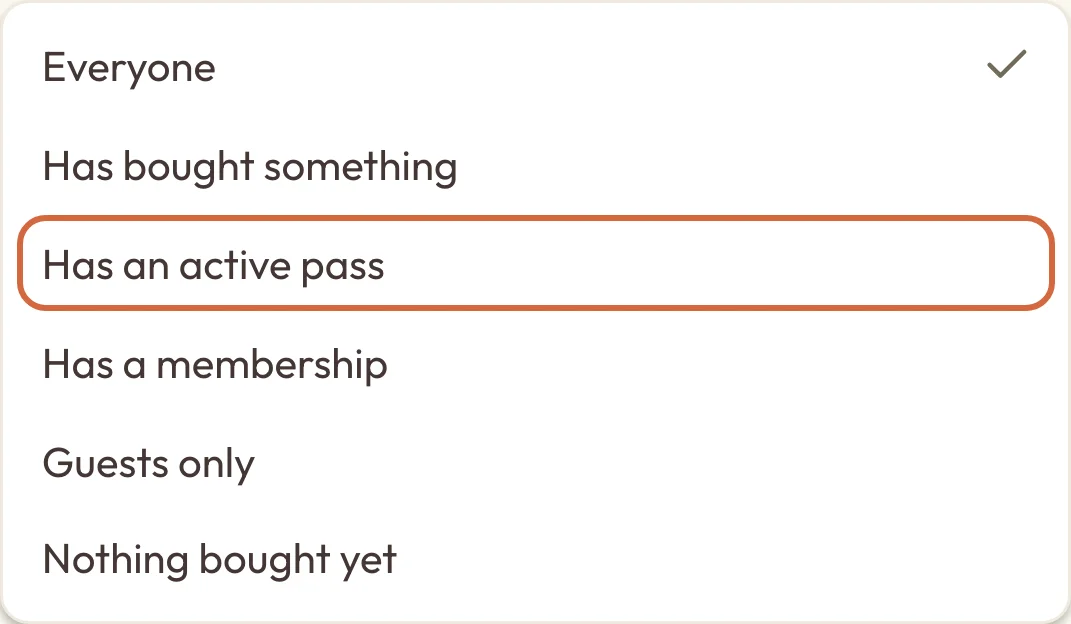
To see one group of clients, go to BookingsPeople and open the menu that starts as Everyone. You can choose Has bought something, Has an active pass, Has a membership, Guests only or Nothing bought yet. It works together with a search, so you can look for a name among your members, for example.
 (opens the full-size picture in a new tab)
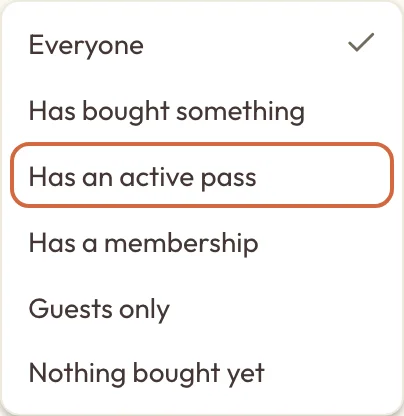 (opens the full-size picture in a new tab)Show one group of clients at a time.
The list starts with the people you added most recently. On a computer you can sort it by choosing a column heading: Name, Passes, Memberships, Last booking or Added. On a phone you can only sort by Name.
Last booking shows the date of their latest booking, so it can be a date that's still to come.
What New, Active and Lapsed mean on your client list
Each client on your list has a status, which comes from their bookings:
- New means they joined or first booked in the last 30 days, and haven't been to more than one session.
- Active means they've been to something in the last 90 days, or they've got a booking in the next 30.
- Quiet lately means their last visit was 3 to 6 months ago and nothing's booked.
- Lapsed means it's been more than 6 months and nothing's booked.
- Not enough history means none of those fit yet.
- Guest means they don't have a customer account of their own, usually because someone else booked their place.
You might also see Regular next to the status. That's someone who's been to 10 or more bookings, or spent £1,000 or more with you.
Check a client's next session and what they have left
Open a client and you'll start on Overview. Next session is at the top. Packages and credit lists each pass or package they can still use, with how many sessions are left and the date to use it by. Any site credit is shown there too.
Further down, Coming up and Recent list their latest bookings, followed by your Notes about them. The line under their name shows what they've spent after refunds and how many bookings they've made.
Memberships aren't on Overview, and neither are passes they've used up. If someone says they're a member, choose Purchases to check.
See a client's bookings
To see everything a client has booked, open them and choose Bookings. Appointments, classes, workshops and courses are all in one list, with what's coming up first, soonest at the top. Past and cancelled bookings follow, latest first.
A cancelled booking always goes in that second group, even if its date hasn't come yet. That's why Recent on Overview can show a cancelled class with a date in the future.
If they've booked a lot, the page says how many it's showing and there's a Show older bookings button at the bottom.
Choose View booking to open a booking, or View appointment record for an appointment.
If someone came as another client's guest, their booking says Guest of, followed by the name of the person who booked. Guests don't have a Purchases tab, because the payment is on the page of the person who booked.
Check whether a client has paid
To check whether a client has paid for a booking, open them, choose Bookings, then open the booking and look at Payment. Confirmed only tells you their place is booked, so Payment is where you'll see whether it's paid or how much is Owed. If an appointment hasn't been paid for, you'll also find Record payment and Send a payment link there.
To see all the money they've paid you, choose Purchases and scroll down to Payments. Each row shows what it was for, the amount and anything refunded, and you can open a row for the details. If it says No payments found, nothing has been paid or recorded for them yet, although they might still have booked with a pass or membership.
For every unpaid booking across your business, go to MoneyOwed to you. Follow up money you're owed explains what to do next.
See what a client has paid and what they hold
Open the client and choose Purchases to see how many sessions are left on their pass, whether the client has a membership, and their site credit. It lists everything they've bought from you, in this order:
- Passes & Packages lists each one with the sessions left and what they paid. A pass with nothing left is marked Exhausted.
- Memberships shows their current and past memberships. Past Due means a payment hasn't gone through, and Sort out a payment problem explains what to do.
- Credit shows their site credit. Available is what they can spend now.
- Payments lists what they've paid and any refunds.
 (opens the full-size picture in a new tab)
 (opens the full-size picture in a new tab)Purchases has their passes, memberships, credit and payments.
The activity under Credit uses some system words for now. refund_credit means credit they got back from a refund, redemption means credit they spent, and adjustment means someone changed the balance by hand. See Give or take away site credit.
To refund or change a pass, use the menu at the end of its row, and Change or refund a client's pass explains the choices. For memberships, see Cancel or refund a membership.
Find your notes and a client's form answers
Notes has what you've written about a client, and Forms & consent has the answers they gave when booking. On a phone, swipe the row of tabs sideways to reach Forms & consent. See Keep private notes about a client for who can read your notes.
Download a list of your clients
On BookingsPeople, set any search, filter and sort you want, then choose Export CSV. You'll get everyone who matches, across all pages, as a spreadsheet file. It includes their contact details, when they were added, their passes and memberships, their booking and cancellation counts, and what they've spent.
The file includes phone numbers, so it's also a way to look someone up when a number is all you have.
To download everything you hold about one person, see Download or remove a client's data.
What team members see
If you're a team member with Appointments or Packages access, this page is called Your clients. It shows only the people you've added, seen, booked into your classes or sold a package to, with how many sessions they have left with you. You can filter it by 2 or fewer left or No sessions left. You'll only see the packages they hold with you, and you can't export the list.
To add someone, choose Add client and give their email, plus a name and phone number if you have them. You'll then see what you can do next, such as Add a package, Book an appointment or Add to a class, or you can choose Done and come back to them later.
If that email is already saved at your business, they won't be saved twice. They go on your list, but you'll only see their name and email until you've booked them in or sold them a package.
When you're booking an appointment or adding a package, the Find a client box works the same way. A name finds your own clients, and someone's full email also finds them if they've been to your business before.