You can sell gift cards and vouchers on your booking page, send one to someone yourself, and refund, cancel or extend a gift that hasn't been used yet. It all lives in BookingsGift cards & vouchers, which has three tabs: Gifts, What you sell and Settings. Only the owner and administrators can manage gifts.
What the buyer and the person receiving a gift each get
When someone buys a gift card or voucher, the buyer gets a receipt by email straight after paying. The person receiving the gift gets their own email, either straight away or on the day the buyer picked, with the gift's code, its expiry date and any message from the buyer.
A gift card email has a Redeem your gift card button. A voucher email has a code to enter when they book. The payment shows in MoneyPayments under the buyer's name, and the gift is listed under Gifts.
Choose between a gift card and a voucher
A gift card is an amount of money. Whoever receives it adds it to their account as site credit, then spends it when they book.
A voucher pays for one specific thing, like a class or a massage. It's paid for in advance, and they use its code once when they book that thing.
Create a gift card or voucher to sell
- Go to What you sell and choose Add gift card or voucher.
- Under What kind of gift is it?, choose Gift card (an amount of money) or Voucher (a specific thing).
- Give it a Name, which people see when they buy and in the gift email. You can add a Short description (optional) too.
- For a gift card, set the Amounts people can choose, using Add amount for each one. To let people pick their own amount, turn on Also let them type their own amount and set From and Up to.
- For a voucher, set its Price, then choose What does this voucher pay for? Some choices then ask Which one?
- Choose Create gift card or Create voucher.
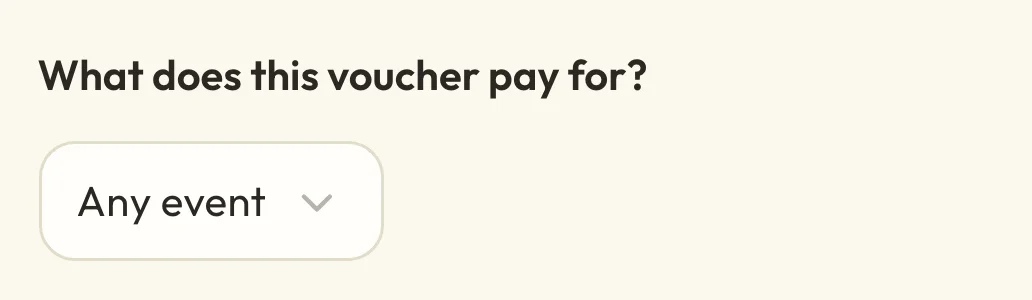 (opens the full-size picture in a new tab)
 (opens the full-size picture in a new tab)Open this list to choose what the voucher covers.
You'll only see choices for things you offer that are still running, such as a class with dates coming up.
Let people buy gifts online
Each gift card or voucher you create has a switch on What you sell. Set to Shown, your booking page gets a Gifts section and a Gifts link in its menu, so there's nothing else to add. If you hide them all, the section and the link go away.
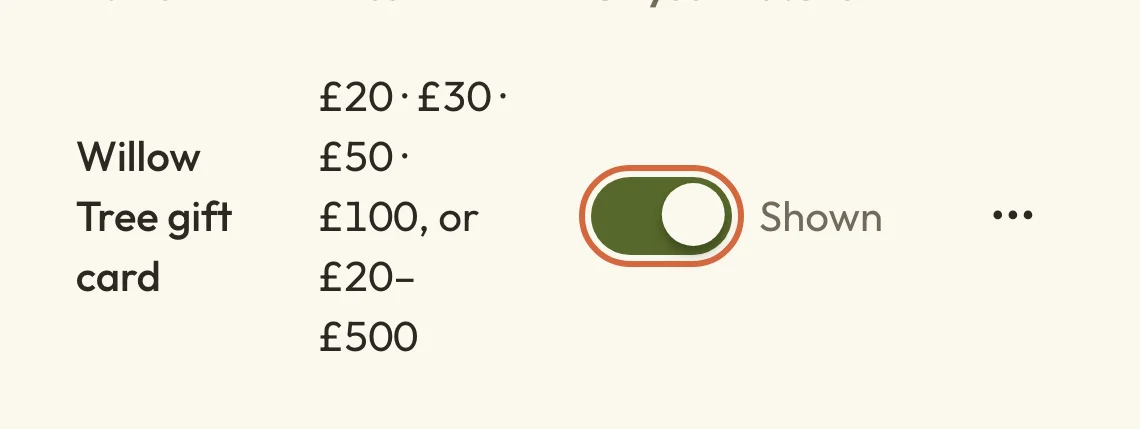 (opens the full-size picture in a new tab)
 (opens the full-size picture in a new tab)Anything set to Shown appears in the Gifts section of your booking page.
If you have a full website rather than a booking page, people buy through a Gift cards & vouchers block, which you add to a page in the page editor.
Customers can only pay for gifts once you've set up online payments. Gift cards also need your site to be live, so people can claim them.
How a gift card gets spent
To spend a gift card, the person receiving it first adds it to their account. They choose Redeem your gift card in their email, check the email address and choose Add to my credit. If the button doesn't work, the email also has a link where they can type in the code.
The full amount then becomes site credit on that email address, and it comes off what they pay when they book. Site credit doesn't expire, so once a gift card's been claimed there's no deadline for spending it.
Using a voucher, and what happens if the booking is cancelled
To use a voucher, the person books the thing it pays for and enters the code under Have a discount code? at checkout. It has to be used before its expiry date, and it only works once.
Once a voucher has been used it stays used, even if the booking is cancelled afterwards. They can't use the code again and you can't switch it back on. To make it up to them, you can send a new voucher with Send a gift.
The voucher takes the full price of one place off, whatever you charged for the voucher. If your price has gone up since it was bought, it still covers the place. If they book several places, it covers the most expensive one that qualifies and they pay for the rest.
Send a gift yourself
You can send someone a gift card or voucher without anyone paying, perhaps as a thank-you or to make up for a cancelled class. The person can spend it, so don't use it to test. You need at least one gift card or voucher set up first.
- Choose Send a gift.
- Choose What are you sending? and, for a gift card, enter the Amount.
- Fill in Their name and Their email, and add a Message to include in the email (optional) if you like.
- Under When should it go?, choose Now or On a date…, then pick the day under Send on. Scheduled gifts go out at 9am your time.
- Choose Send gift or Schedule gift.
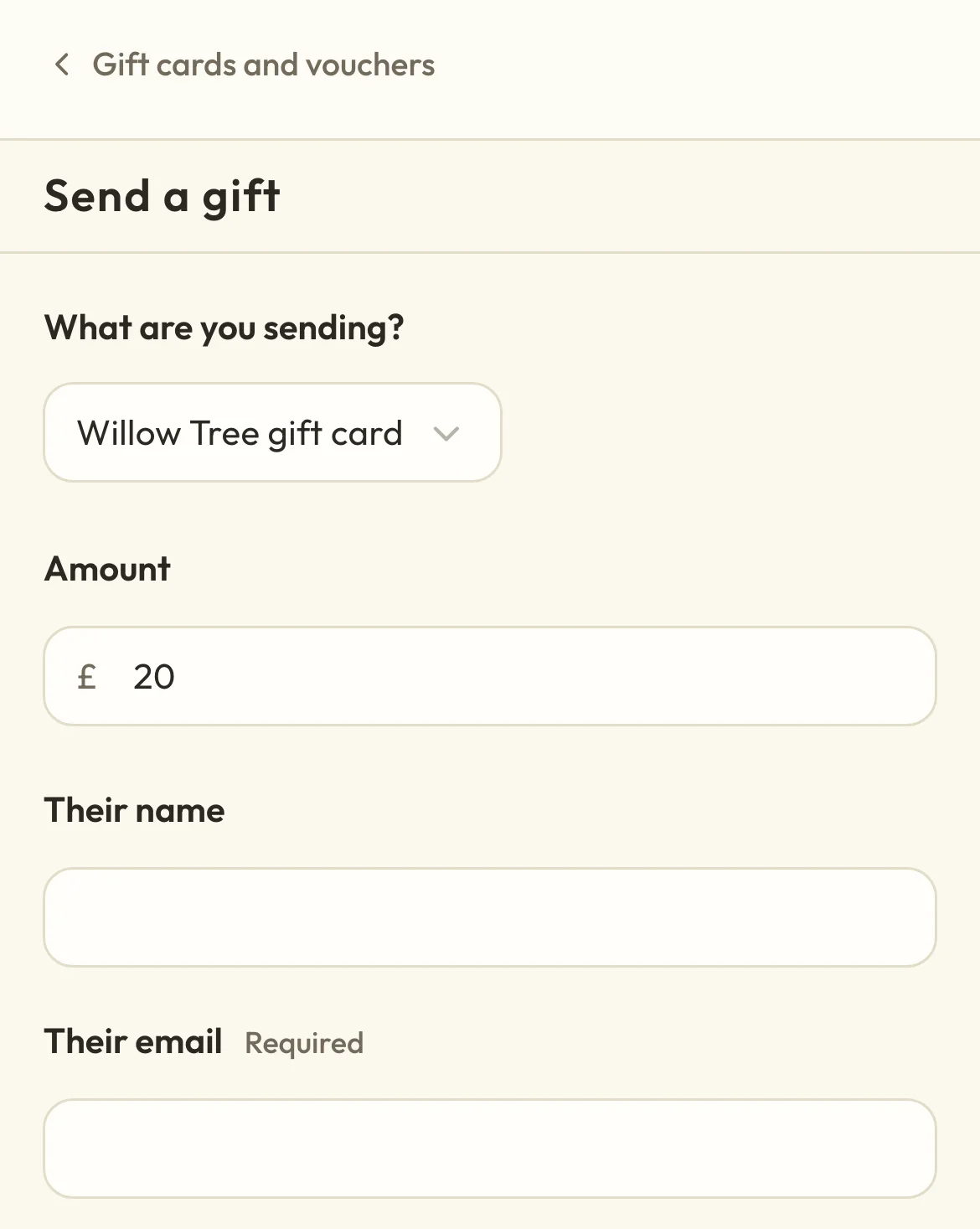 (opens the full-size picture in a new tab)
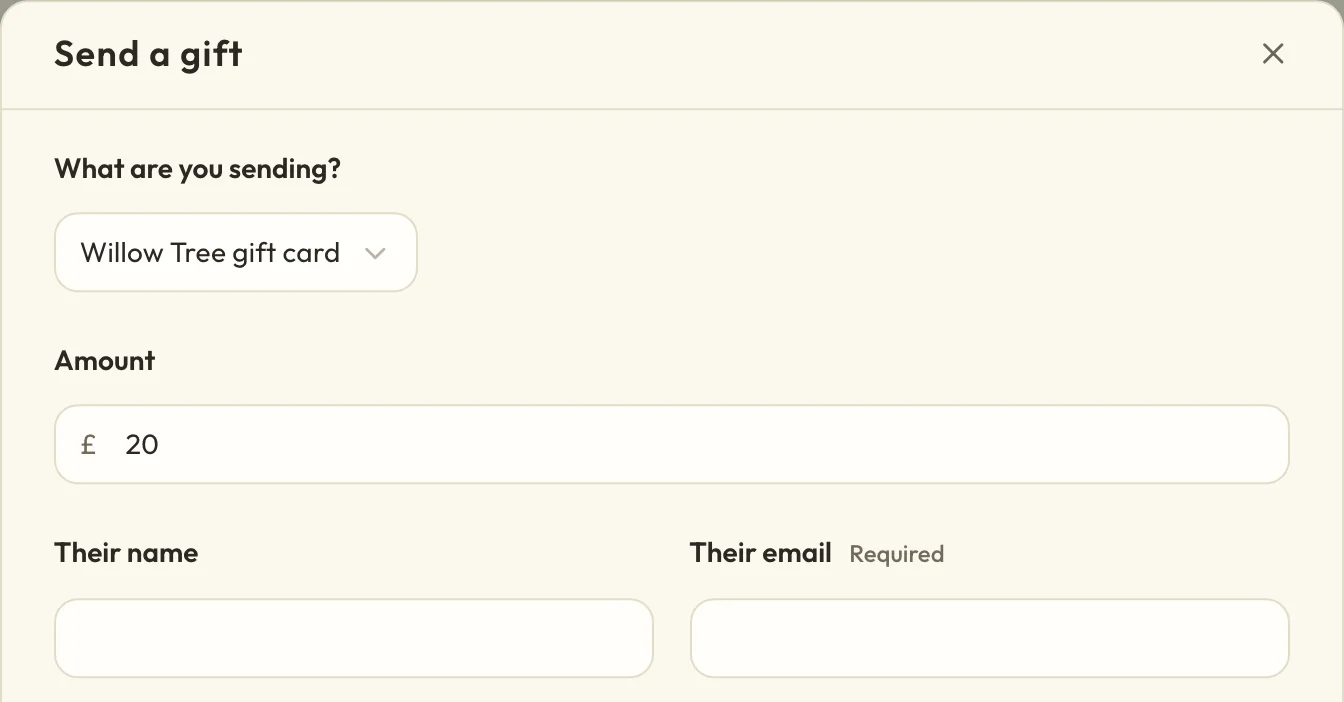 (opens the full-size picture in a new tab)Choose the gift first. A gift card then asks how much it's for.
If it's from someone else, turn on Show it as from someone else and add the Sender's name and Sender's email. There's also a Private note (only you see this) for your own records.
Find a gift you've sold or sent
Every gift is listed under Gifts. Use Search gifts to look for a name, email or code, or filter by Waiting to send, Sent, Claimed or used, Expiring soon, Expired or Needs attention.
Open a gift to see what's happened to it, such as when it was emailed, claimed or used, and to find the buttons for changing it.
If someone didn't get their gift
If someone can't find their gift email, open the gift, or the menu on its row, and choose Resend email. For a gift card this sends a new link and the old one stops working. A voucher keeps the same code.
If the email address was wrong, choose Correct email and resend instead. The old gift card link stops working, and a voucher gets a new code, so the old code stops working too.
You can do this once the email has gone out, as long as the gift hasn't been claimed or used. A gift waiting for its send date has to go out first, so you can correct the address after that.
Refund or cancel a gift
For a gift someone bought, open it and choose Refund and cancel. The buyer gets the whole amount back on their card and the gift stops working straight away. You can't refund part of a gift. The buyer is emailed about the refund, but the person receiving the gift isn't, so you might want to let them know.
If you see an error, the gift may have stopped working while the buyer is still waiting for their money. Open the gift again and choose Refund payment or Finish refund, whichever it shows. The box will tell you if the money has already gone back.
To stop a bought gift working and keep the payment, choose Cancel without refunding. You can still refund the buyer later from the gift's page, with Refund payment. For a gift you sent for free there's nothing to refund, so the button is Cancel gift.
You can do any of these until a gift card's been claimed or a voucher's been used, including after the gift has expired. Once it's claimed or used, it can't be refunded or cancelled.
If someone is using a voucher in a checkout at that moment, you'll be asked to try again in half an hour.
If you refunded a gift in Stripe, will it still work?
Yes, a gift you refund in your Stripe dashboard will still work. The refund shows in MoneyPayments, but nothing tells the gift to stop. To stop it, open the gift and choose Cancel without refunding. The buyer's money has already gone back, so nothing more is refunded.
What happens when a gift card or voucher expires
When a gift's expiry date passes, an unclaimed gift card can't be claimed and a voucher's code stops working. Nobody's refunded automatically. Someone opening an expired gift card link is told the date it expired and asked to get in touch with you.
Site credit from a gift card that's already been claimed isn't affected, because credit doesn't expire. If you'd like to give them longer, you can change the expiry date.
Give someone longer by changing the expiry date
To give someone longer to use a gift, open the gift and choose Change expiry date. Pick the new date and choose Save expiry date. The gift lasts until the end of that day, and you can move the date later or earlier, as long as it isn't in the past.
This works for a voucher that hasn't been used or a gift card that hasn't been claimed, once its email has gone out. The change shows in the gift's history, with the old and new dates.
You can bring back a gift that's already expired in the same way. A voucher's code starts working again, and a gift card can be claimed again. There's a box to email the gift to them again, so they know about the new date.
Choose how long gifts last
Under Settings, set How long gifts last, in days, and choose Save changes. It's counted from the day the gift is sent, so a gift scheduled for next month doesn't lose any time while it waits.
This only affects new gifts. Gifts people already have keep their expiry date, though you can change it for any one gift.
You can also add a Message (optional) under After someone redeems a gift card. People see it once the gift card's credit has been added to their account.
How much you're holding for unspent gifts
MoneyOverview shows the value of paid-for gift cards and vouchers that haven't been spent under Held for customers. Your accountant may ask about it at the end of the year.
Gifts you sent for free are counted separately, in the line that starts "Given away for free". A gift leaves the figure once it's used, cancelled or expired, and a claimed gift card moves into Account credit.