A discount code takes money off when a client books online, such as 10% off a class or £5 off an appointment. You create the code in BookingsDiscount codes, and it works as soon as you've saved it. Clients type it in when they pay.
Macadamia doesn't send the code to anyone, so you'll need to share it yourself, perhaps in a newsletter or on social media. Codes only work on bookings clients make online, so you can't use one when you add someone to a class yourself. Only the owner and administrators can manage discount codes.
Create a discount code
To create a discount code, you choose what clients type, how much comes off and what it can be used for:
- Go to BookingsDiscount codes and choose Create code.
- In Code, enter what clients will type, such as WELCOME10. It doesn't matter whether they use capitals.
- In Discount name, enter the name clients see when the code is applied, such as "Welcome offer".
- Under Discount type, choose Percent or Fixed amount, then fill in Percent off or Amount off.
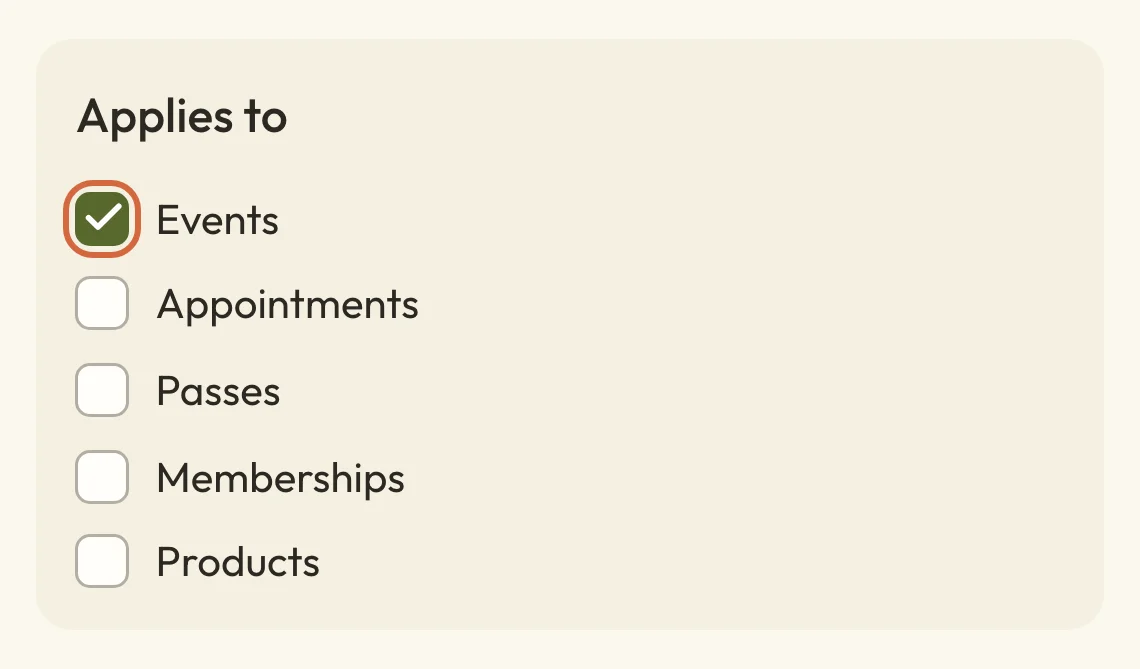
- Under Applies to, tick what the code can be used for.
- Choose Create code.
The Create code button at the bottom stays greyed out until you've filled in the code, the name and the amount, and ticked something under Applies to.
Description is optional. Clients can see it beside an automatic discount, so don't use it for private notes.
 (opens the full-size picture in a new tab)
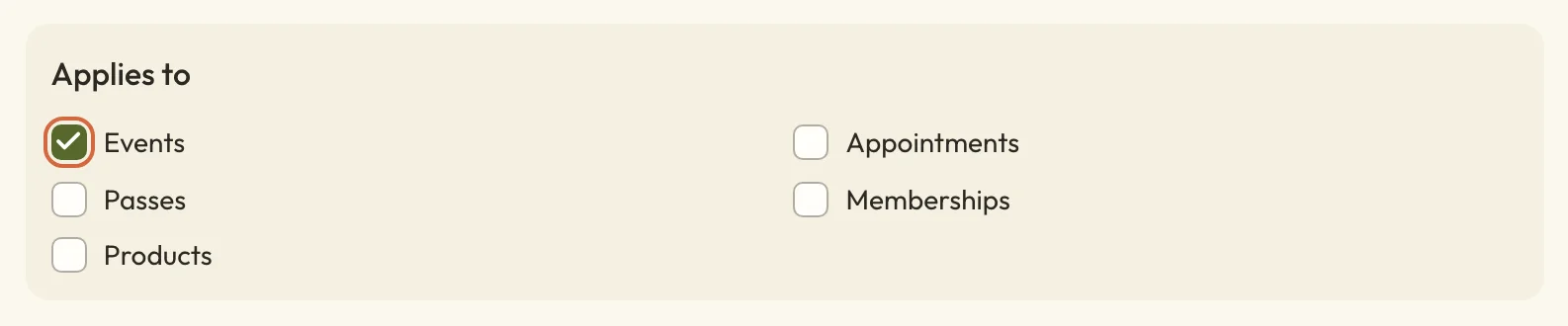 (opens the full-size picture in a new tab)Tick at least one thing under Applies to, or the code can't be saved.
Choose what a discount code works on
Under Applies to, tick each kind of booking the code should work on. The first choice uses your own names for what people book, such as "Classes and workshops", and the others include Appointments, Passes and Memberships.
Each thing you tick opens its own choices, so a code can cover everything of that kind or only some of it. For classes, pick the option starting "Selected" that uses those same names, then choose them from the list. Selected categories works the same way for a whole category. A code for a course covers all its runs, including ones you add later.
To reward group bookings, turn on Require minimum tickets and set Minimum tickets from 2 to 5. The places have to be on the same date, so two people on one class count as two, but one person on two dates doesn't.
If you use combination prices, leave Can be used with combination prices on for the code to come off those dates too. With it off, the code only comes off dates that aren't part of a combination price.
How much comes off when someone books several dates
A percentage comes off everything the code covers, and a fixed amount comes off once per booking. On two £12 classes, 10% off takes £2.40 off the £24 total. A £5 code takes £5 off the total, not £5 off each date.
A fixed amount can't take a booking below zero. If a code covers the whole price, the client doesn't have anything to pay.
How clients enter a discount code
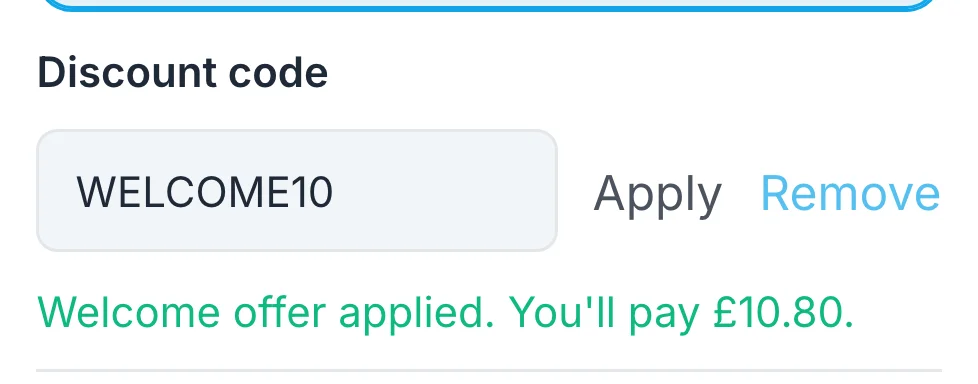
Clients enter a code at the payment step of booking. They choose Have a discount code?, type the code and choose Apply. The price changes straight away, and they'll see a message such as "Welcome offer applied. You'll pay £10.80."
 (opens the full-size picture in a new tab)
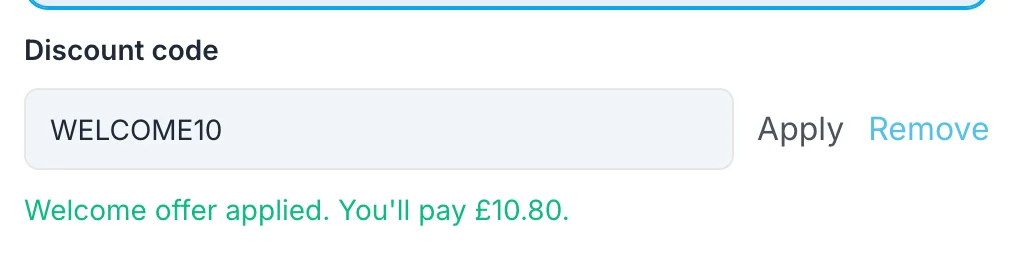 (opens the full-size picture in a new tab)Clients see the new price as soon as they apply the code.
The box is only there when they're paying by card. If they choose to use a pass or membership, or buy one, it disappears.
If a client tells you their code didn't work, the message they saw explains why:
- We don't recognise that code. The code is mistyped, or it's turned off.
- This code doesn't work for this booking. It doesn't cover what they're booking, or they haven't booked enough places.
- This code isn't active yet. Its start date hasn't arrived.
- This code has ended. Its end date has passed.
- You've already used this code. It's limited to once per email address.
- This code has run out. It's reached its total number of uses.
Put a discount on a pass or membership
To put a discount on a pass or membership, tick Passes or Memberships under Applies to and turn on Auto-apply. You'll need Auto-apply because clients buy these while they're booking a class or appointment, and there's no box for typing a code at that point.
The list of ways to pay still shows the full price. The discount appears in the client's total once they've chosen the pass or membership.
How long the membership discount lasts offers First invoice only or Every invoice. At the moment, plan on the discount coming off the first payment only, even if you choose Every invoice.
Limit how many times a code can be used
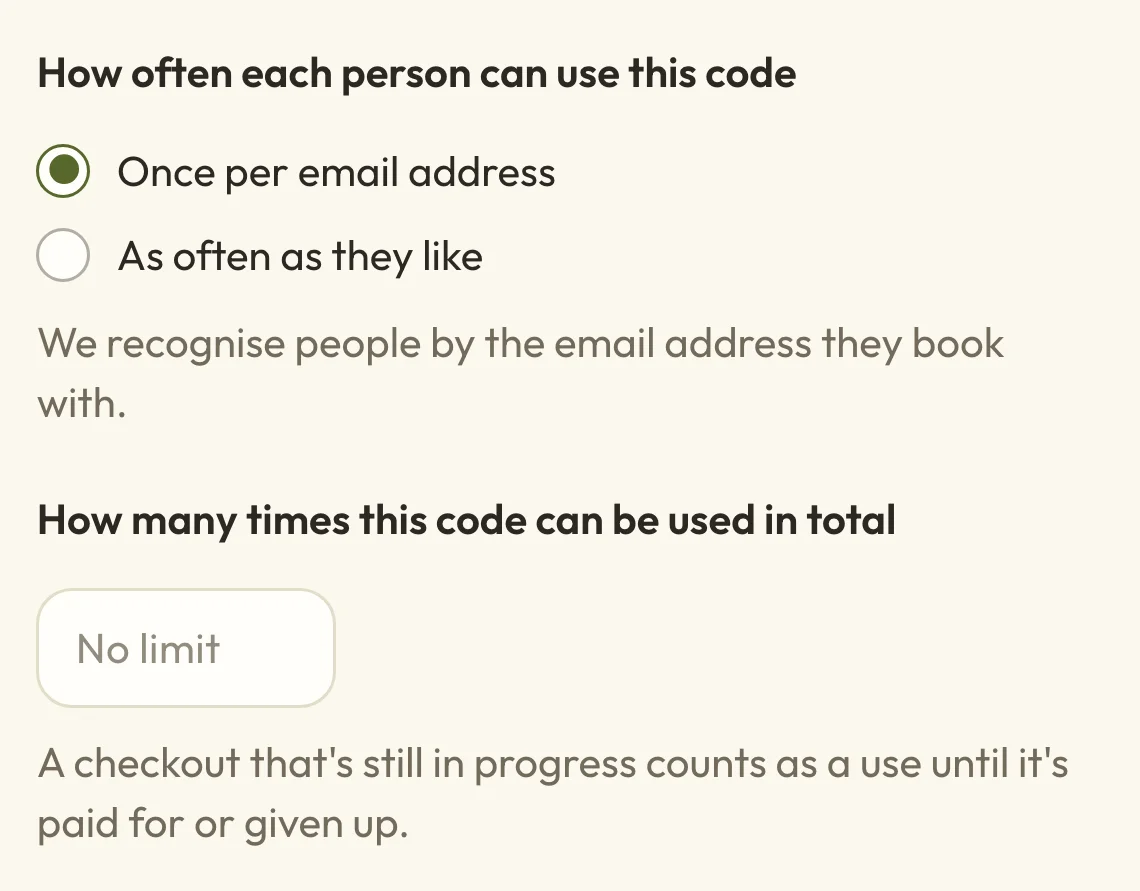
A code can have a limit for each person, a limit for everyone, or both. You'll find them together on the form.
How often each person can use this code starts on Once per email address. Change it to As often as they like for an offer people can keep using. This goes by the email address they book with, so someone using a different address could use the code again.
How many times this code can be used in total is for offers like "the first 20 people". Leave it empty for no limit. Someone who's partway through paying holds one of those uses, and it's freed if they give up, which can take up to two hours.
 (opens the full-size picture in a new tab)
 (opens the full-size picture in a new tab)Leave the total empty if you don't want a limit.
The Uses column in BookingsDiscount codes keeps count, such as "3 used, 17 left". Once they've all gone, the code shows as Used up. On a phone you might need to swipe the table sideways to see Status.
Run a discount for a set time
To run an offer between two dates, turn on Schedule this discount and set Starts at (optional), Ends at (optional) or both. The times follow your business's time zone, wherever you are when you set them.
Before it starts, the code's status shows the start date, and afterwards it shows Ended.
Apply a discount automatically
Turn on Auto-apply and the discount comes off by itself, without the client typing anything. It still needs a Code, although nobody has to use it.
Only one discount comes off each booking, so discounts don't add together. If more than one automatic discount could apply, the client gets whichever takes the most off. If they type a code instead, the code they typed is the one that's used. A gift voucher goes in the same box, so it can't be combined with a code either.
What happens to a discount when a booking is cancelled or refunded
When a booking is cancelled or refunded, the client gets back what they paid after the discount, not the full price. Someone who paid £10.80 for a £12 class with a code can have up to £10.80 refunded.
Whether they can use the code again depends on what you did:
- If you cancel the whole booking, the use is given back. They can use a once-per-person code again, and it frees up a place in any total limit.
- If you cancel only part of a booking, such as one date out of several, the use still counts.
- If you refund them but keep the booking, the use still counts, even after a full refund.
A client who cancels and rebooks only gets the discount if the code is still running. To cancel or refund a booking, see Cancel or refund a booking.
See who has used a discount code
To see each time a code was used, go to BookingsDiscount codes and choose Redemptions. Each row shows the code, the client's email, how much came off and what they paid. You can search by code or email.
The Status tells you what became of each one:
- Used means the booking went through.
- In checkout means they're partway through paying.
- Not used: cancelled or not completed means the booking was cancelled, or the payment didn't finish.
- Not used: checkout not completed means they gave up before paying.
For totals, such as how much discount a code has given, see See what money has come in.
Change, pause or delete a discount code
To change a code, choose it in BookingsDiscount codes, make your changes and choose Save changes. Changes don't affect what anyone has already paid.
To stop a code working for now, turn off Active. It keeps its history, and you can turn it back on whenever you like.
To remove a code for good, choose the ⋯ menu at the end of its row, then Delete and Delete discount code. This also removes its history from Redemptions and can't be undone, so turning off Active is usually the better choice once a code has been used.