You can email the people booked on a class, workshop or course from Macadamia, which is handy when the room has changed or you want to tell everyone what to bring. Each person gets their own copy, so nobody sees anyone else's address. You can't take a message back once it's gone, but the page tells you how many people it'll reach before you send, and keeps a record afterwards.
If your news is about one class, message that date. Everyone booked might look like the obvious choice, but it also reaches people whose dates have already passed.
Message everyone on one date
To email everyone coming to one date, such as Thursday's class, or to tell tonight's class the room has changed, start from that date:
- Open the class from BookingsAll events.
- Go to BookingsAll eventsDates and choose the date.
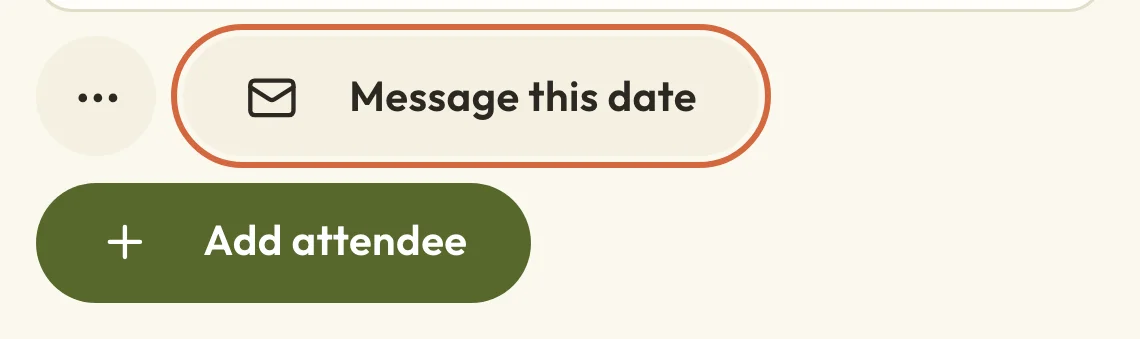
- Choose Message this date. The button appears once at least one person has booked.
 (opens the full-size picture in a new tab)
 (opens the full-size picture in a new tab)Message this date is with the list of people booked on that date.
The page that opens has One date selected, with your date under Which date, so check it's the one you meant. You can also start from BookingsAll eventsMessages, which is under More on a phone, and choose One date yourself.
If you're a team member who runs some dates, you'll only see the dates you've been given.
Message everyone booked on a class or event
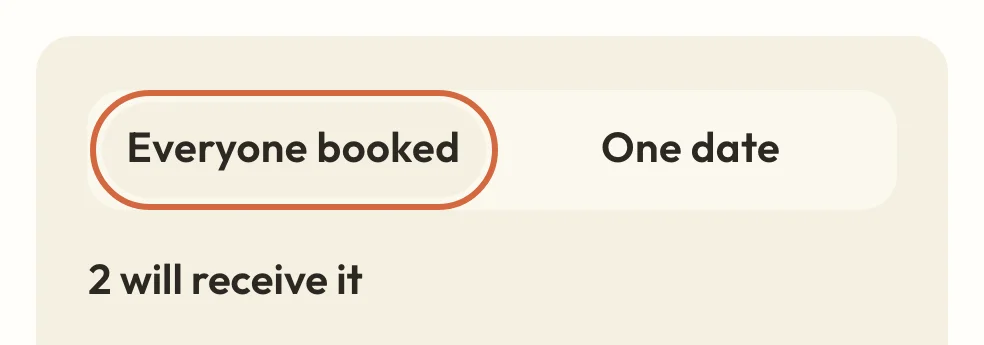
Choosing Everyone booked emails the people on every date of a class or event, including dates that have already happened. Someone who came once last month will get your message even if they've nothing booked now, so it's best kept for news that's meant for all of them.
To use it, go to BookingsAll eventsMessages and choose Everyone booked. If your news only affects dates still to come, send it to One date instead, once for each date. Someone booked on two of those dates will then get two emails.
 (opens the full-size picture in a new tab)
 (opens the full-size picture in a new tab)Choose who it goes to, then check the number underneath.
You'll only find Messages on events that people book onto. People on a class or event's waiting list don't get these messages.
Message everyone on a course run
For a course, choose the run from the course's BookingsAll eventsAll runs, then go to BookingsAll eventsMessages. A message there goes to the people on that run only, not other runs of the course.
To begin with, it goes to everyone booked on the run and anyone who's finished it. If the run has a waiting list, you can tick the option to include the people waiting too.
Each course booking gets one copy, sent to the person who made it. If someone booked two places, the other person won't get your message, so you might want to ask whoever booked to pass it on.
Check who your message goes to
The Messages page tells you how many people will get your message, such as 1 person will receive it. If anyone's being left out, it says how many and why, and Who is left out lists their names.
Someone might be left out because:
- their booking was cancelled
- their payment failed or is still going through, or their place isn't confirmed for another reason
- there's no email address on their booking
- they're on the waiting list
- their email address is already on the list
That last reason is nothing to worry about. Someone booked on several dates only gets one copy, and so do two bookings that share an email address. On a class or event date, a guest whose own email address is on the booking gets a copy too.
Write your message
Fill in the Subject and Message. The subject can be up to 140 characters.
Your email contains only the words you write, so say which class and date you mean, because Macadamia doesn't add them for you. It's plain text, so leave a blank line to start a new paragraph. You can't add pictures or attachments.
The assistant can help you write it, by drafting a message or reworking your own words. Choose Put it in the message box on its reply to see them in the editor. If you've already written something, it asks before replacing it. The assistant can't send the message, test it or change who it goes to.
Clear empties the message if you want to start again.
See what your message will look like
The line under the message box shows the name your email comes from and the address replies will go to, so you'll know where to look for answers.
To see it as your clients will, choose Send me a test. A copy goes to the email address you sign in with, with [TEST] at the start of the subject, and nobody else gets it.
The send and test buttons stay greyed out until you've written a subject and a message. If they're still greyed out after that, there might be a problem with your email set-up, and the page tells you what needs fixing.
Send your message
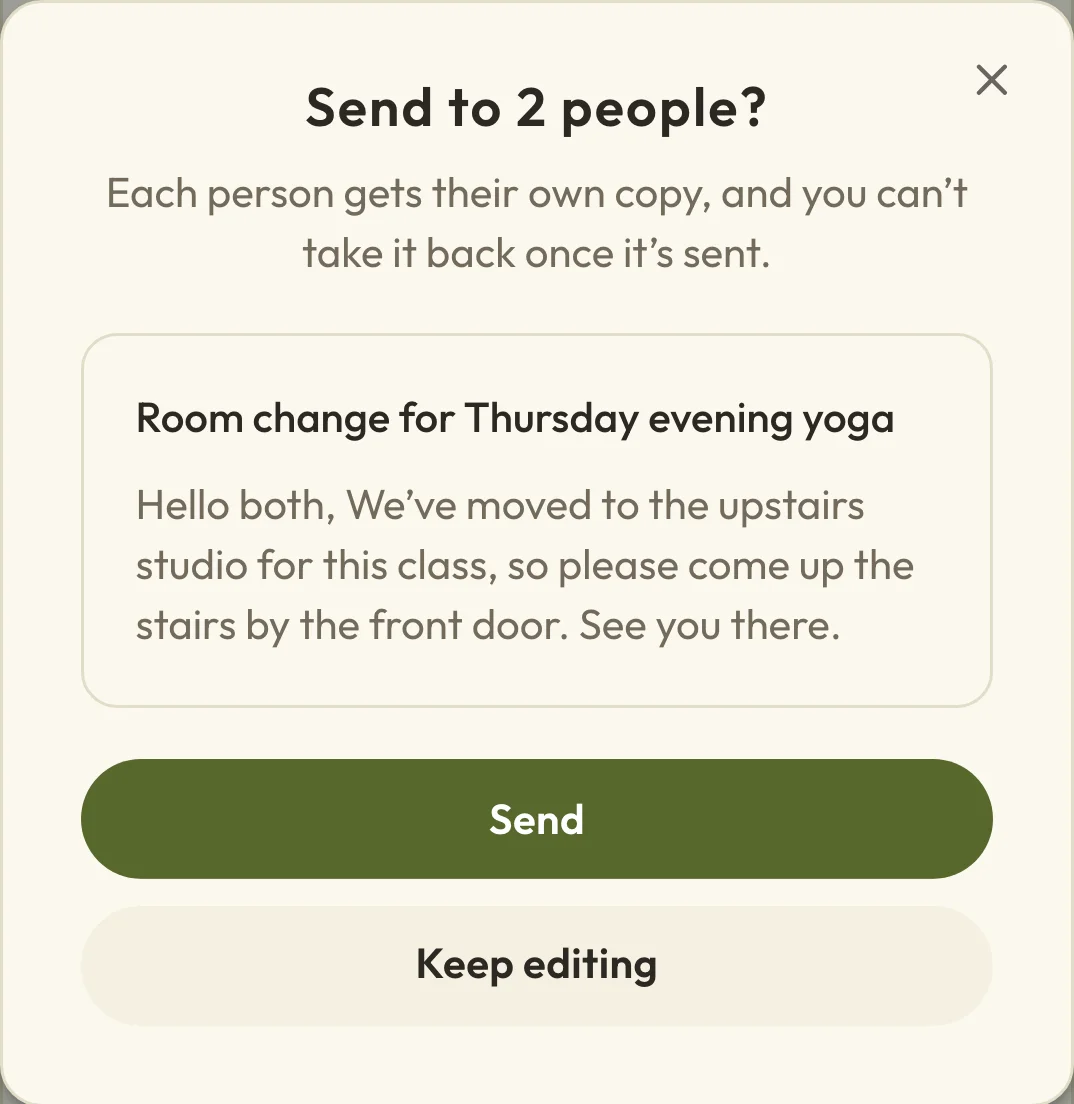
Nothing goes out until you've confirmed it:
- Choose the send button, which shows how many people it's going to, such as Send to 12 people. If it's going to more than 50 people, you'll first need to tick I have checked who this is going to.
- Read the subject and the start of your message in the box that opens.
- Choose Send, or Keep editing to go back and change something.
 (opens the full-size picture in a new tab)
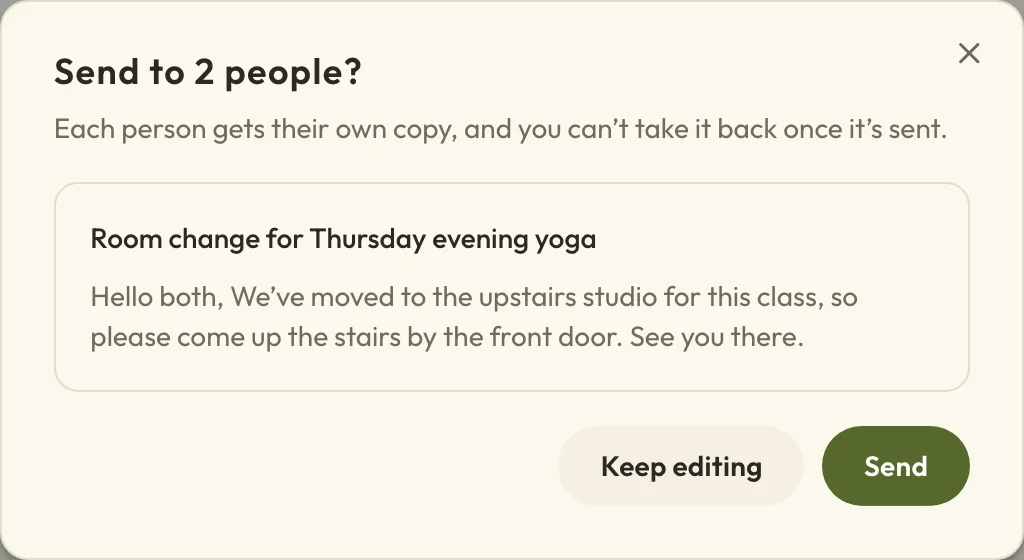 (opens the full-size picture in a new tab)Check your words here before you choose Send.
If someone books or cancels while you're writing, Macadamia asks you to check the list again before it sends. You can send to up to 500 people at a time.
Check your message was sent
To check your message to the class went out, look at the line above the buttons straight after you send. It says how it went, such as "1 sent". It might also tell you that some are on their way, couldn't be sent or might not have arrived. If some couldn't be sent, check those people's email addresses. Don't send the whole message again just because a few are still on their way.
Your message is then listed under Sent messages on the same page, with the date and how many people it went to. Choose View to read what you wrote. The list shows the number of people rather than their names.
Sent messages only shows what you sent to the choice that's selected. A message sent to One date appears when that date is selected, and if you switch to Everyone booked it'll look as though nothing has been sent. Before you send something again, go back to the choice you used the first time.
Correct a message you've already sent
You can't undo an email you've sent to your class, or change it afterwards, so the way to put a mistake right is to send a follow-up:
- Under Sent messages, choose View on the message.
- Choose Send this again. This only copies your words back into the message box, and nothing is sent yet.
- Make your correction, and say in the subject that it's an update so people read this one.
- Send it in the usual way.
Tell someone who booked too late to get your message
People who book after your email has gone out won't get it. Sending it again would email everyone else a second time, so it's better to write to the new person from your own email. Their address is on the class date's list of people.
Send it from your own email instead
If you'd rather send from your own email program, use the button that copies everyone's email addresses, such as Copy 12 email addresses. Paste them into the Bcc line so nobody sees anyone else's address.
If there are more than 100 addresses, you'll see a warning, because some email programs might not take that many at once. If copying doesn't work, the page shows the list so you can select and copy it yourself.
Changes that email people for you
You might not need to write a message at all. When you change a venue or online joining details, you can tick a box to email the people booked, which Edit an event's details and booking settings explains. Cancelling a date has its own email too, covered in Change or cancel class and workshop dates.
Booking confirmations and reminders go out on their own. To change what they say, see Change the wording of your booking emails.